



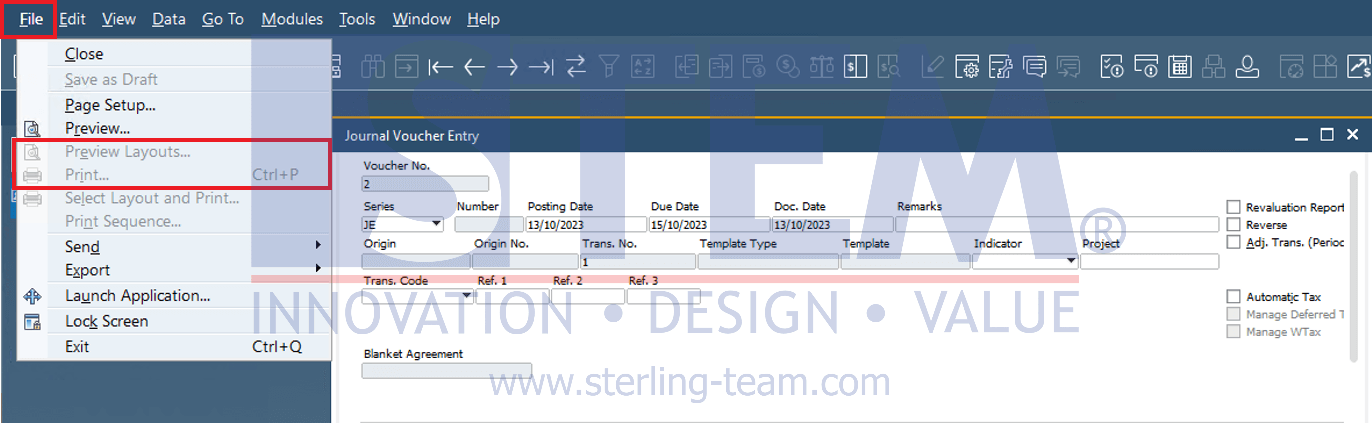
A user may want to print a Journal Voucher transaction that has already been created, but will find that the Print and Preview Layout buttons on the Journal Voucher Entry window are disabled. As a result, the user cannot directly open the preview layout or print the document, as shown below:
Why Can’t You Print a Journal Voucher from Journal Voucher Entry?
This behavior is by design in SAP Business One. The Journal Voucher Entry window is only intended for entering or recording transactions. From this window, the user cannot directly print the document.
How to Print a Journal Voucher in SAP Business One
To print a Journal Voucher, the user needs to do it through the Journal Voucher window.
Open the Journal Voucher Window
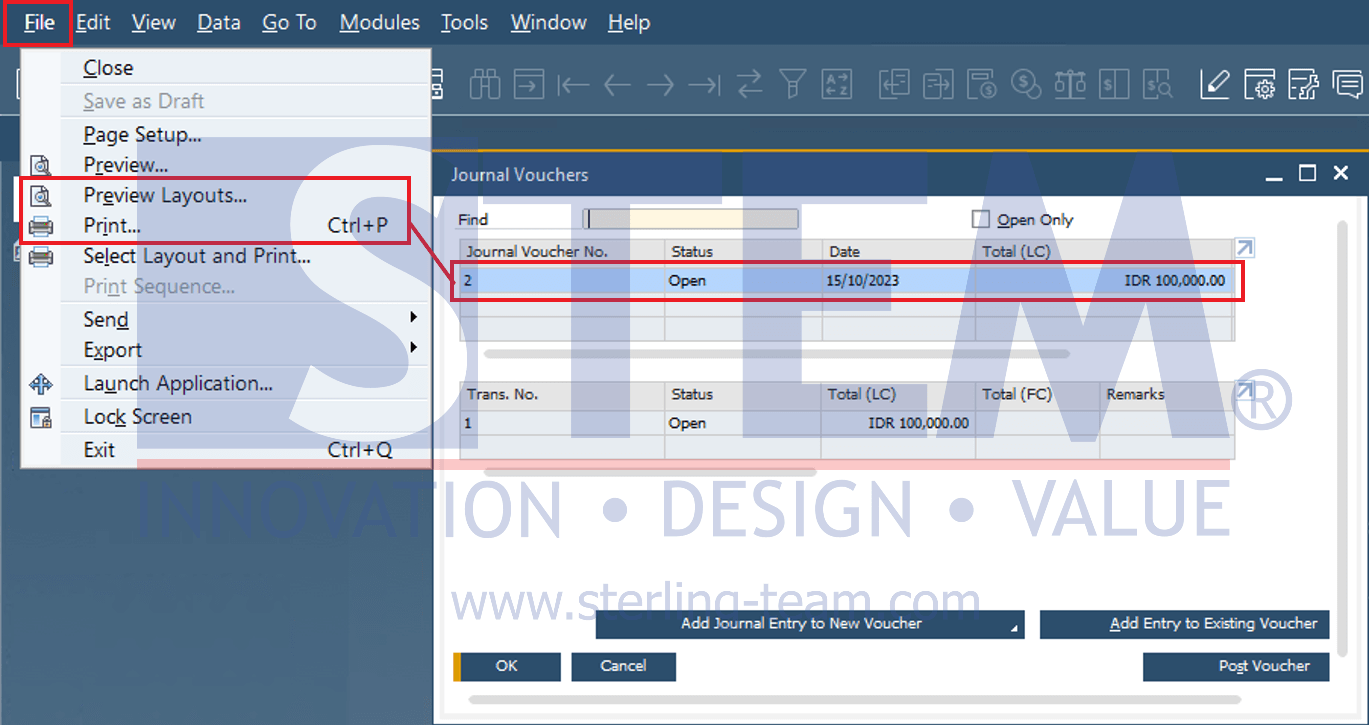
In this window, the Print and Preview Layout buttons are active and can be used, as shown below:
Select and Print the Journal Voucher
The user should select the Journal Voucher No. that needs to be previewed and printed.
Then, click Print to print the Journal Voucher. In this way, the user can print and archive the Journal Voucher transaction documentation according to the company’s needs.
Also read relevant SAP Business One Tips:
- How to Add Notes to Journal Entry in SAP Business One
- Fix “G/L Account Needs DR Assignment” Error in SAP B1
- How to Cancel Manual Reconciliation in SAP Business One
- Direct vs Indirect Cash Flow in SAP B1 Guide
- How to Create Down Payment in SAP Business One
- Fix Recurring Posting Failed to Create Journal Entry