When using bills of material, there are times when it is necessary to change a component in all bills of material because the component is no longer used for production.
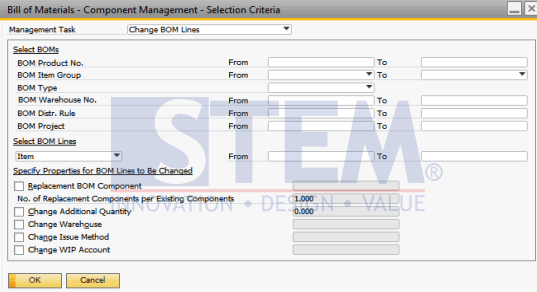
If the component changes apply to all or some finish goods, then the changes can be done at once rather than one at a time, with the following steps:
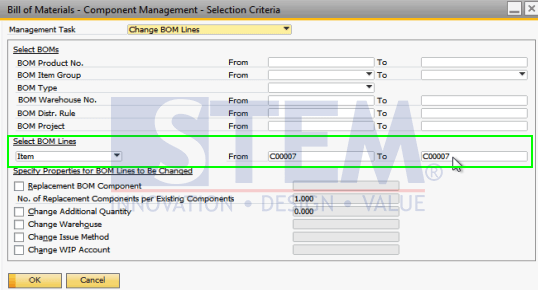
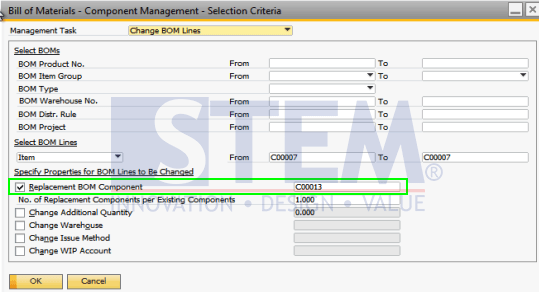
In this illustration, the example is changing the C00007 (3 TB Hard Disk) component to C00013 (1 TB disk for external HD).
- Go to Main Menu → Production → Bill od Material – Component Management
SAP Business One Tips – How To Change Component of Bill of Material
- Select BOM Lines – Fill code item component which wants to change, for this example is C00007
SAP Business One Tips – How To Change Component of Bill of Material
- Replacement BOM component – Fill code item component with the replacement code, for this example is C00013
SAP Business One Tips – How To Change Component of Bill of Material
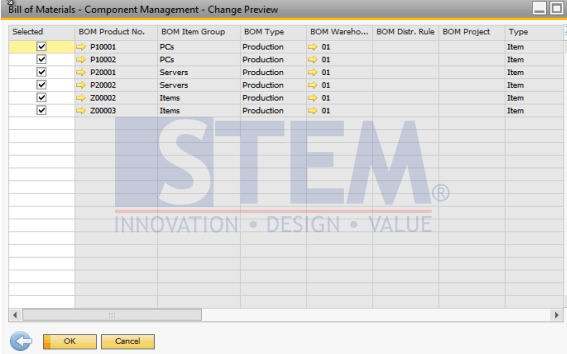
- Klik ‘OK’ and it will be shown all BOMs with which have component item C00007
SAP Business One Tips – How To Change Component of Bill of Material
- On ‘Selected’ column, tick on all FGs with the component which wants to change, then click ‘OK’
- Go to Bill Of Material, there are component C00007 have changed with component C00013.
Also read relevant SAP Business One Tips:
- Lead Time in SAP Business One MRP: Role & Impact
- Enhanced Variance Report for Production Orders in SAP Business One 10.0 FP 2405
- Generate Pick List for Multiple Sales Orders SAP B1
- Fix “G/L Account Needs DR Assignment” Error in SAP B1
- SAP Business One User Action Log Query Report
- New Feature: Inventory Transfer Across Branches in SAP Business One 10.0 FP 2411