


Sometimes you need a document list in Excel to prepare a follow-up report, add internal notes, or compare it with another file. Instead of exporting a broad list and removing unwanted records afterwards, you can narrow down the data in SAP Business One Web Client first.
The Export to Microsoft Excel option is available in the list-view toolbar. Here is an example using open sales orders for a particular customer.
Filter the Document List
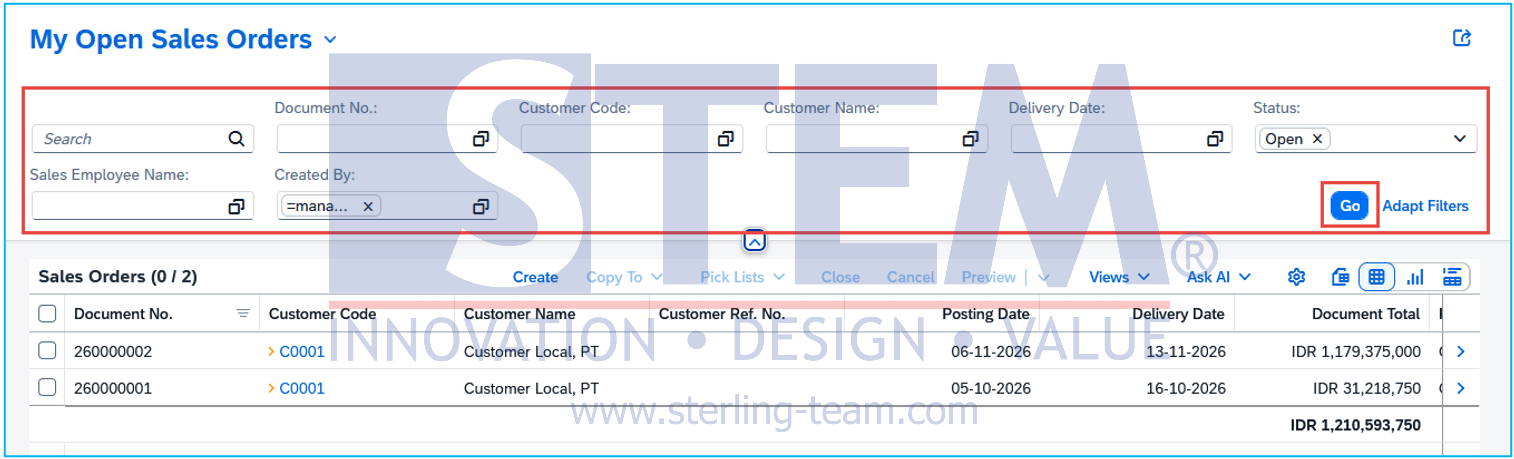
- Open Sales Orders from the Web Client home page.
- Select Open Sales Orders.
- Set the customer filter and any other criteria you need.
- Choose Go to apply the filters.
- Review the resulting list before exporting.
If a required filter is not visible, use Adapt Filters to find the available fields and add it to the filter bar.
Check any date restrictions carefully. A posting-date filter for the current month will exclude older orders, even if they are still open and need follow-up.
Check the Columns
Open View Settings and review the columns displayed in the table.
For a customer follow-up file, useful information might include the document number, customer name, posting date, delivery date, currency, and document total.
Keep enough information to identify each document clearly. A customer name and amount alone may not be sufficient when several orders have similar values.
Export to Excel
In the toolbar above the table, select Export to Microsoft Excel, or Export to Excel, depending on your release.
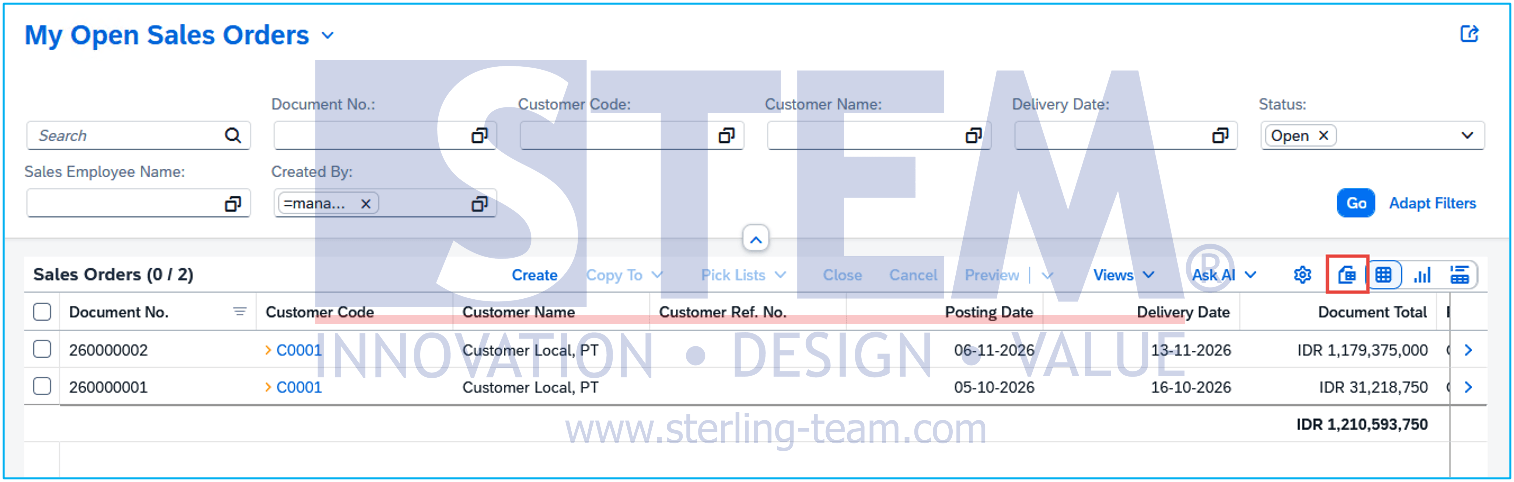
Download the file when prompted, then open it in Excel. Check the exported records and column headings before adding formulas, notes, or further formatting.
Use filters to define the list you need rather than assuming that ticking a few document checkboxes will limit the export.
Remember That the File Is a Snapshot
The exported file reflects the data at the time of export. It will not automatically update when someone changes or closes a document in SAP Business One.
For a recurring report, save your list settings as a custom view so you can reuse them for the next export. Include the export date in the filename to help distinguish the latest file from earlier copies.
Changes made in Excel also do not update the original SAP documents.
Also read relevant SAP Business One Tips:
- How to Add an Open Sales Orders Shortcut in SAP B1 Web Client
- Disable Auto‑Open for Excel Exports in SAP Business One
- Show Only the Columns You Need in SAP Business One Web Client
- View Source Documents Behind Charts in SAP Business One
- How to Turn a Document List into a Chart in SAP B1
- Close vs Cancel in SAP Business One Documents