
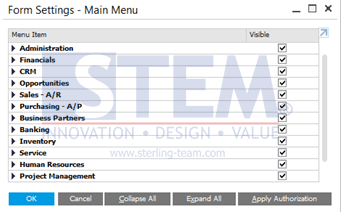
In SAP Business One, the superuser can set what menus they want to appear on each user by using the menu Form Setting menu as shown below:
SAP Business One Tips – Form Setting Main Menu Authorization
The superuser can check any menu they want to appear in each user, and the changes must be made using the user whose menu they want to change.
For users other than superuser to not be able to change the menu settings, it is possible to authorize this menu setting form for all users.
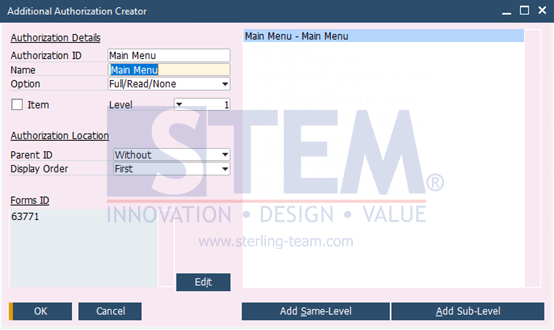
- To set the authorization, the superuser must first add the authorization menu via the Administration menu > System Initialization > Authorization > Additional Authorization Creator, and the following screen will appear.
SAP Business One Tips – Form Setting Main Menu Authorization
- Add according to the picture above, where the form’s ID for the main menu setting form is 63771.
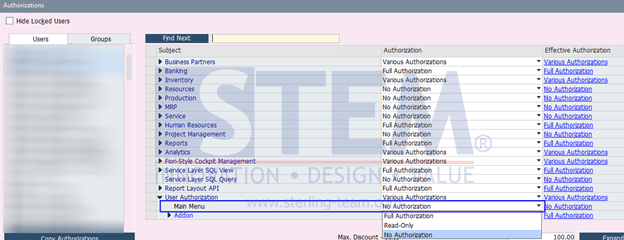
- After the addition is made, then when you open the Administration menu > System Initialization > Authorization > General Authorization.
- The previously added Main Menu will appear under the “User Authorization” subject, and the superuser can control which users have access rights to change their own menu settings by granting “Full Authorization” or “No authorization” access to users who are not allowed to change their own menus.
SAP Business One Tips – Form Setting Main Menu Authorization
*Note: applies to SAP HANA version