Previously, you may often feel confused about determining which warehouse has stock availability of an item when making a transaction, be it a sales order transaction, purchase order, A/P Invoice, or A/R Invoice. You usually need to check the stock availability of an item located in which warehouse before starting to make a transaction. SAP Business One provides a shortcut to view the stock quantity of an item for each available warehouse. Here are the steps you can follow.
- Open a transaction, for example Sales Order.
- On the Contents tab, select the desired item.Then click on the Whse field.
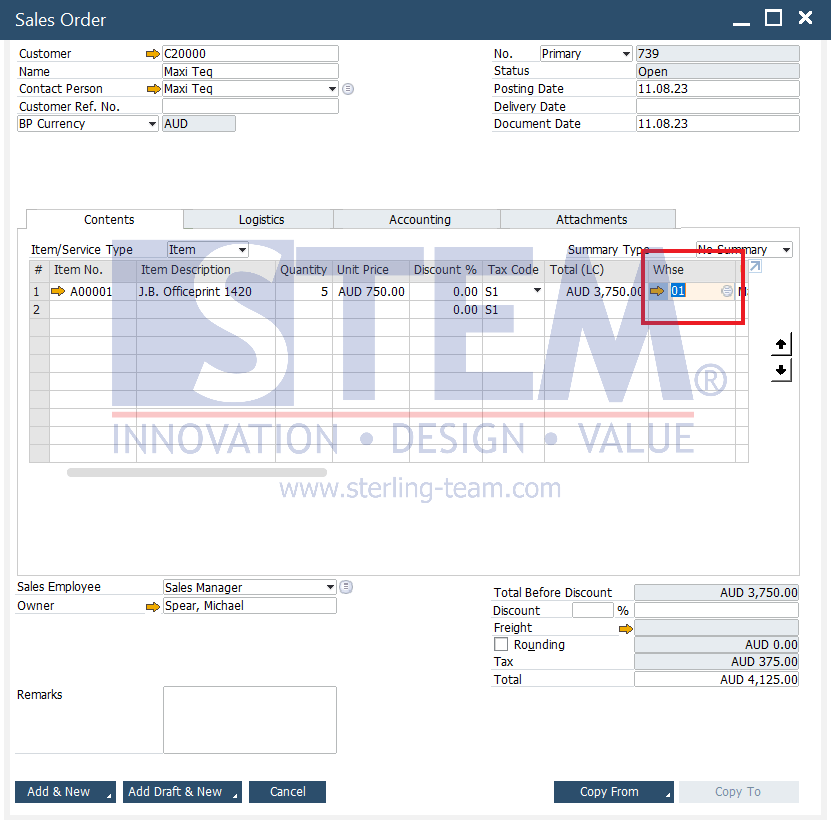
- Then press Ctrl + Tab on your keyboard and SAP will display a list of warehouses along with the amount of stock from each of these warehouses.
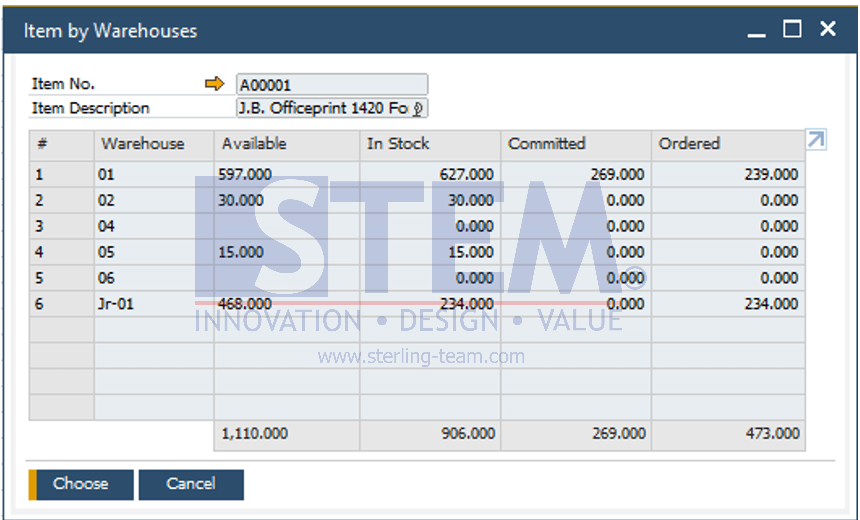
- Thus you can easily see stock availability information in each warehouse. Then you can select the desired warehouse and press the Choose button.
Also read relevant SAP Business One Tips:
- Set Search Result View in Choose From List SAP B1
- How to Set Default Warehouse in SAP Business One – Part 1
- How to Set Default Warehouse in SAP B1 (Part 2)
- Bin Location Transaction Restriction in SAP Business One
- How to Deactivate a Warehouse in SAP Business One
- Rearranging Item Lines in SAP Business One Transaction Documents