
In Crystal Report For SAP Business One, we can set how numeric field value displayed according to the number value itself.
For example:
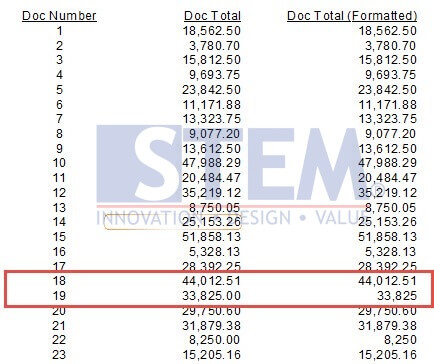
1. 1250.00 → will be displayed as 1250 (No decimal point)
2. 1250.65 → will be displayed as 1250.65
Step by step:
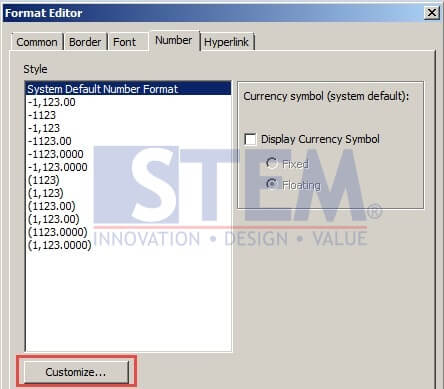
- In Crystal Report Designer, right click on numeric field, for example DocTotal
- In the Format Editor dialog box, click “Customize” button
- In “Custom Style” dialog box, choose “Number”:
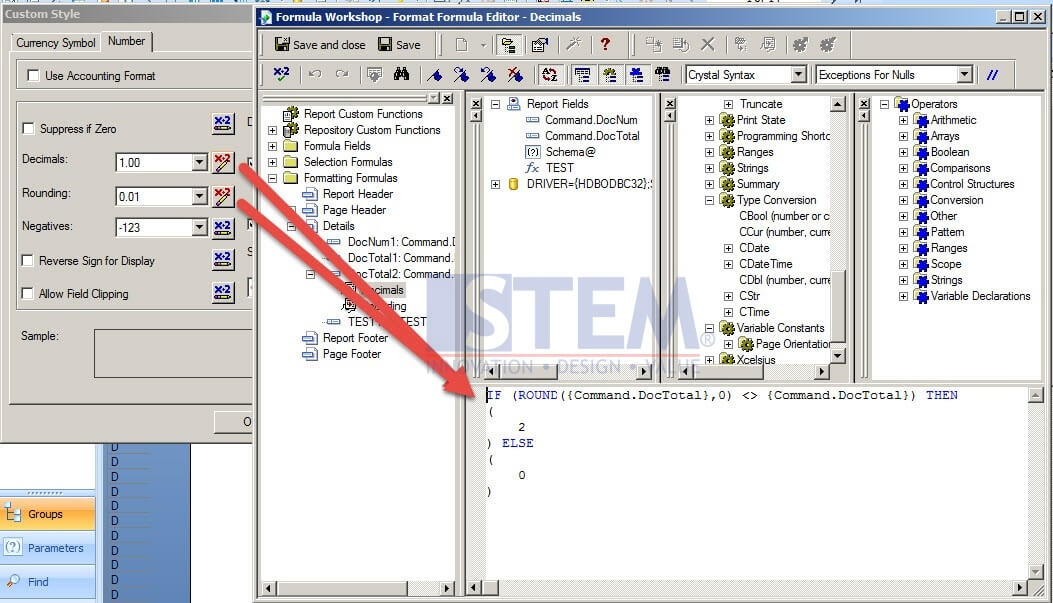
- Click formula button beside “Decimals” setting, and insert formula below.
- Do the same for “Rounding” setting formula.
- Result will be displayed like this:

Also read relevant SAP Business One Tips:
- How to Display QR Code in SAP B1 Crystal Report
- Convert Crystal Report from SAP HANA to MS SQL Guide
- Fix Division by Zero Error in Crystal Reports
- How to Set User Query to SAP Business One Main Menu
- Display Table Info in SAP Crystal Reports
- Decimal Display Format in SAP Business One – Customize Numeric Precision