
In companies that use MRP (Material Requirement Planning) as part of their business processes, the accuracy of Item Master Data is critical. One of the most important settings that must be properly maintained is Lead Time. If Lead Time is not set correctly, MRP calculations can be inaccurate and may result in delays in fulfilling customer orders.
What is Lead Time?
Lead Time is the amount of time required from the moment a procurement or production process starts until the item is ready to be used or delivered.
- For production items, Lead Time represents the duration of the production process.
- For purchased items, Lead Time represents the waiting time from the supplier.
In SAP B1, Lead Time is used by the MRP Wizard to determine the latest possible date when procurement or production must start so that the item is ready to be use in production or for delivery. MRP works using a backward scheduling concept, meaning it calculates backward from the required date (Delivery Date).
How to Set Lead Time in Item Master Data
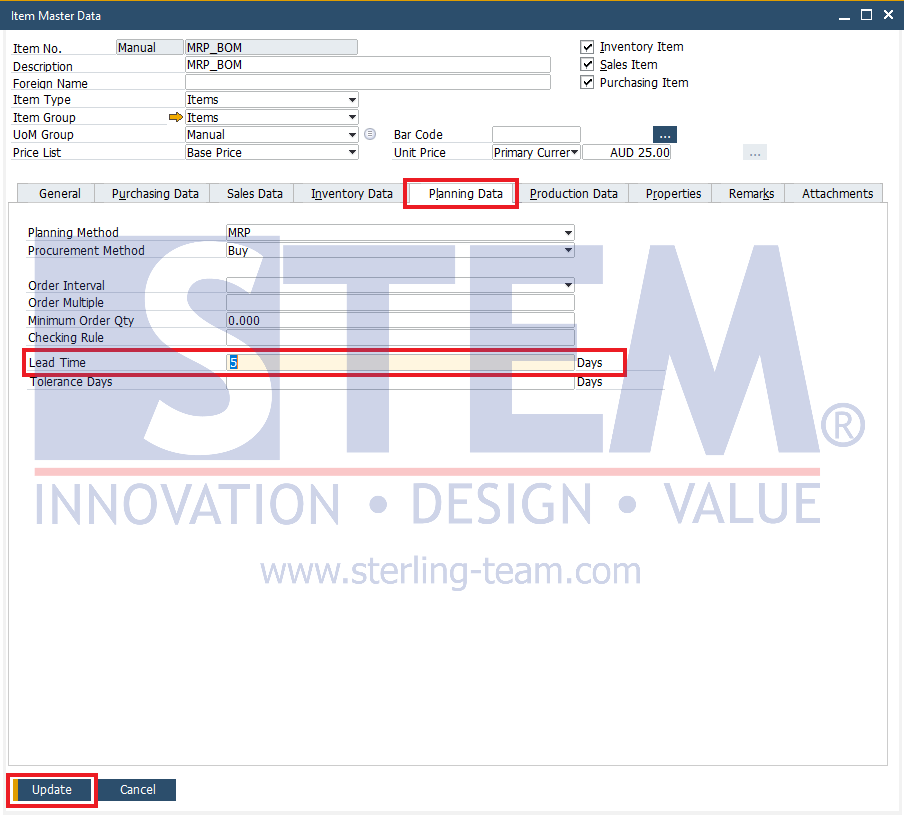
- Go to Inventory > Item Master Data and select the item for which you want to set the Lead Time.
- Choose the Planning Data tab and enter the Lead Time value (in days).
- Click Update to save the changes.
Case Study
Item Data
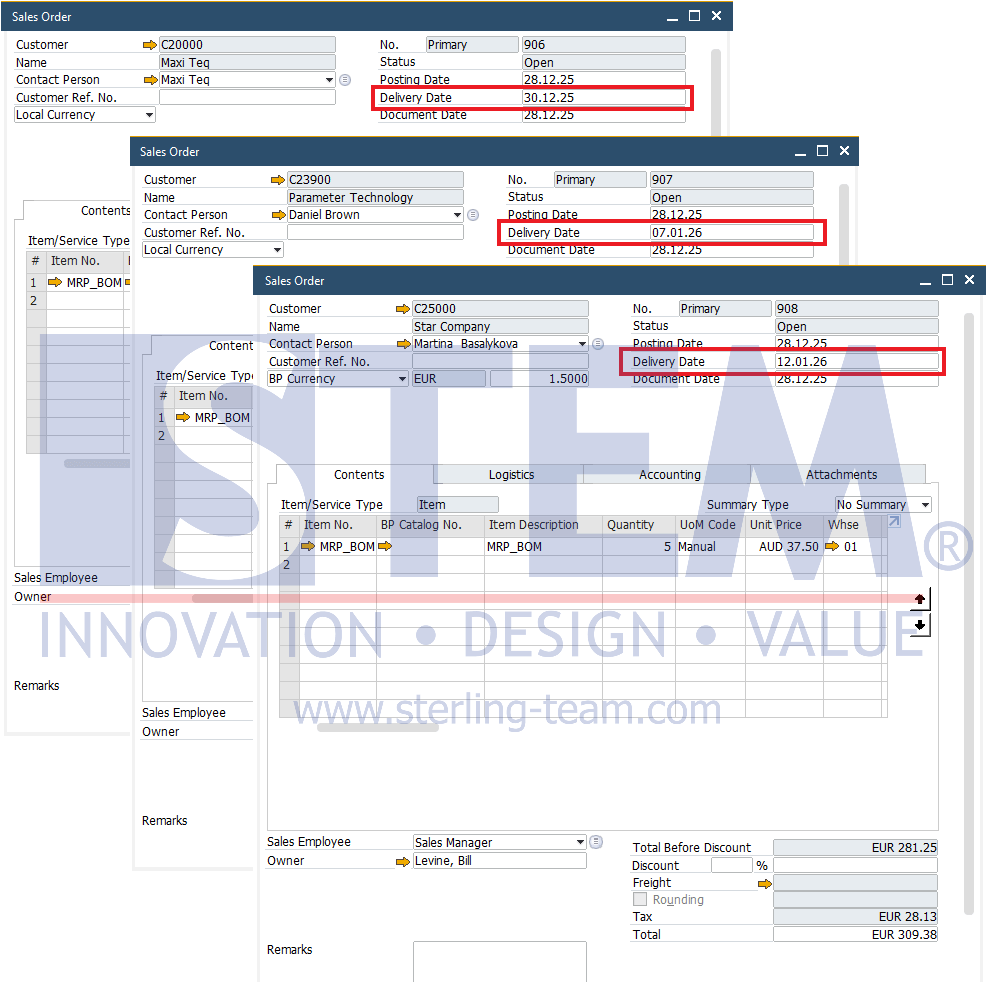
- Item: MRP_BOM
- Lead Time: 5 days
- Warehouse: 01
- Initial stock: 7 Pcs
Sales Orders
There are three Sales Orders, each with a quantity of 5 Pcs, and different Delivery Dates:
- Order 1: 30 Dec 2025
- Order 2: 07 Jan 2026
- Order 3: 12 Jan 2026
Total demand = 15 Pcs
Running the MRP Wizard
- Go to MRP > MRP Wizard.
- If no scenario exists yet, create an MRP scenario first.
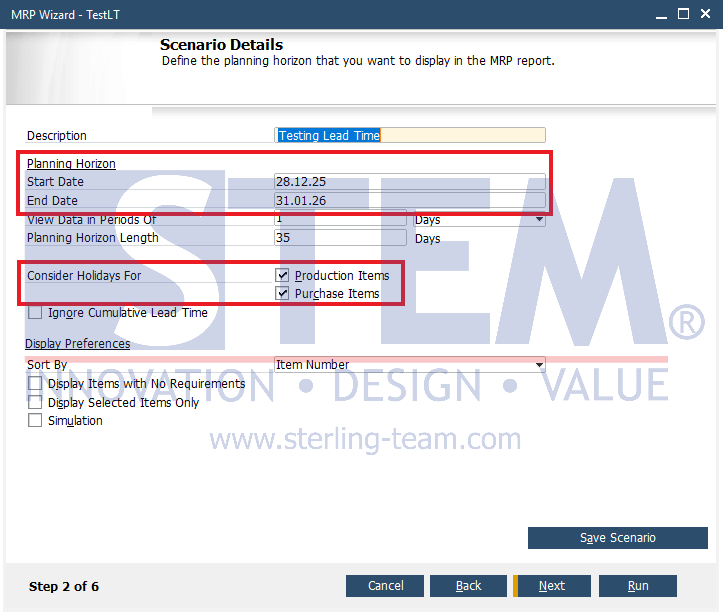
- In the Scenario Details screen, define:
- Planning Horizon (Start Date & End Date). The Planning Horizon defines the time period that MRP will analyze when generating production or purchasing recommendations.
- Consider Holidays For, when enabled for Production Items and Purchase Items, MRP will consider national holidays (as defined in Holiday Dates) and weekends. As a result, procurement or production scheduling will not fall on non-working days.
- Click Run to execute the MRP Wizard. The system will displays the MRP Results window.
MRP Results Analysis
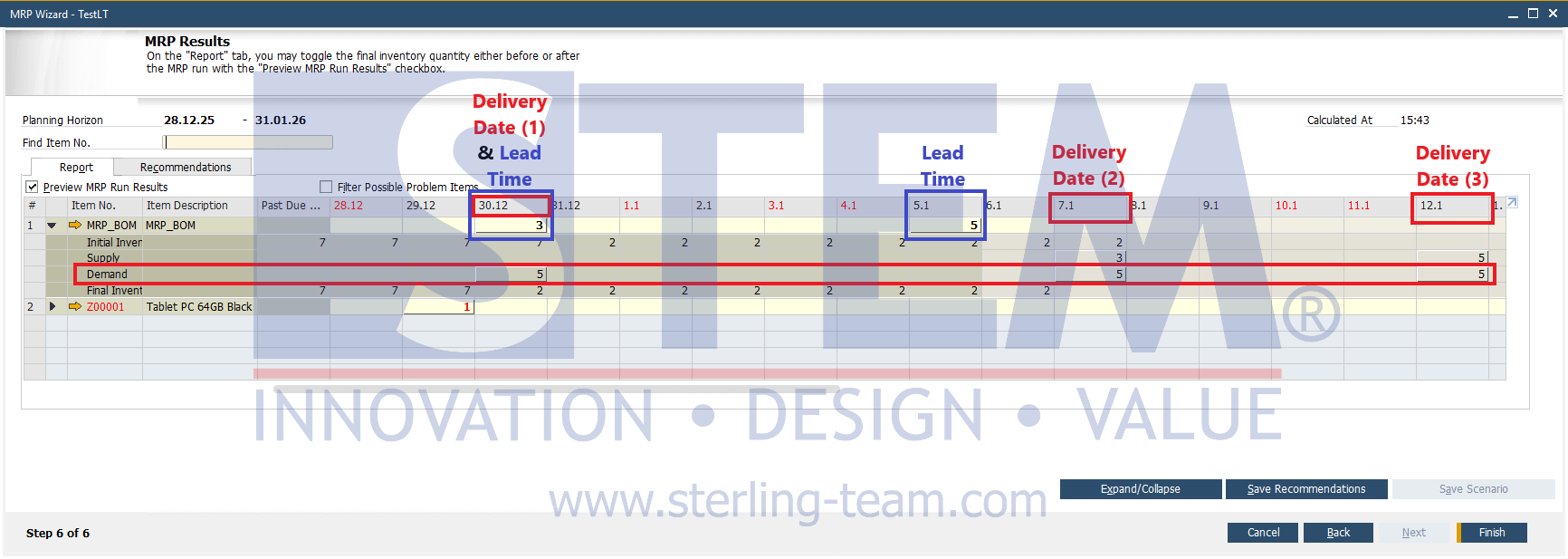
- First Sales Order – Delivery Date: 30 Dec 2025
The initial stock is 7 Pcs, while the demand is 5 Pcs. This means the stock is sufficient, and no procurement is required. - Second Sales Order – Delivery Date: 07 Jan 2026
After fulfilling the first Sales Order, the remaining stock is 2 Pcs. The demand is 5 Pcs, so MRP needs to create a procurement plan for 3 Pcs. Procurement date calculation:- Delivery Date: 07 Jan 2026
- Lead Time: 5 days
- Calculated backward from the Delivery Date
- 01 Jan 2026 is a national holiday, and 03-04 Jan 2026 fall on a weekend, so non-working days are skipped.
- As a result, the latest date when the procurement process must start is 30 Dec 2025.
- Third Sales Order – Delivery Date: 12 Jan 2026
The demand is 5 Pcs. By calculating backward using the Lead Time and considering holidays and weekends, the minimum procurement start date is 05 Jan 2026.
Conclusion
- Lead Time in Item Master Data has a significant impact on MRP results.
- MRP uses Lead Time to calculate procurement schedules backward from the Delivery Date.
- By enabling Consider Holidays For, MRP will:
- Avoid national holidays and weekends
- Shift procurement dates to the nearest previous working day
With accurate and consistent Lead Time settings, companies can ensure:
- No stock shortages
- Better production and purchasing planning
- On-time delivery to customers