


Apart from SLD (System Landscape Directory) backup scheduling, SAP Business One also provide backup management tools using Remote Support Platform (RSP). Follow below steps to begin setup:
- Always use the latest version of RSP (Latest version right now is 3.2 PL11)
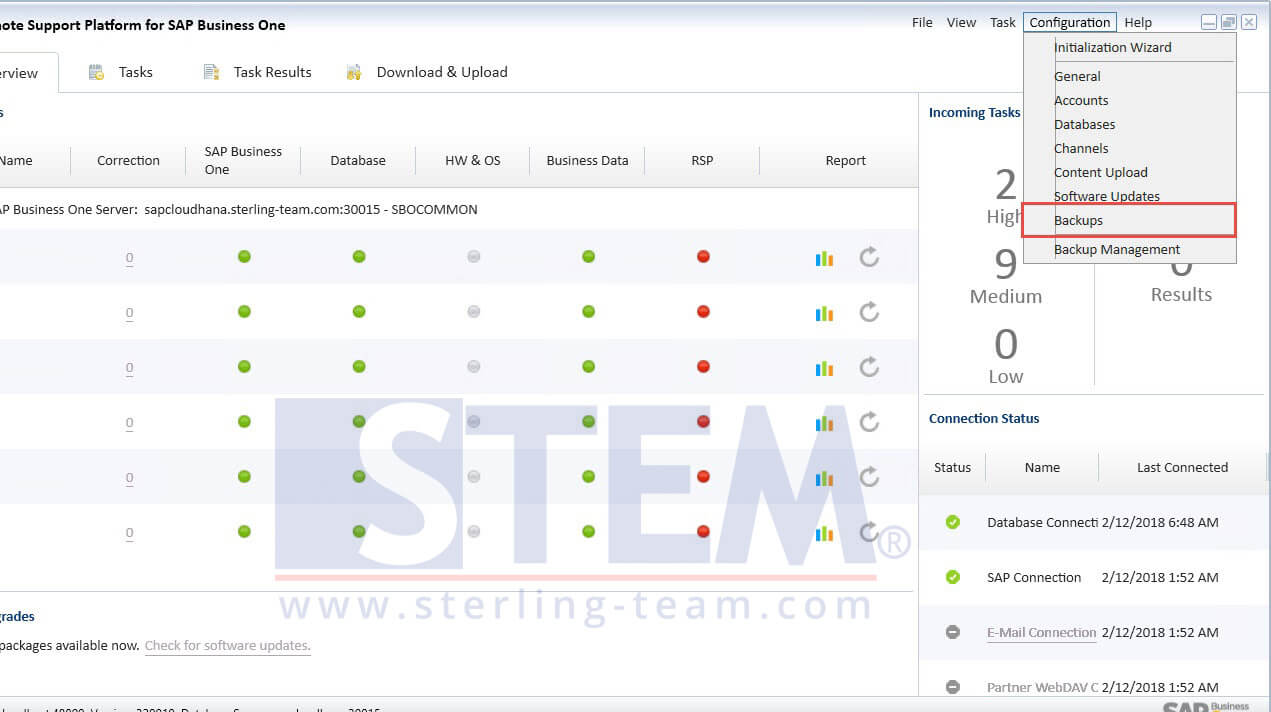
- After completing RSP installation and setup, open menu Configuration and choose Backups submenu.
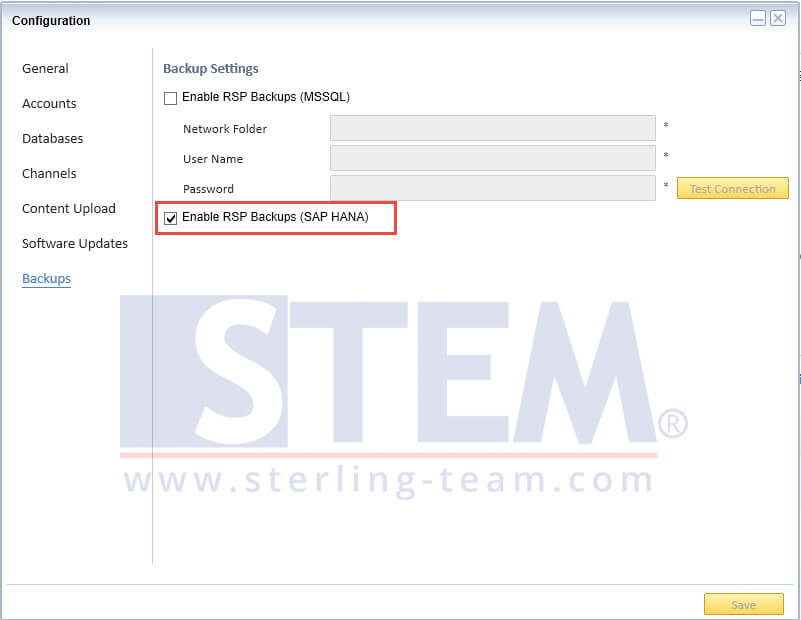
- Tick “Enable RSP Backups”, choose according to your database type.
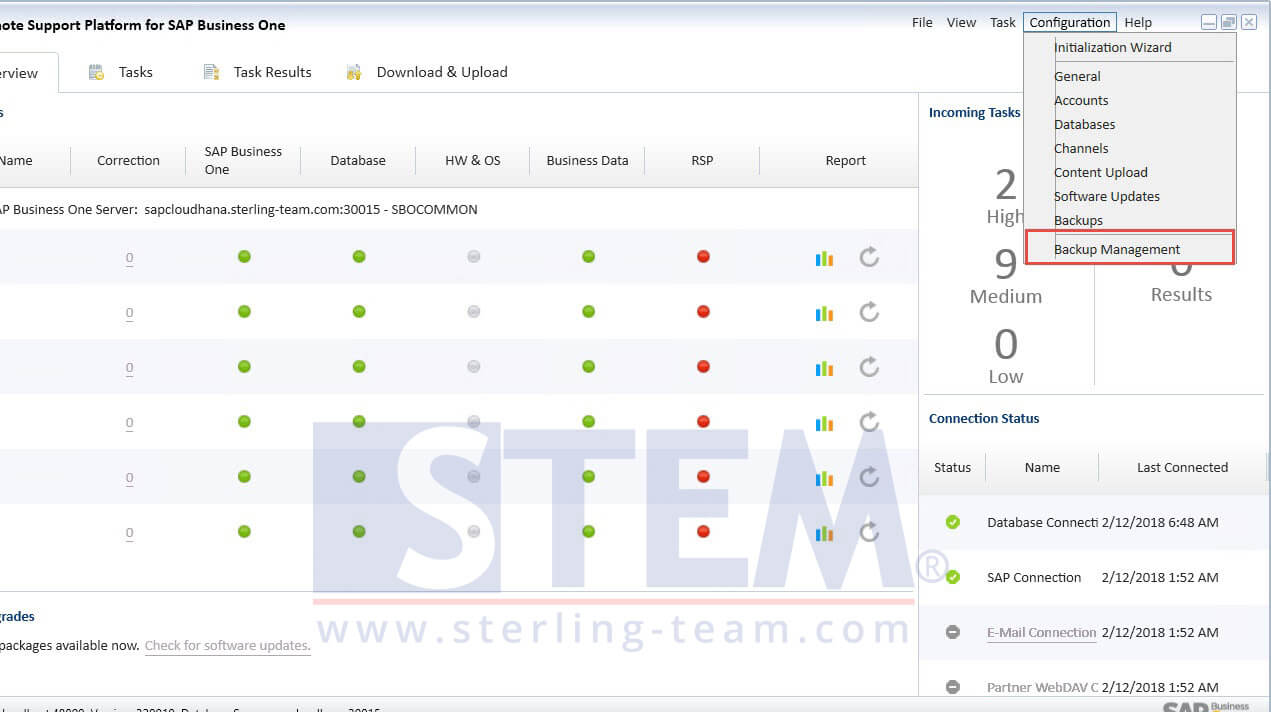
- Open Menu Configuration, and choose Backup Management submenu
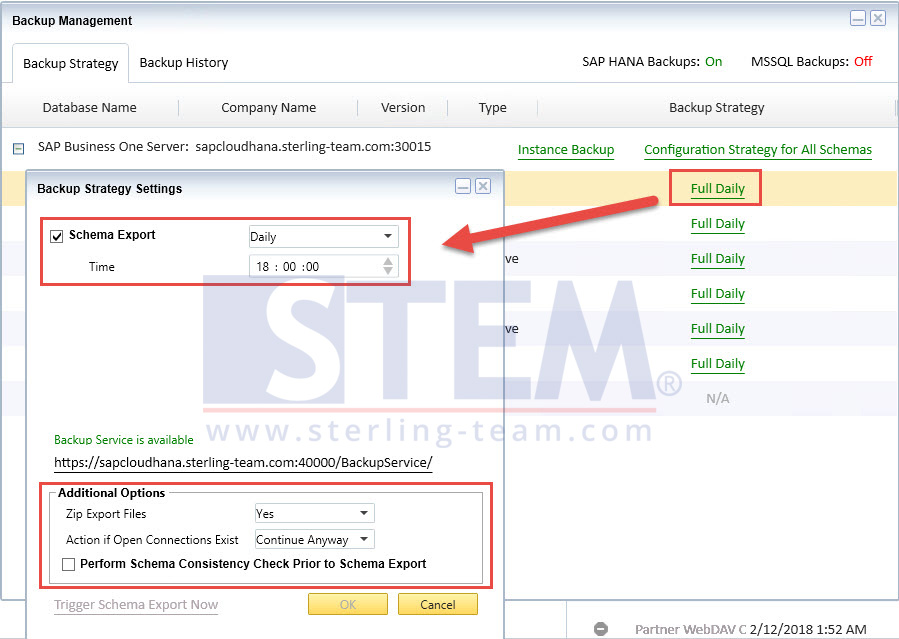
- Click green-colored “N/A” in each database name to setup backup schedule for each database individually, or Click Configuration Strategy for All Schemas to setup same backup strategy for all database.You can set : when RSP should perform backup, either backup file compressed or not, should it run schema consistency check prior to schema export, action if open connection exists, test the schema export trigger.
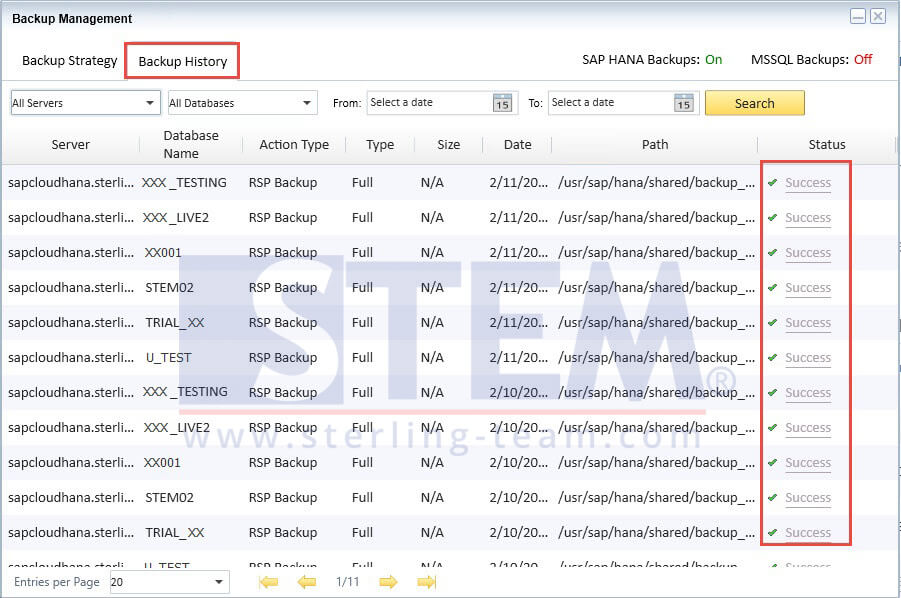
- You can also check backup history in another tab on the Backup Management Window.If RSP failed to perform backup, you can also check the reason by clicking the error status.
Hope this tips will be useful for all SAP Business One users.