When you create a marketing document or make a payment for a business partner using All Currencies, you may see a very long list of currencies in the Currency field. This is inconvenient because users have to choose the right currency every time they create a document, or they can even create a document with the wrong currency if they forget to change the currency.
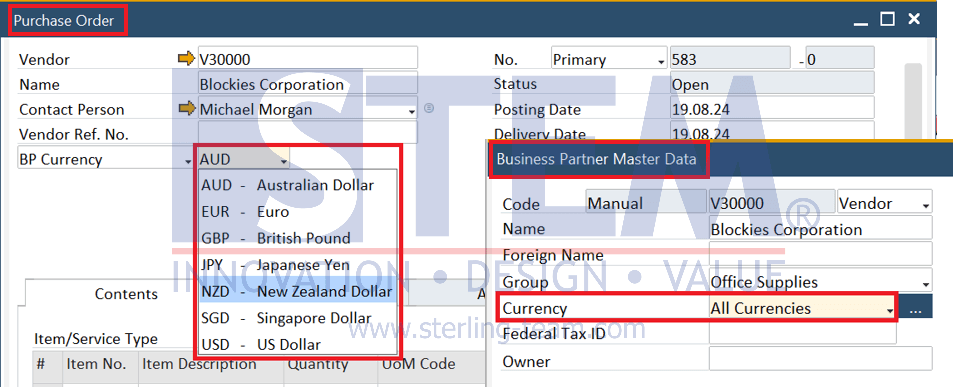
Did you know that SAP provides a feature to set the default currency and hide currencies that are not relevant to the business partner?
Here’s how to set it:
- Open the menu: Business Partners → Business Partner Master Data, then find the Business Partner with All Currencies you want to set.
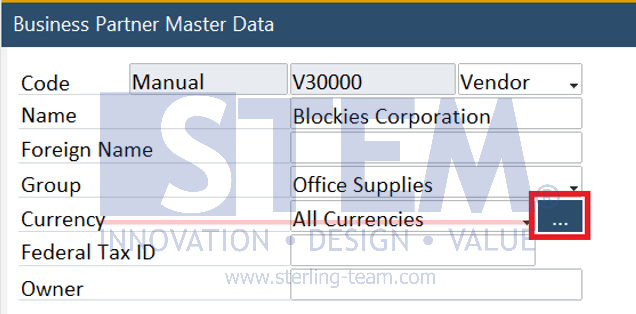
- Click the ellipsis button (…) next to the Currency field.
- The Currencies window will open. Select the currency you want to make default, then click on the
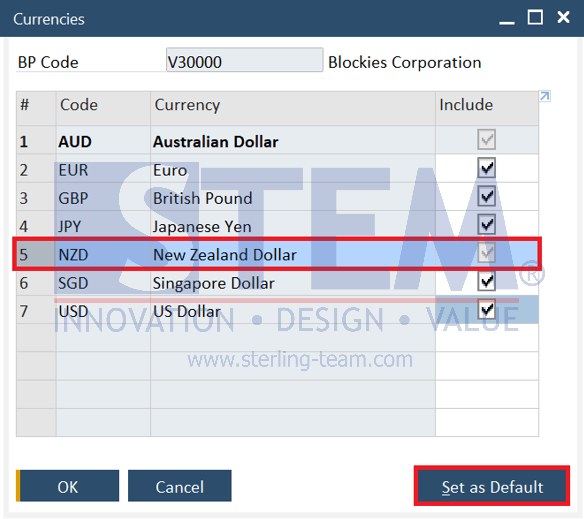
- To hide unused currencies, uncheck the Include Please note that Local Currency, Default Currency, and currencies that have been used in past documents cannot be hidden.
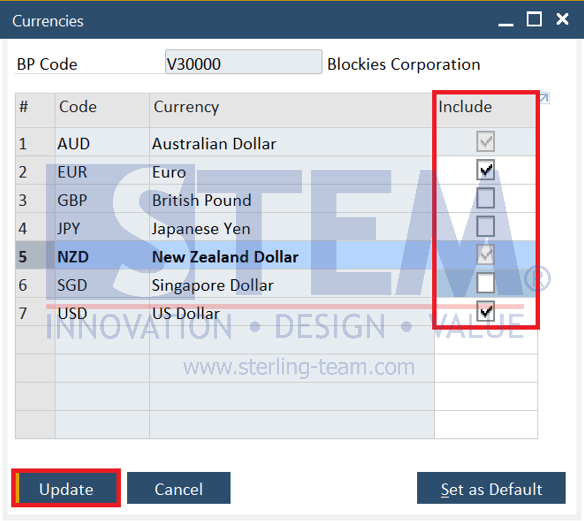
- Click on the Update button in the Currencies window, then click on the OK
- Don’t forget to click on the Update button in the Business Partner Master Data window as well.
After doing the settings above, you can see the result in the marketing and payment document.
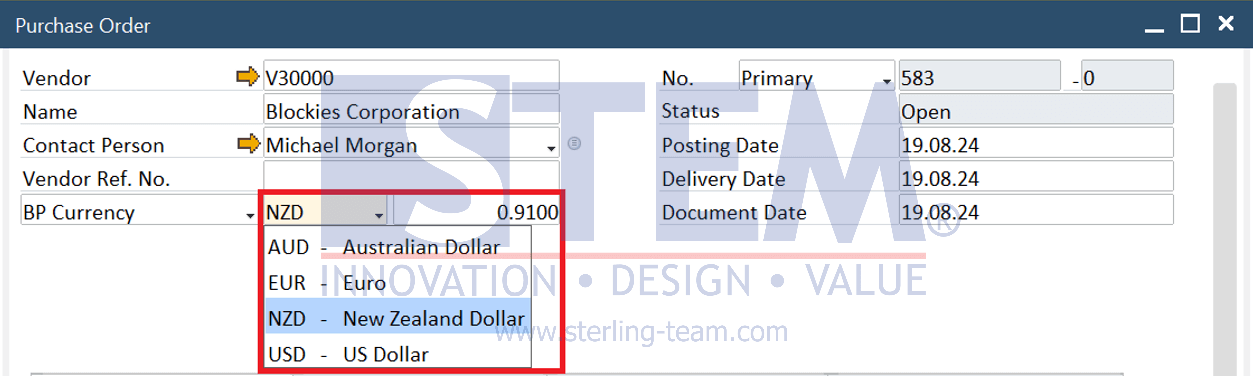
Note: Available in SAP Business One 10.0 FP 2105 and SAP Business One 10.0 FP 2105, version for SAP HANA.
Also read relevant SAP Business One Tips:
- Set Search Result View in Choose From List SAP B1
- Auto Suggestions for User Input in SAP B1
- How to Show or Hide the UDF Window in SAP B1
- How to Set Default Capacity Period in SAP B1
- New Feature: Duplicate Check for Business Partners in SAP Business One 10.0 FP 2508
- Boost Data Entry Efficiency with Pickers & Indicators in SAP B1