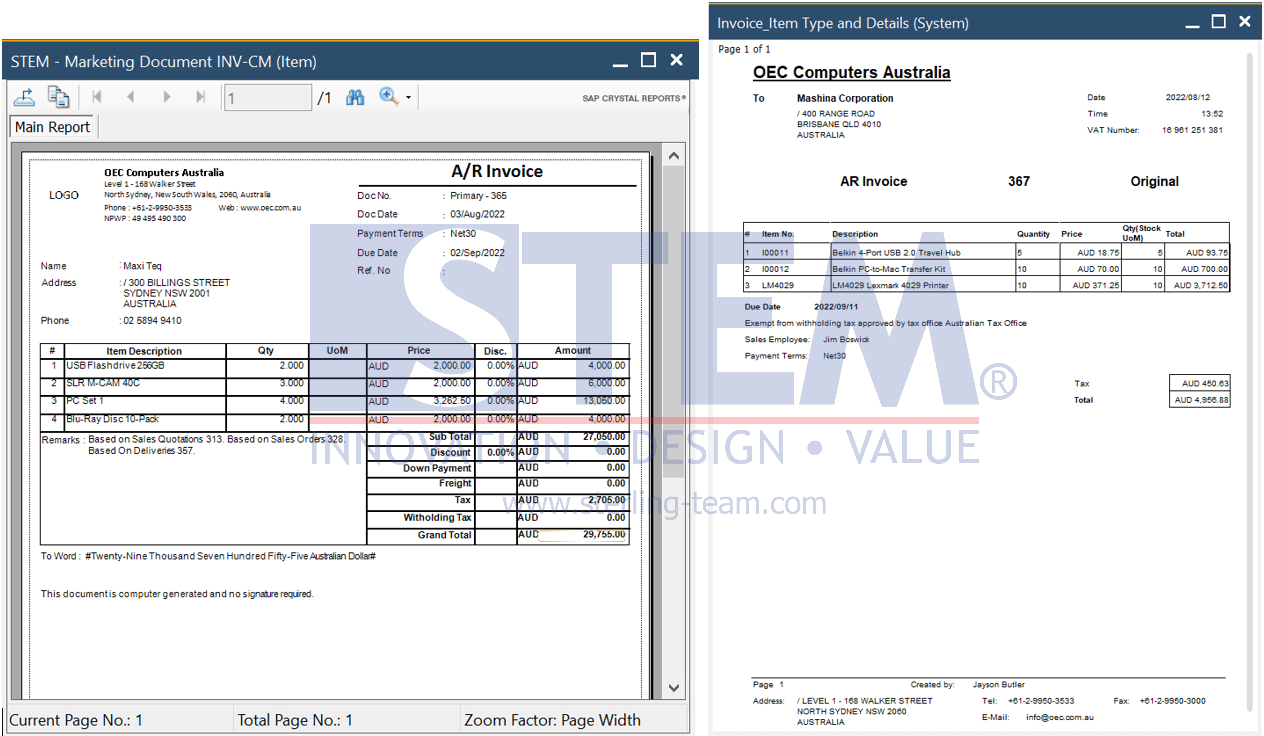
Sometimes companies need to issue invoice documents that are different for certain customers. Did you know, that in SAP Business One you can use different Crystal Reports for different Business Partners?
To do that:
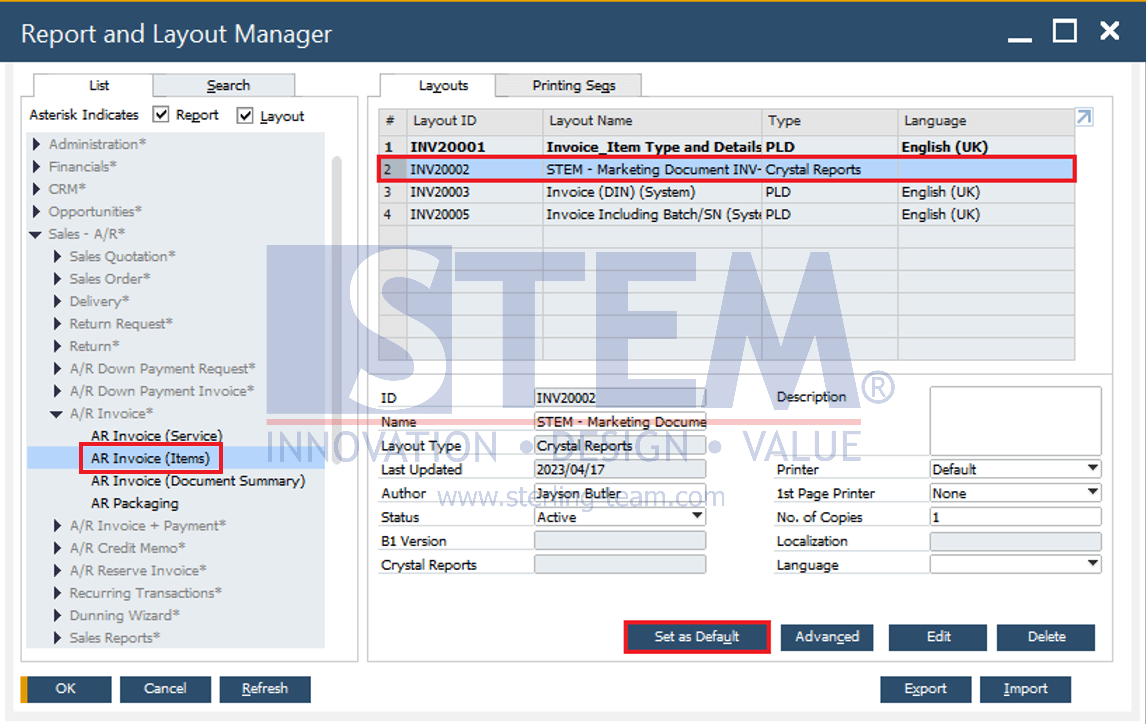
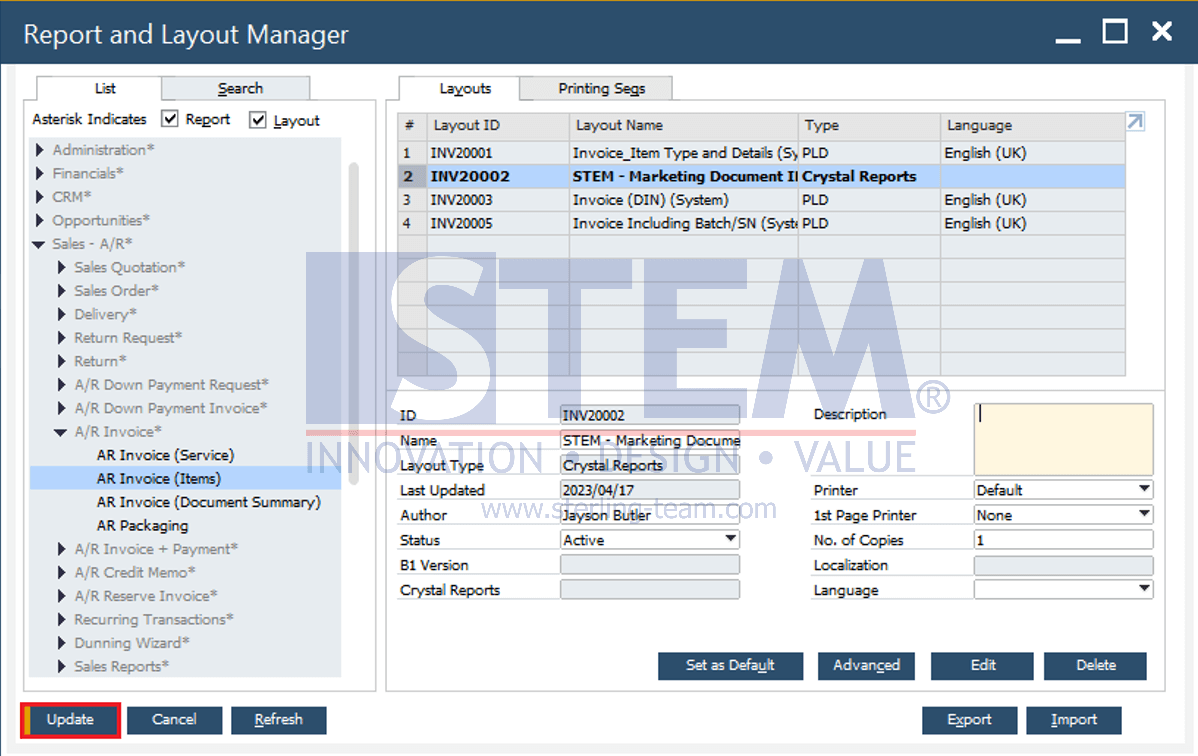
- Go to Administration > Setup > General > Report and Layout Manager
- Find the layout that needs to be set per business partner (e.g.: A/R Invoice).
- Select the layout to be set to a specific business partner, then click Set as Default button.
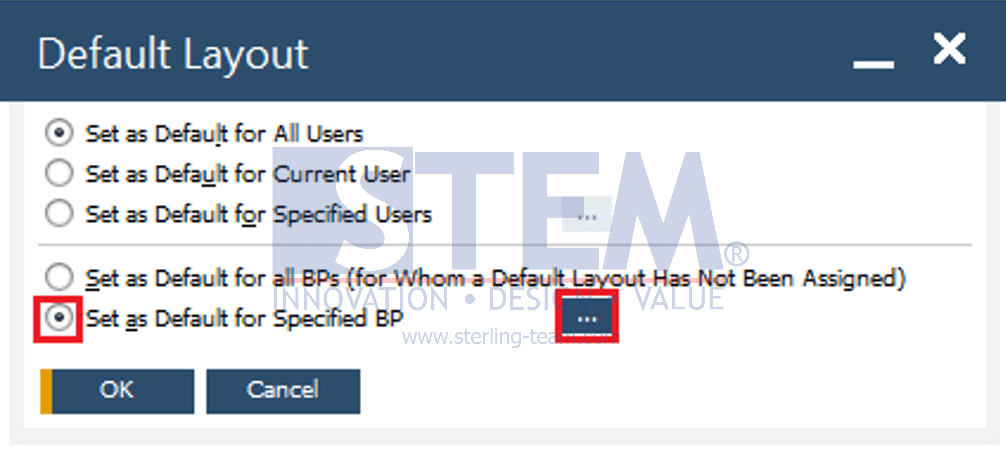
- Default Layout screen appears. The top section sets the default layout for users, and the bottom section sets the default layout for business partners. In this case, select Set as Default for Specified BP (bottom section) and click (…) button beside it.
- Select business partner (ex: Maxi Teq), then click Update button.
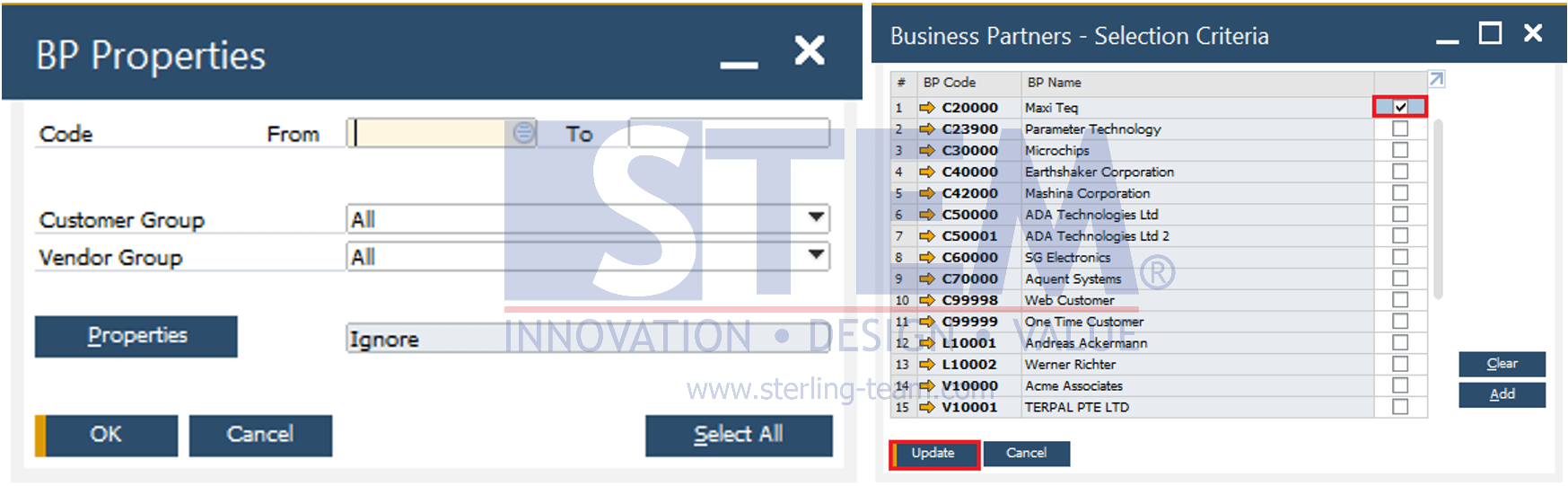
- Also click Update button in Report and Layout Manager screen.
The comparison results in the Crystal Report for invoices that have been set can be seen when clicking the Preview button on the A/R Invoice display. The following is a comparison of the appearance of the A/R Invoice crystal report for Maxi Teq customers with other customers.