If the Approval Template is no longer in use, the user can change it to inactive.
To deactivate the Agreement Template, follow these steps:
- Make sure before deactivating template approval, there are no document approval templates still pending (not rejected or approved yet). If it is confirmed that there are no pending documents, you can move on to the next point.
- Find the template approval wants to be deactivated (you can find it according to the name or description of the approval template), and check the valid documents for the approval template (For example outgoing payment).
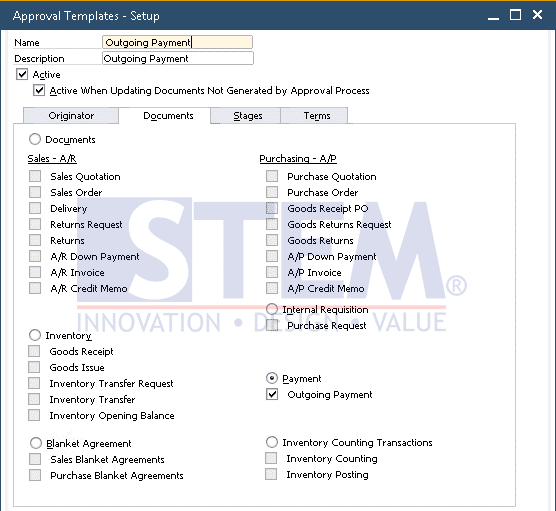
SAP Business One Tips – Deactivate Approval Template
- If the template approval you want to deactivate has been found, uncheck the active column, then click the ‘Update’ button below.
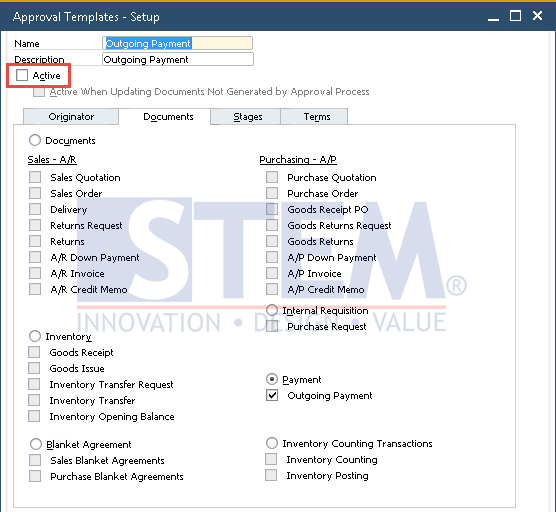
SAP Business One Tips – Deactivate Approval Template
- Ensure that all outgoing payment approval templates are activated, then when posting outgoing payments, no longer go through the approval process and the outgoing payment documents are made immediately.
Also read relevant SAP Business One Tips:
- How to Create Cockpit Template in SAP B1 HANA (Fiori)
- Block Duplicate Cust. Reference No. in SAP B1
- How to Fix SAP Business One Add-On Installation Failed
- How to Give User Query Permissions in SAP Business One
- How to Deactivate a Warehouse in SAP Business One
- How to Hide Inactive Contact Persons in SAP Business One