


A chart can show which customer has the highest order value, but sometimes you need to know which documents make up that number. Is it one large order or several smaller ones? Which orders need a closer look?
In SAP Business One Web Client, Open in List View lets you move from a selected chart value to the records behind it. This saves you from returning to the document list and entering the same filters manually.
Start with a Sales Order Chart
For this example, use a chart showing sales order totals by customer.
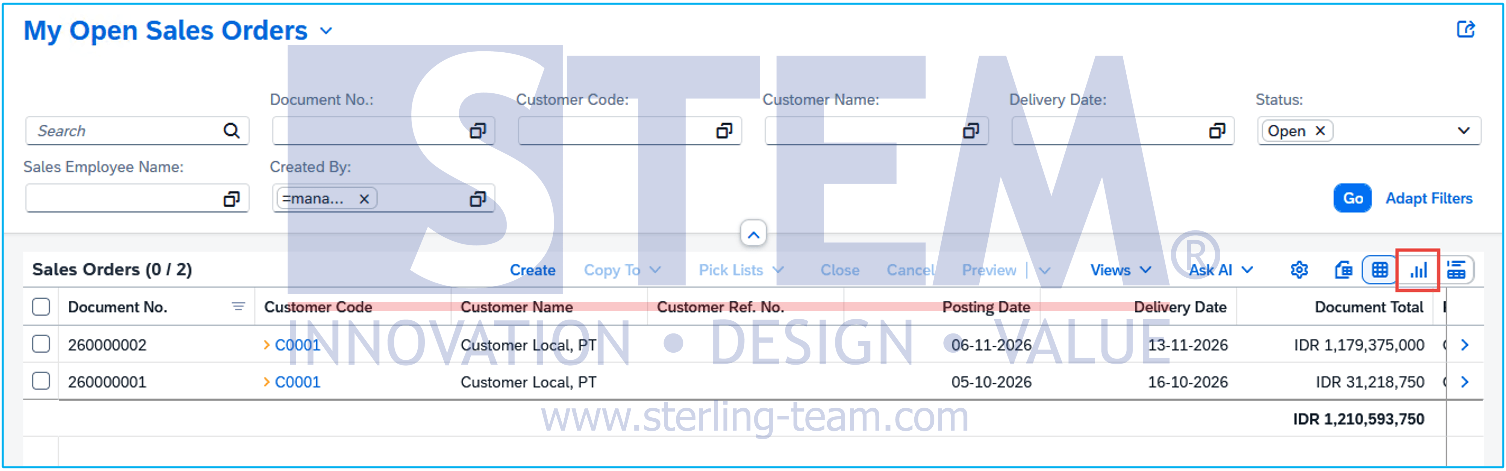
- Open Sales Orders and select the view you want to analyze.
- Apply the relevant filters, such as the posting date range.
- Switch to Chart View.
- Choose a suitable document-total measure and use the customer name as the dimension.
A simple chart with one dimension is a good starting point because each data point represents a clear group of records.
Open the Documents Behind the Number
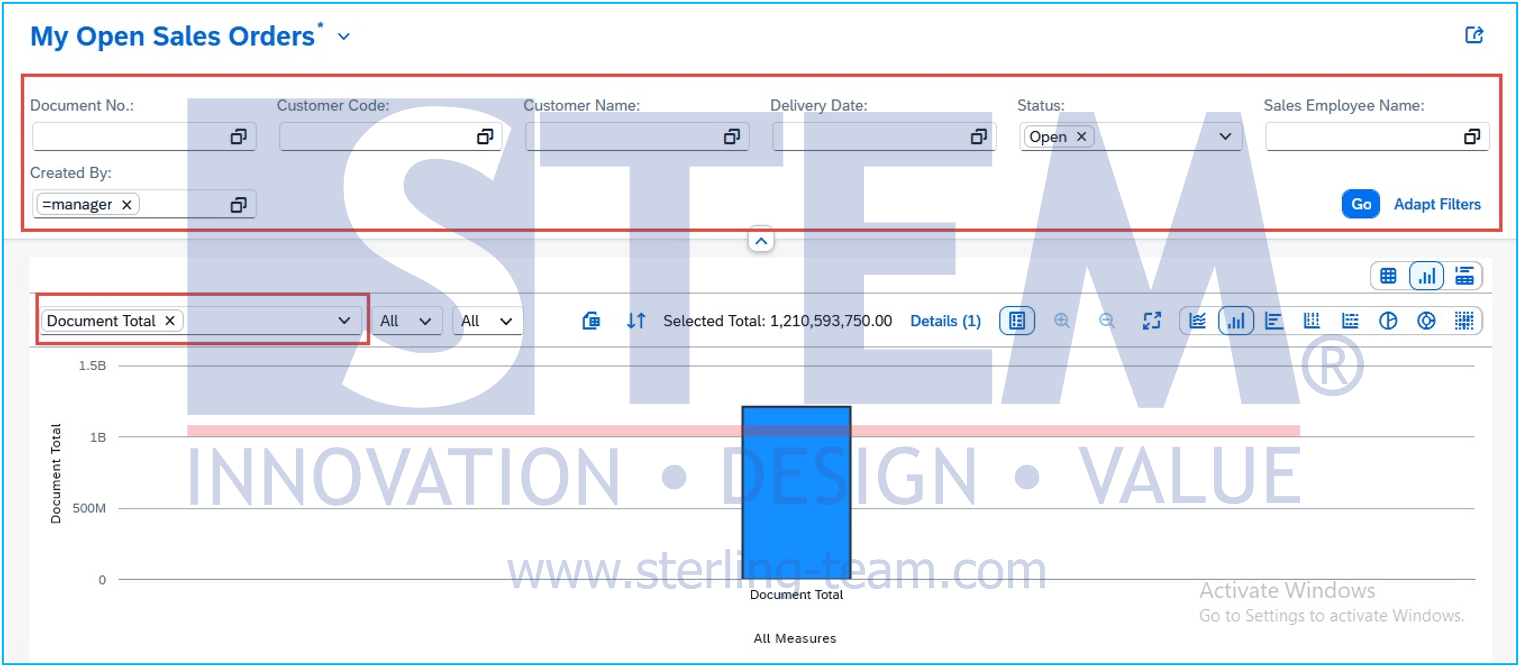
Once the chart is displayed:
- Select the data point or bar for the customer you want to investigate.
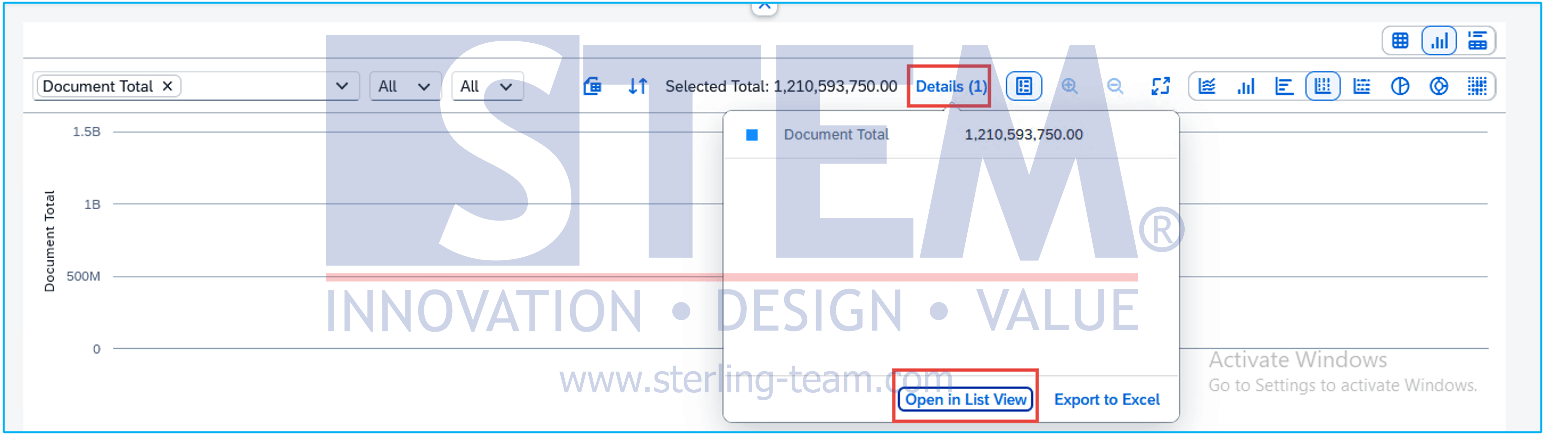
- Click Details to display information about your selection.
- Choose Open in List View at the bottom of the Details popover.
Web Client opens a new browser tab containing the records corresponding to the selected chart data. From this list, open an individual document to check its contents.
For example, if a customer’s order total looks unusually high, you can review the contributing orders and check their dates, amounts, and items. The chart gives you the starting point; the document list provides the detail needed to investigate.
Which Charts Support This?
The function is available for charts in list views, charts in list-view cards, and General Overview cards whose data comes from list views.
It does not apply to charts based on SAP HANA calculation views, including the HANA-specific analytics charts and overview views.
If the option is missing, check both the chart’s data source and your Web Client release.
Also remember what your chart is measuring. Sales order totals represent order values, so the documents behind them should not be treated as a list of invoiced revenue.
Also read relevant SAP Business One Tips:
- How to Turn a Document List into a Chart in SAP B1
- How to Add an Open Sales Orders Shortcut in SAP B1 Web Client
- How to Show or Hide the UDF Window in SAP B1
- Efficient Bulk Document Emailing in SAP Business One
- Sending SAP B1 Docs by Email via Document Printing
- Change Date Separator in SAP Business One Guide