


A document list is useful when you need to check individual transactions. But when the list contains many records, it can be difficult to see which customer has the highest order value or how orders are distributed across customers.
SAP Business One Web Client provides Chart View, which displays list-view data as a chart. You can use it to compare values without first exporting the list to Excel.
Here is an example using sales orders.
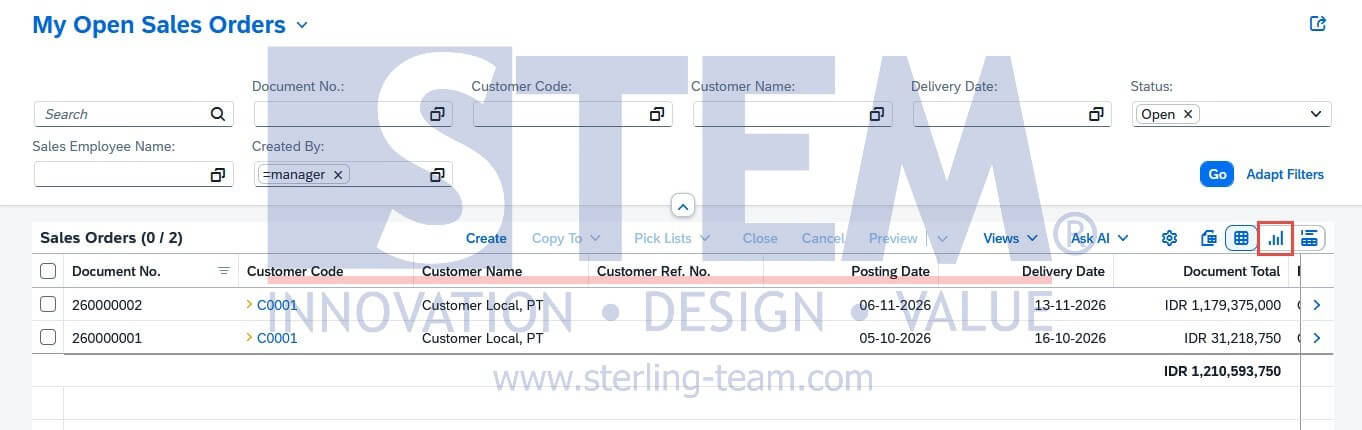
Prepare the Data
- Open Sales Orders from the Web Client home page.
- Select the view you want to analyze, such as Open Sales Orders.
- Apply the relevant filters, such as a date range or salesperson.
- Check the list before switching to Chart View.
The filters matter because they determine which records are included in the chart. If you select Open Sales Orders, the chart will cover those orders rather than your complete sales order history.
Switch to Chart View
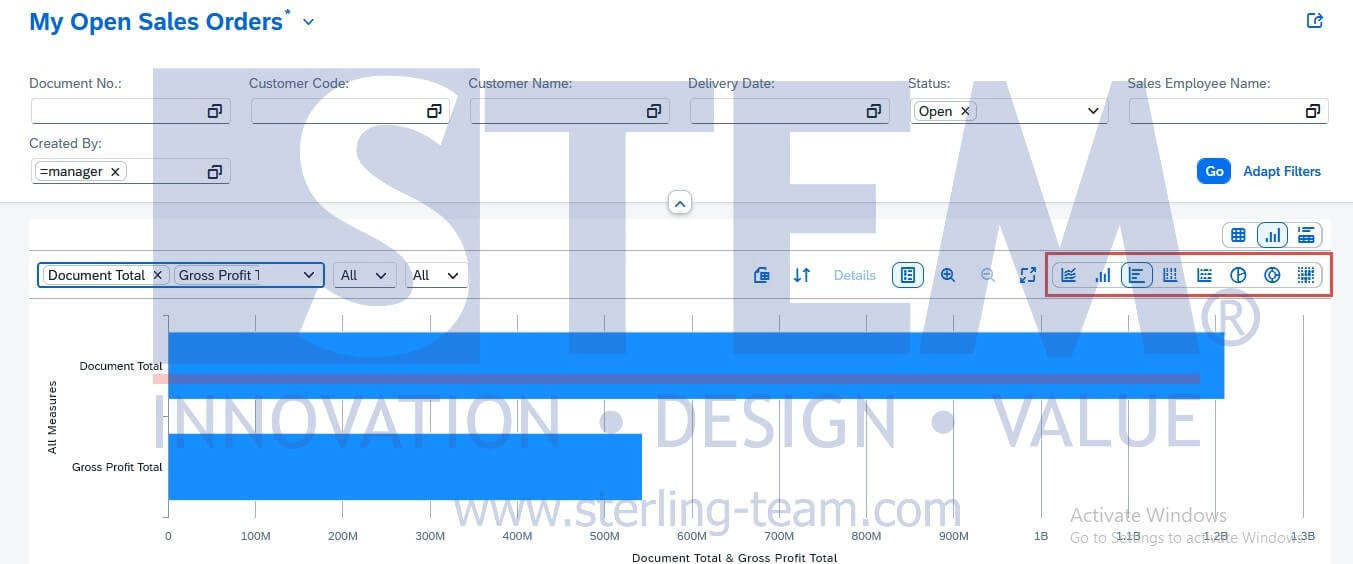
In the toolbar above the document list, select Chart View.
Choose a chart type suitable for the comparison you want to make. For example, a column or bar chart can help you compare order values across customers.
Next, select the fields used to build the chart:
- Dimension: the category used to group the data, such as customer.
- Measure: the numeric value being analyzed, such as document total.
The available fields depend on the list you are working with. For this example, choose the customer name as the dimension and a suitable document-total field as the measure, using sum aggregation where available.
If your transactions use different currencies, choose an amount field in a common currency, where available, so the comparison is meaningful.
Read the Chart in Context
Check what the selected measure represents before drawing conclusions. A chart based on sales order document totals is not the same as invoiced sales revenue. Similarly, the full value of an open order may differ from the value still waiting to be delivered.
Once the chart is useful, you can save the customized view and use Save as Tile to create a home-page shortcut.
This gives you a convenient way to revisit the same comparison during your daily review, while keeping the individual documents available in Table View.
Also read relevant SAP Business One Tips:
- How to Add an Open Sales Orders Shortcut in SAP B1 Web Client
- Ctrl+Tab Function in SAP Business One Warehouse
- Rearranging Item Lines in SAP Business One Transaction Documents
- How to Reorder Document Columns in SAP Business One
- How to Show or Hide the UDF Window in SAP B1
- How to Hide Inactive Contact Persons in SAP Business One