


Checking open sales orders is a routine task for many sales and administration teams. Usually, users open the Sales Orders list and select the view or filters they need before reviewing the documents.
In SAP Business One Web Client, you can save that view as a tile on your home page. This gives you a shortcut to the list you use regularly, so you do not have to repeat the same steps each time.
Prepare the Sales Order List
Before creating the shortcut, decide which orders you want it to show.
- Open Sales Orders from the Web Client home page.
- Select the Open Sales Orders view.
- Add any filters you need, such as a particular customer or salesperson.
- Check the results to make sure the list contains the orders you want to monitor.
For example, if you regularly follow up on outstanding orders for one customer, filter the list by that customer first. The shortcut will then open a more focused list instead of all open sales orders.
Save the View as a Tile
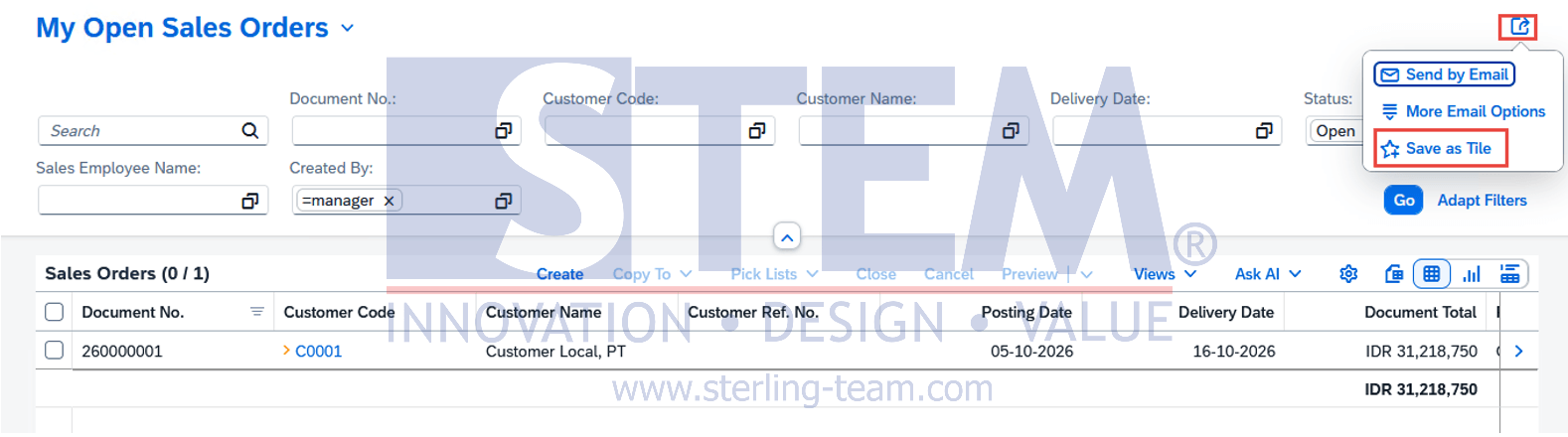
Once the list is ready:
- Open the Share menu in the upper-right area of the list view.
- Select Save as Tile.
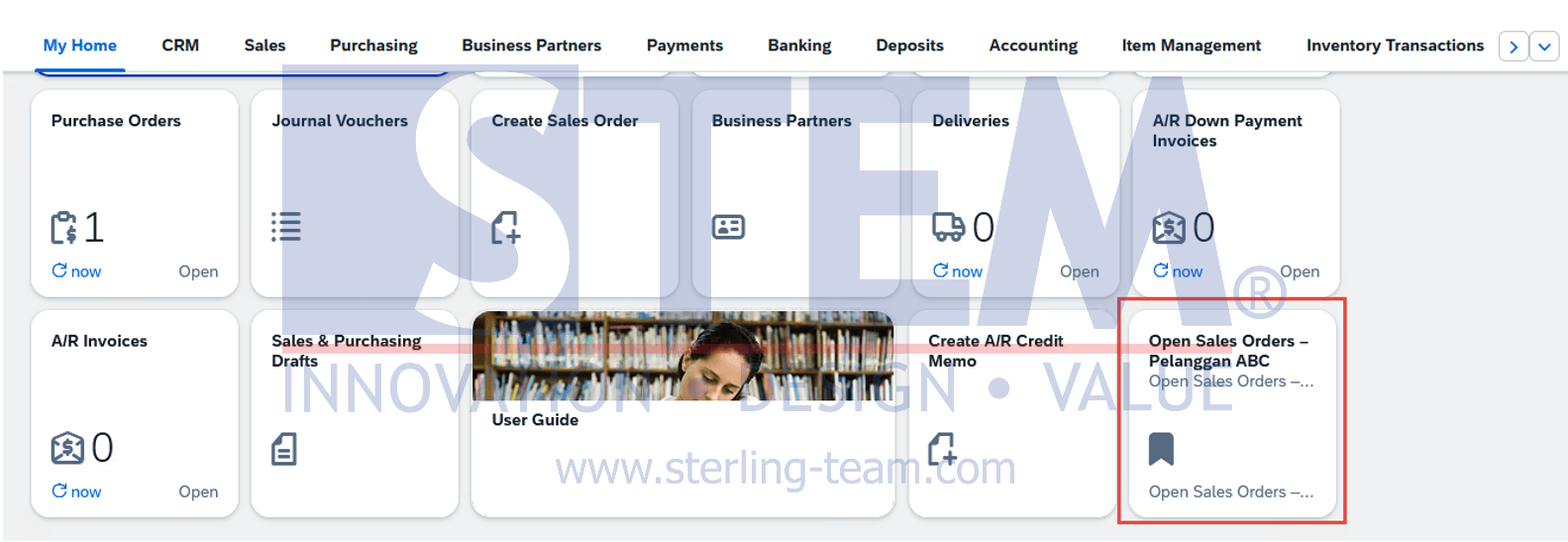
- Enter a title that clearly describes the list, such as Open Sales Orders – Customer ABC.
- Complete the available tile settings and confirm.
Return to the home page and look for the new tile. Open it to check that it takes you to the intended sales order list.
Choose Filters That Will Still Be Useful Tomorrow
- Be careful when saving a view with a fixed date range. A shortcut filtered for October will remain limited to that period when you open it in November.
- For a daily follow-up list, use filters that match the ongoing task. If the purpose is to review all outstanding orders for a customer, an open-status filter and customer filter may be enough.
- The tile is a shortcut to a filtered view, not a saved copy of the documents. Orders shown in the list can change as transactions are added, processed, or closed.
- A clear tile name also helps distinguish it from the standard Sales Orders tile, especially when you create several shortcuts for different customers or responsibilities.