



The Gross Profit Recalculation Wizard is used to recalculate the Cost of Goods Sold (COGS) and Gross Profit for sales documents of items that use the Serial/Batch Valuation method.
The wizard retrieves the latest cost of the batch or serial used in the sales document, then recalculates the COGS and Gross Profit based on the updated batch or serial cost.
If the batch or serial originates from a production receipt (Receipt from Production), the system first recalculates the product cost using the latest cost of all its production components. Once the product cost has been updated, the system recalculates the Gross Profit for sales documents that use the corresponding batch or serial.
Prerequisites
Before running the Gross Profit Recalculation Wizard, ensure the following requirements are met:
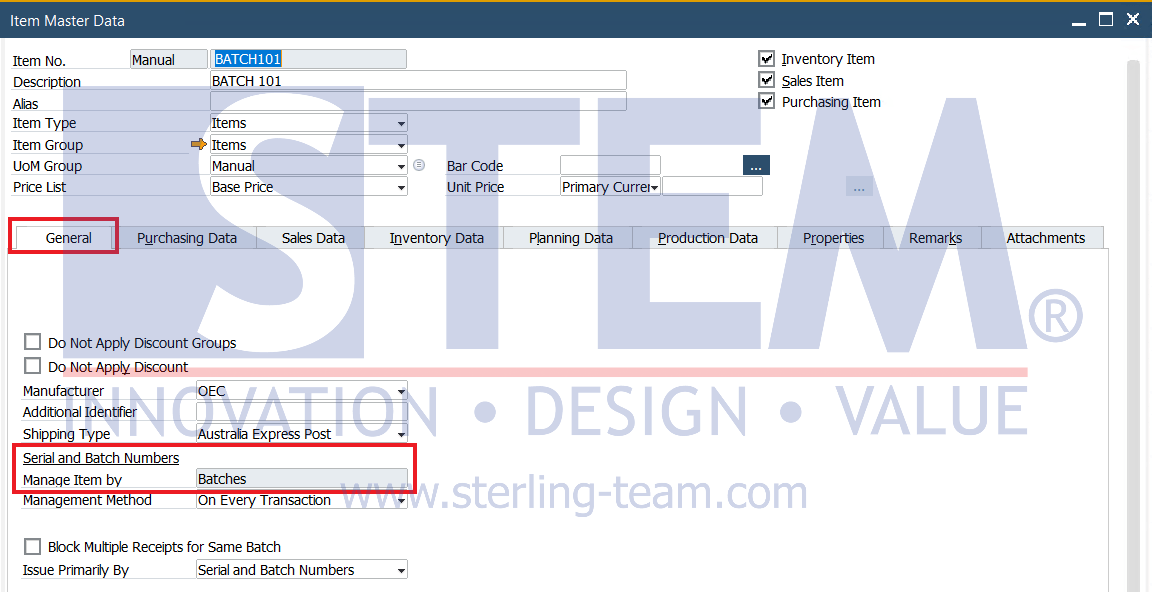
1. The Item Is Managed by Batch or Serial Number
In Item Master Data, on the General tab, ensure that Manage Item By is set to Batches or Serial Numbers.
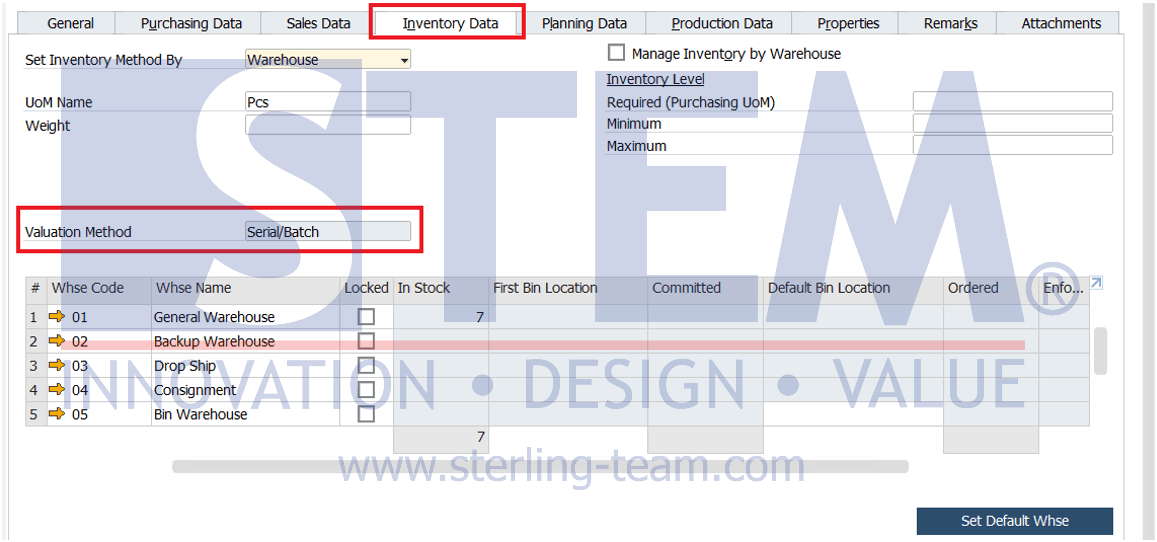
2. The Item Uses the Serial/Batch Valuation Method
This wizard can only be used for items that use the Serial/Batch Valuation method. In Item Master Data, on the Inventory Data tab, ensure that the item’s Valuation Method is set to Serial/Batch. This allows the system to retrieve the latest cost of each batch or serial and accurately recalculate the COGS and Gross Profit.
3. Related Production Orders Are Closed
If the wizard is used to recalculate the cost of manufactured items, ensure that all related Production Orders have been Closed, so that the production cost has been finalized.
4. Run the Wizard After the Item Cost Has Changed
Run the wizard only after the item cost has changed, for example after Production Cost Recalculation or any other cost adjustment process.
How the Gross Profit Recalculation Wizard Works
In general, the wizard performs the following steps:
- Identifies items that use the Serial/Batch Valuation method.
- Searches for sales documents that use the selected batch or serial.
- Retrieves the latest cost of the batch or serial used in the sales document.
- If the batch or serial originates from production, the system recalculates the product cost based on the latest cost of each batch or serial component used during production.
- Recalculates the COGS and Gross Profit in the sales documents using the updated cost.
- Creates a Material Revaluation and Journal Entry, if required, to adjust the inventory value and COGS.
How to Run the Gross Profit Recalculation Wizard
1. Open the Gross Profit Recalculation Wizard
From the SAP Business One main menu, go to: Sales – A/R → Gross Profit Recalculation Wizard. The Gross Profit Recalculation Wizard window will appear. Click Next.
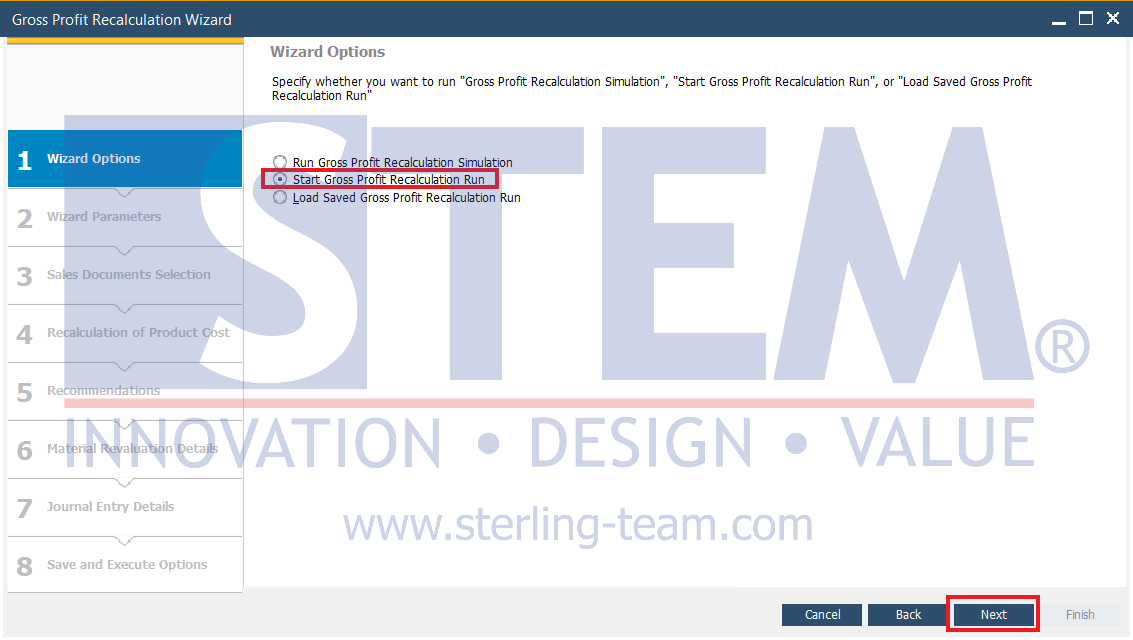
2. Select the Wizard Type
On the Wizard Options page, choose one of the following options:
- Run Gross Profit Recalculation Simulation – Runs a simulation without updating any data.
- Start Gross Profit Recalculation Run – Starts the recalculation process and updates the Gross Profit.
- Load Saved Gross Profit Recalculation Run – Loads a previously saved wizard configuration.
To perform the recalculation, select Start Gross Profit Recalculation Run, then click Next.
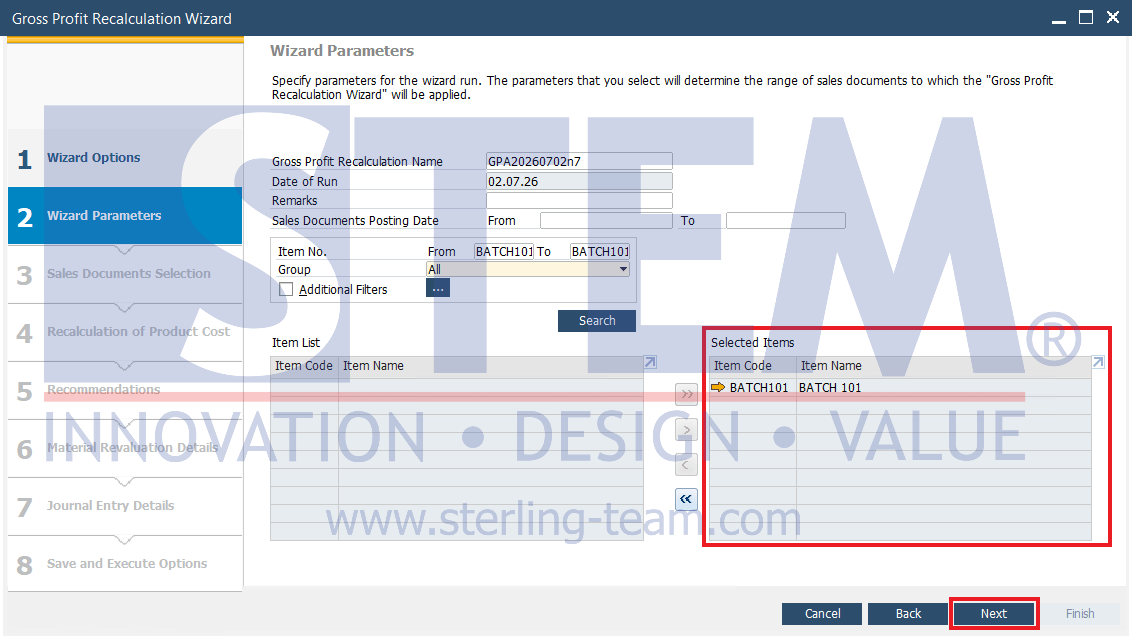
3. Define the Wizard Parameters
On the Wizard Parameters page, specify the item to be recalculated. The available parameters include:
- Gross Profit Recalculation Name – Name of the wizard run (Optional). By default, SAP Business One generates a unique name.
- Date of Run – Date when the wizard is executed. By default, today’s date is used.
- Remarks – Additional notes (Optional).
- Sales Documents Posting Date – Posting date range of the sales documents to be processed.
- Item No. – Select the item to be recalculated.
- Additional Filters – Displays additional search filters such as Search Condition, Find Items With, Display Inactive Items, and others.
Click Search to search for the item.
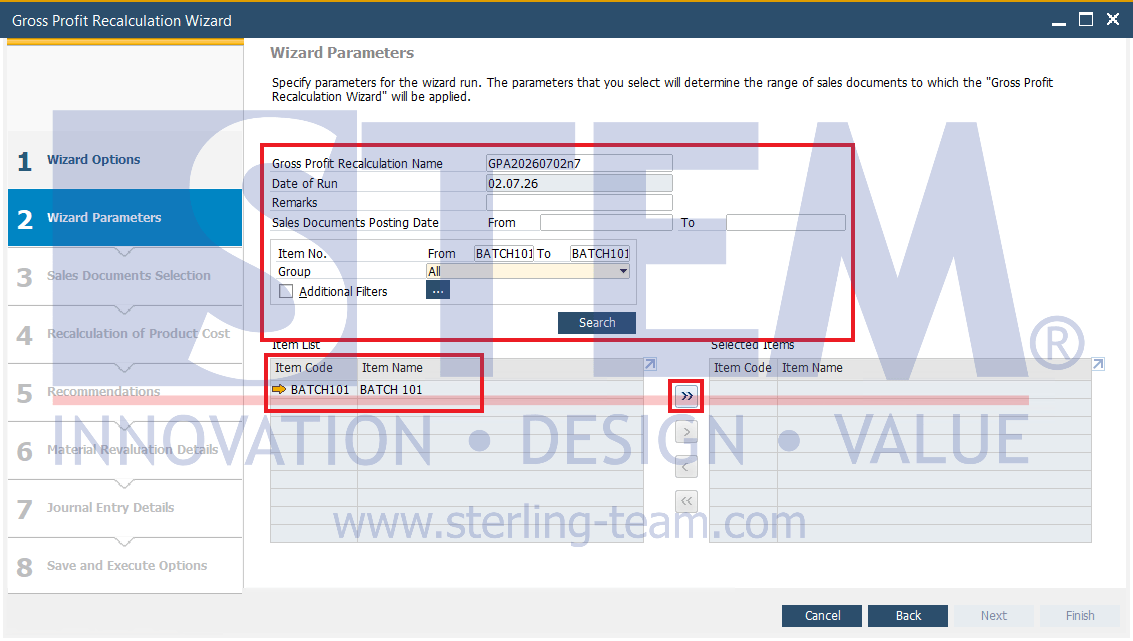
Move the item from the Item List to the Selected Items pane using the >> button, then click Next.
4. Select the Sales Documents
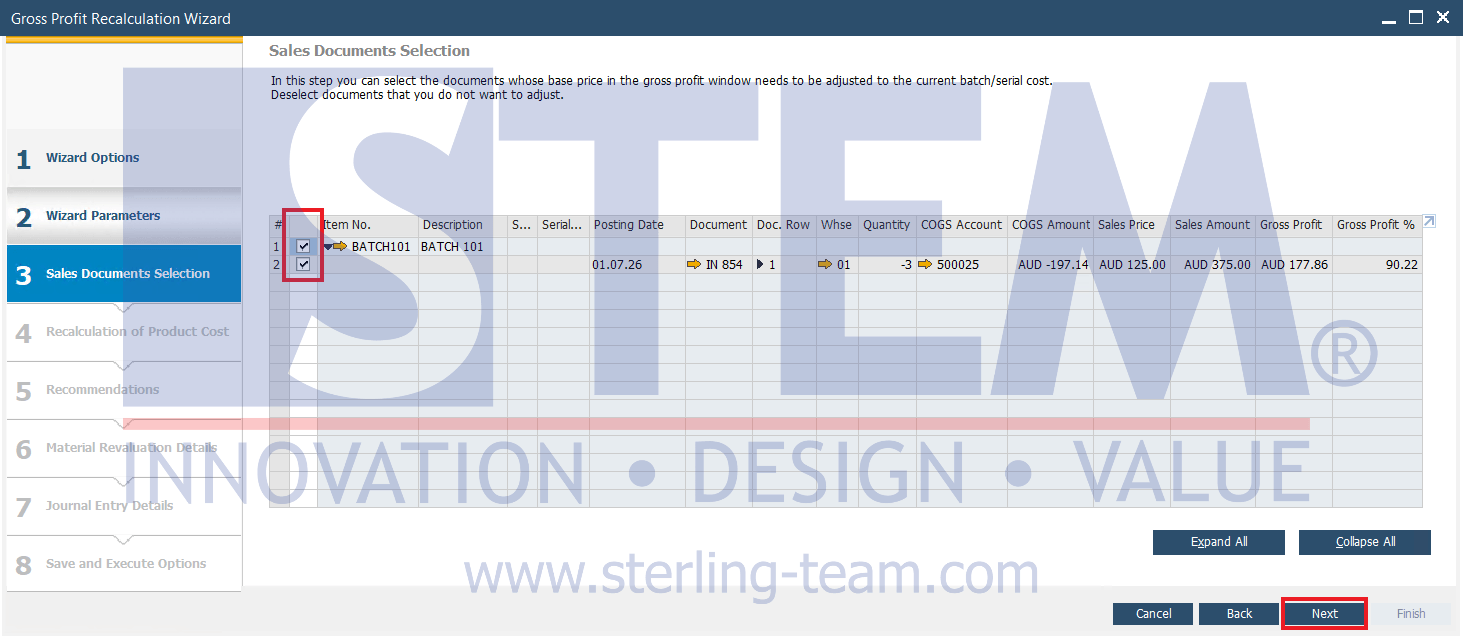
The system displays all sales documents that use the selected item. Select the documents to be processed. If there are documents that should not be recalculated, clear their checkboxes. Click Next.
5. Recalculation of Product Cost
At this stage, SAP Business One recalculates the production cost using the latest cost of the Batch or Serial Number. The page displays information such as:
- Production Order
- Batch/Serial Number
- Cost (Previous Cost)
- Calculated Cost (Updated Cost)
- Delta Cost (Cost Difference)
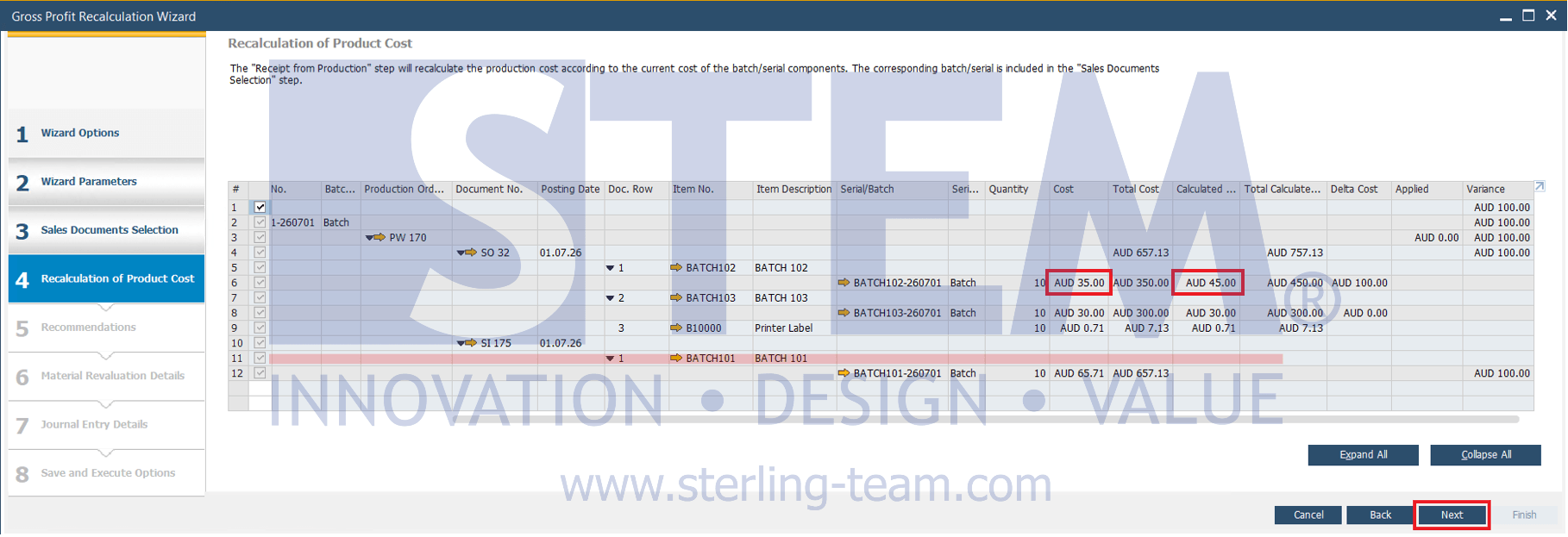
In the example above, the cost of one batch component changes from AUD 35.00 to AUD 45.00, causing the system to recalculate the product cost.
The recalculated cost is then used as the basis for recalculating the COGS and Gross Profit of the related sales documents.
6. Recommendations
After the product cost has been recalculated, SAP B1 displays a comparison between the previous cost and the updated cost. The page includes the following information:
- COGS Amount – The COGS currently stored in the sales document before recalculation.
- Current Serial/Batch Cost – The latest batch or serial cost.
- COGS by Current Cost – The recalculated COGS based on the updated cost.
- Gross Profit – The Gross Profit stored in the sales document before recalculation.
- Gross Profit by Current Cost – The recalculated Gross Profit based on the updated cost.
- COGS Variance – The difference between the previous and recalculated COGS.
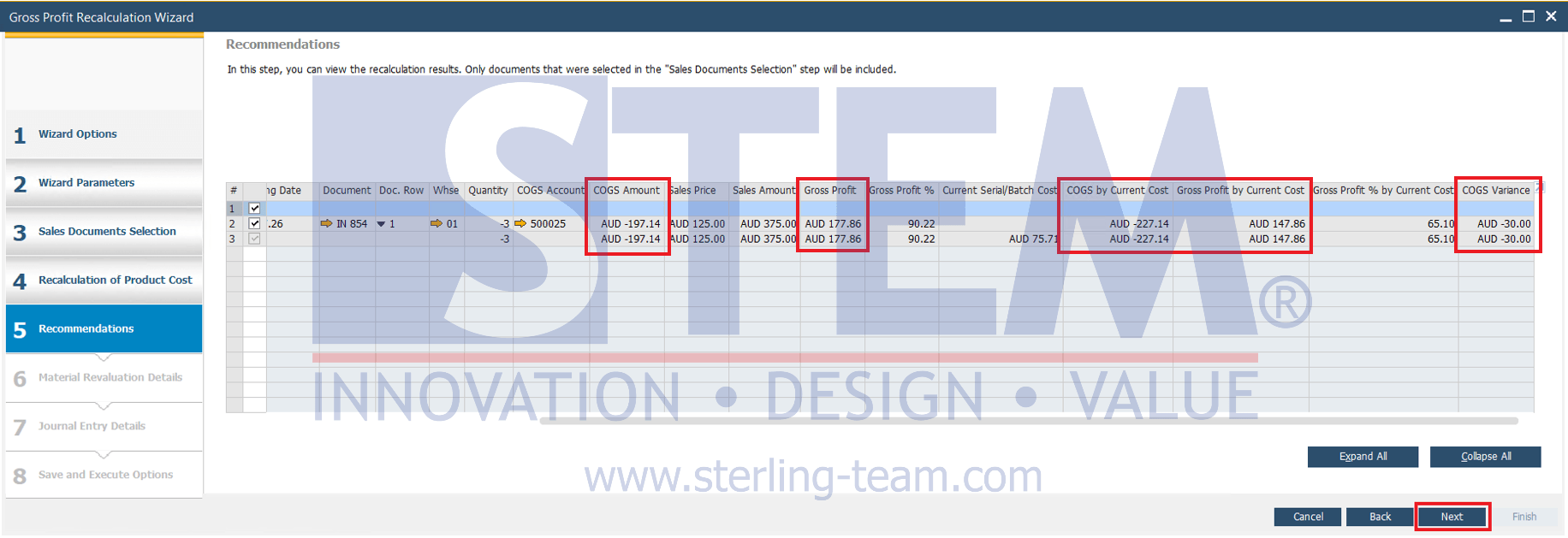
In the example above:
- Previous COGS = AUD 197.14
- Recalculated COGS = AUD 227.14
- COGS Variance = AUD 30.00
- Previous Gross Profit = AUD 177.86
- Recalculated Gross Profit = AUD 147.86
Since the COGS increased, the Gross Profit became lower than before.
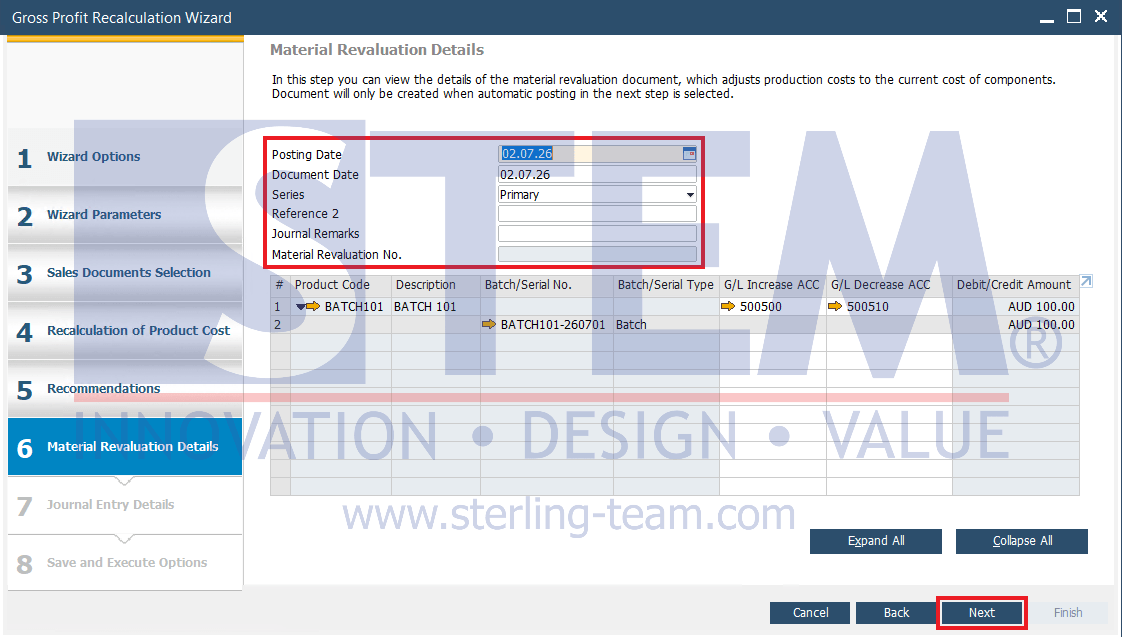
7. Material Revaluation Details
If the product cost changes, SAP Business One creates a Inventory Revaluation document to update the inventory value. The page displays information such as:
- Posting Date
- Document Date
- Series
- Journal Remarks
- Material Revaluation No.
- G/L Accounts
- Revaluation Amount
Verify the information, then click Next.
8. Journal Entry Details
At this stage, SAP Business One displays the journal entry that will be created to adjust the COGS. The page includes:
- Current COGS
- Calculated COGS
- Debit/Credit Amount
- COGS Account
- Price Difference Account
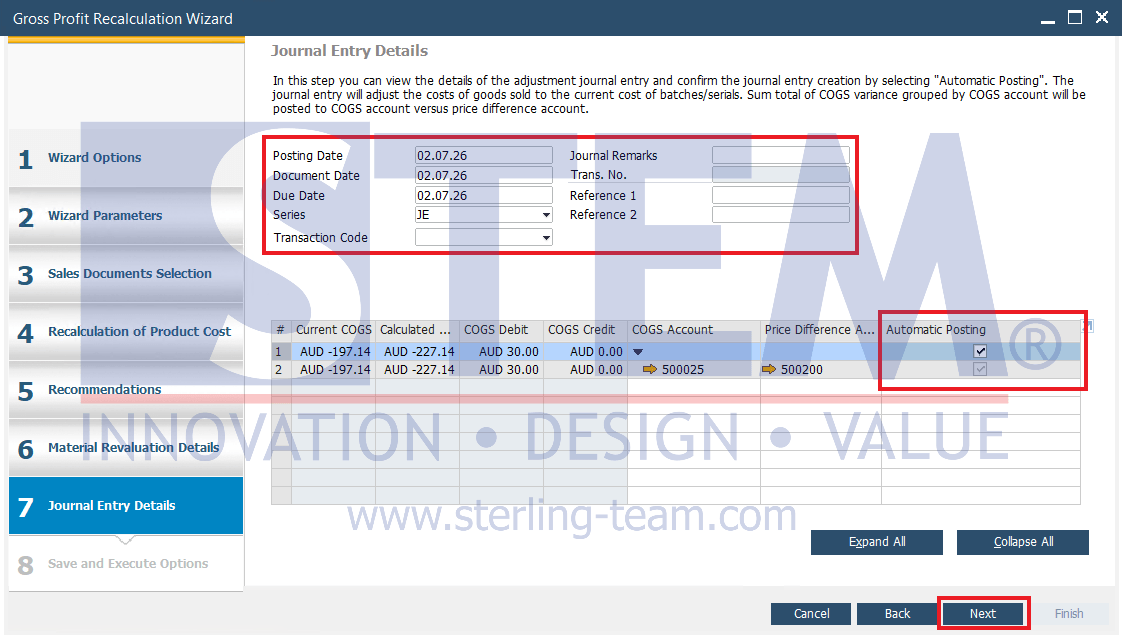
In the example above:
- Current COGS = AUD 197.14
- Calculated COGS = AUD 227.14
As a result, a variance of AUD 30.00 will be posted to the COGS Account and the Price Difference Account.
Enable the Automatic Posting option if you want SAP Business One to create the journal entry automatically after the wizard is executed.
9. Save and Execute
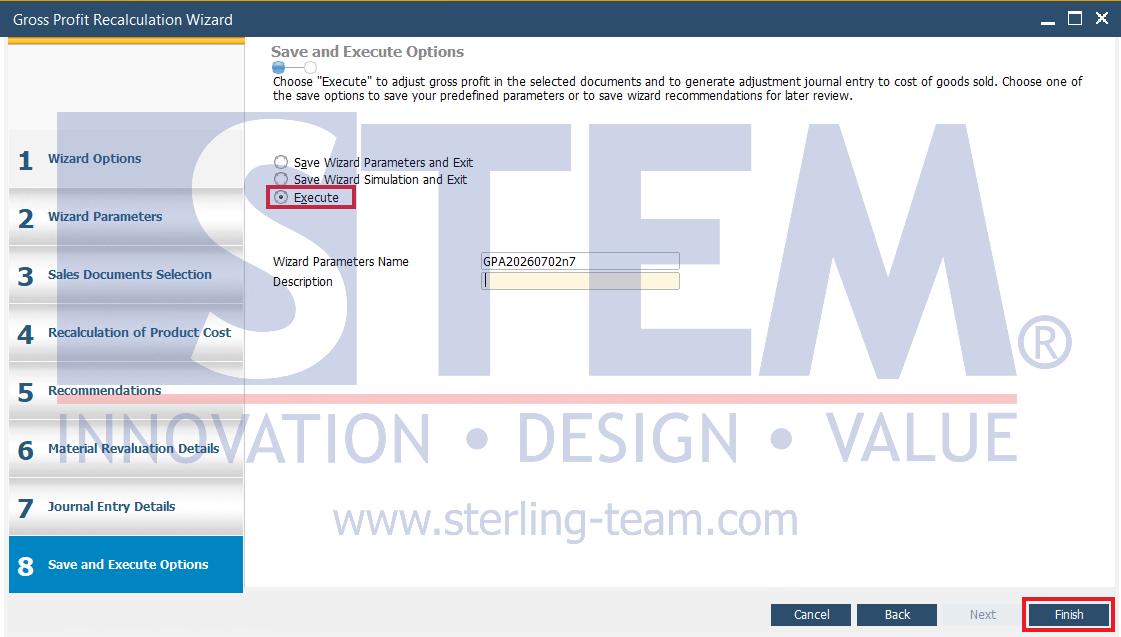
Select one of the following options:
- Save Wizard Parameters and Exit – Saves the wizard parameters without executing the process, then exits the wizard.
- Save Wizard Simulation and Exit – Saves the simulation results, then exits the wizard.
- Execute – Executes the Gross Profit Recalculation process.
To update the Gross Profit, select Execute, then click Finish.
10. Summary
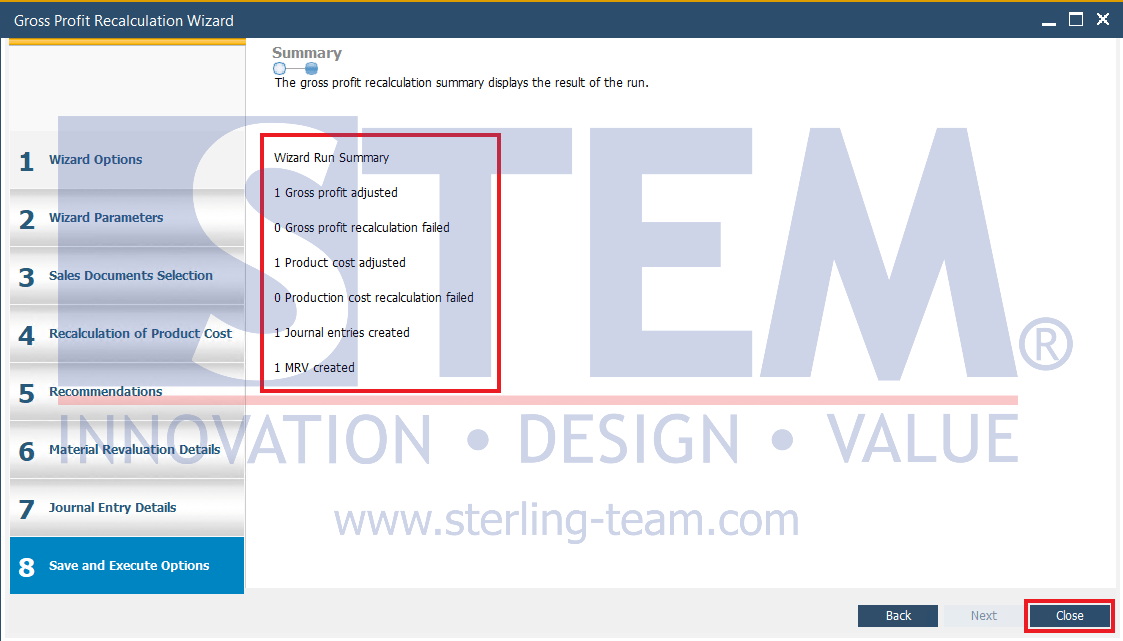
After the process is completed, SAP Business One displays a summary of the Gross Profit Recalculation results. If any process has a Failed status, review the related documents or item data. Click Close to exit the wizard.
Result After Gross Profit Recalculation
Before the wizard is executed, the A/R Invoice still uses a Base Price of AUD 65.71, so the COGS and Gross Profit are calculated based on the cost stored when the document was created.
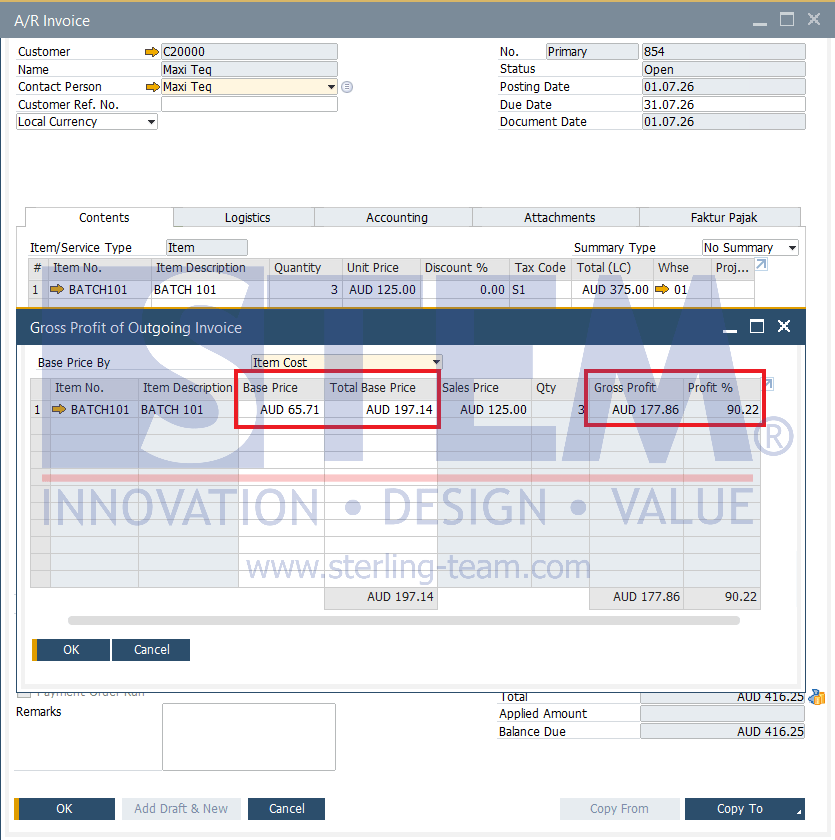
After the wizard is executed, the system recalculates the Gross Profit using the latest batch or serial cost. Based on the updated cost, the Total Base Price (COGS) changes from AUD 197.14 to AUD 227.14, and the Gross Profit is recalculated from AUD 177.86 to AUD 147.86.
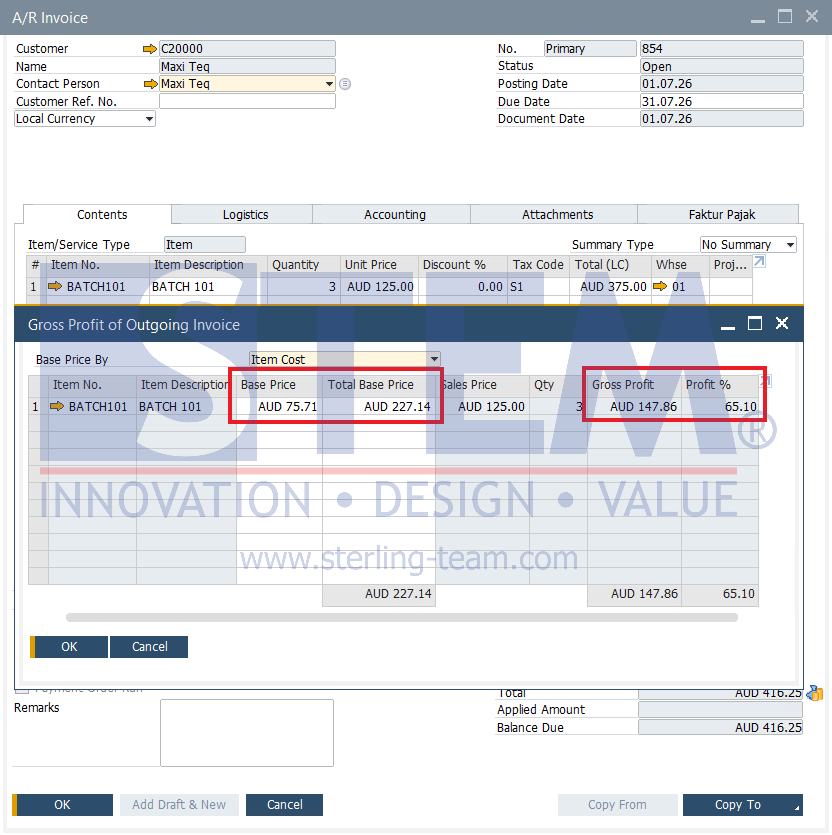
From the example above, it can be concluded that:
- The selling price remains AUD 125.00 per unit.
- The COGS in the sales document is updated based on the latest cost.
- The Gross Profit is recalculated to reflect the actual cost of the batch or serial used.