

In daily business operations, customers may return goods for various reasons, such as defective items, incorrect specifications, or over-delivery. However, not all customer returns result in replacement shipments. In some cases, customers return items without expecting any replacement delivery. These situations must be handled properly to avoid affecting sales document status and inventory availability.
Common Scenarios
Some common reasons why customers return items without requesting replacements include:
- The goods are no longer needed
- Ordering mistakes made by the customer
- Changes in business requirements
- Goods returned for refund purposes (not for replacement)
In these situations, after the goods are returned, the process usually continues with:
- A Credit Memo (refund process)
- Or simply inventory adjustment without replacement delivery
Return Process in SAP Business One
When creating a return transaction in SAP Business One, there are several important conditions to consider:
1. Determining the Return Reference
- If the return can be traced to a specific shipment transaction, the Return document should preferably be created based on the related Delivery document.
- However, if the original shipment transaction cannot be identified, the Return can be created manually without referencing any previous document. In this case, users must manually enter the item and pricing information.
2. Steps to Create a Return Based on a Base Document
Follow these steps:
- Go to: Sales – A/R > Return
- Select the customer who is returning the goods
- Click: Copy From > Deliveries
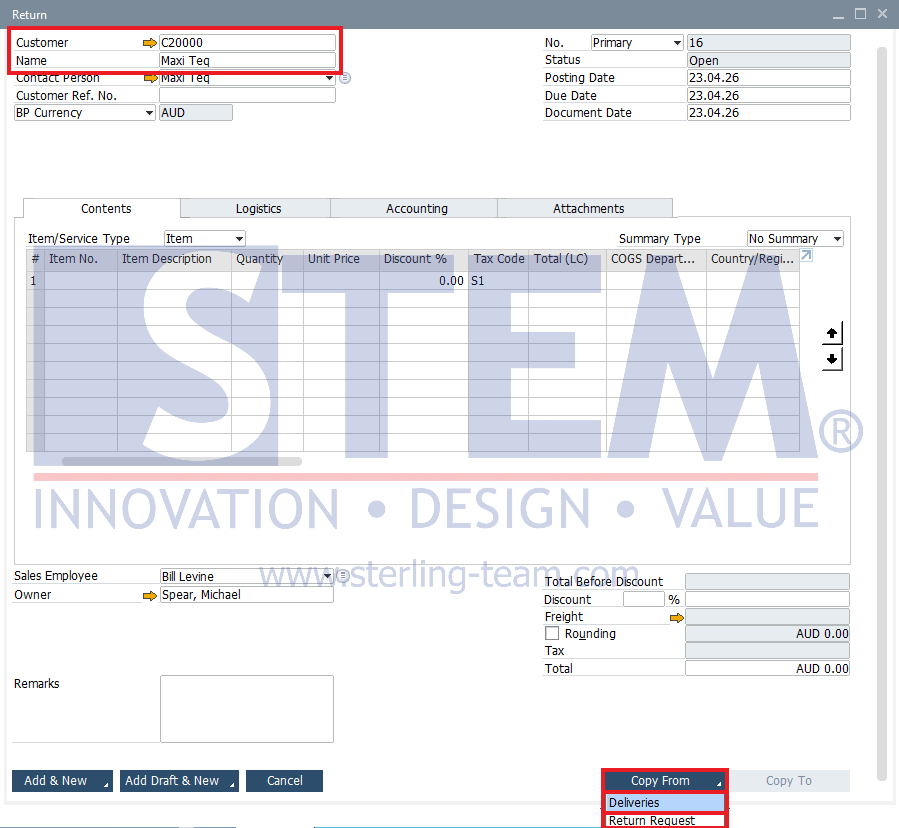
- Select the Delivery transaction, then choose the items to be returned
- The system will automatically copy the selected item data
- Adjust the quantity if necessary
- Complete additional information such as return reason, warehouse, etc.
- Review the total amount and item details. If everything is correct, click Add to save the Return document
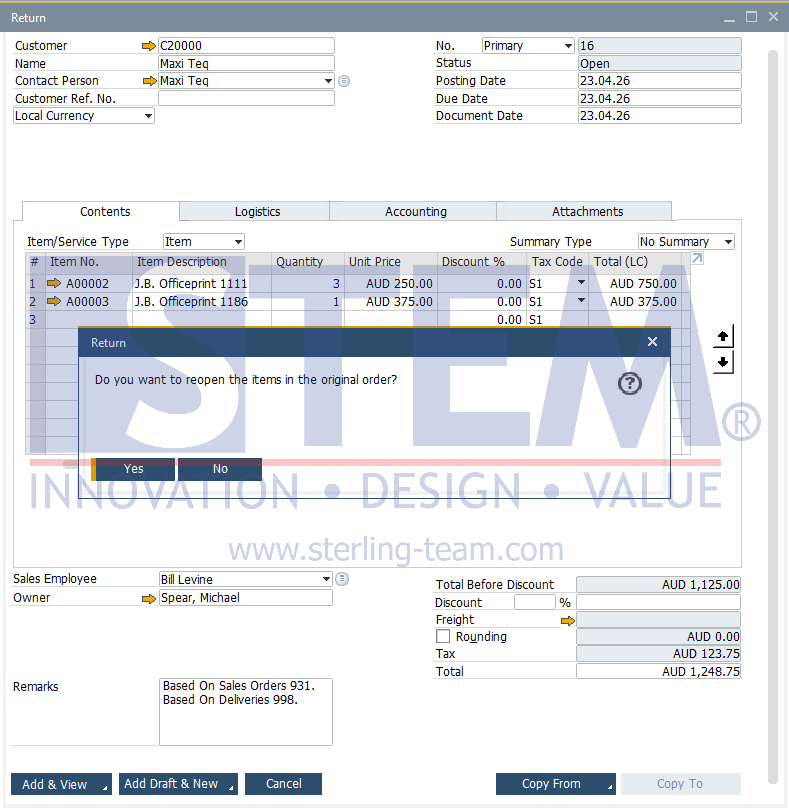
When saving a Return document based on a Delivery document, users will usually see the following system message: “Do you want to reopen the items in the original order?”
This message often causes confusion, especially when the customer does not expect a replacement delivery.
Explanation of the “Reopen Items” Message
This message is related to the item status in the base document (usually the Sales Order).
If the user selects Yes:
- The Sales Order status will be reopened for the returned items
- The system assumes the items have not been fully fulfilled, allowing replacement delivery to be processed
- This option is appropriate when replacement shipment is required
If the user selects No:
- The Sales Order status remains closed
- The system considers the transaction completed and not treated as an outstanding order
- No replacement delivery is expected
Impact of the Return Transaction
After the Return document is successfully added, the system will automatically perform the following:
- Inventory: The item stock will be added back into the warehouse because the goods are returned by the customer.
- Accounting: The system will create reversing journal entries to reduce customer receivables and adjust inventory and cost of goods sold accounts.
- Document Status: If all items in a Delivery document are fully returned, the Delivery document status will change to Closed.
Important Note: If the shipment transaction has already proceeded to the A/R Invoice stage, the return process must use an A/R Credit Memo instead of a Return document, to ensure that customer receivable balances in the financial reports remain accurate and synchronized.
The message “Do you want to reopen the items in the original order?” is an important control mechanism in SAP Business One. The answer should be selected based on the business purpose:
- Replacement required → Yes
- No replacement required → No
Understanding this behavior helps maintain data accuracy, avoid operational mistakes, and ensure that the return process aligns with business requirements.
Not Sure How to Process Returns Without Replacement?
Using the wrong return process can affect inventory and document flow in SAP Business One. Our team can help you determine the right approach for your business.