
In a working environment involving multiple users with different roles and responsibilities, efficiency in user administration becomes essential. SAP Business One provides the User Group feature to simplify centralized authorization management, allowing administrators to avoid configuring access individually for each user.
By using User Groups, the management of authorizations, alerts, and user interface (UI) settings can be handled collectively. This makes administrative processes more efficient, consistent, and easier to control. Administrators only need to apply settings to a single user group, and those configurations will automatically apply to all users within the group.
What is a User Group?
A User Group in SAP Business One is a feature used to group multiple users into a single unit based on roles, functions, or departments, such as Finance, Sales, Purchasing, or Inventory.
With this feature, you can apply the same settings to multiple users at once, which helps maintain data consistency and enhances system security.
Each group can be assigned:
- Authorizations
- Specific settings (such as form settings or alerts)
- User membership validity periods
With this approach, administrators only need to configure settings at the group level, and all users within the group will inherit the same configuration. User Groups can be accessed via: Administration > Setup > General > User Groups.
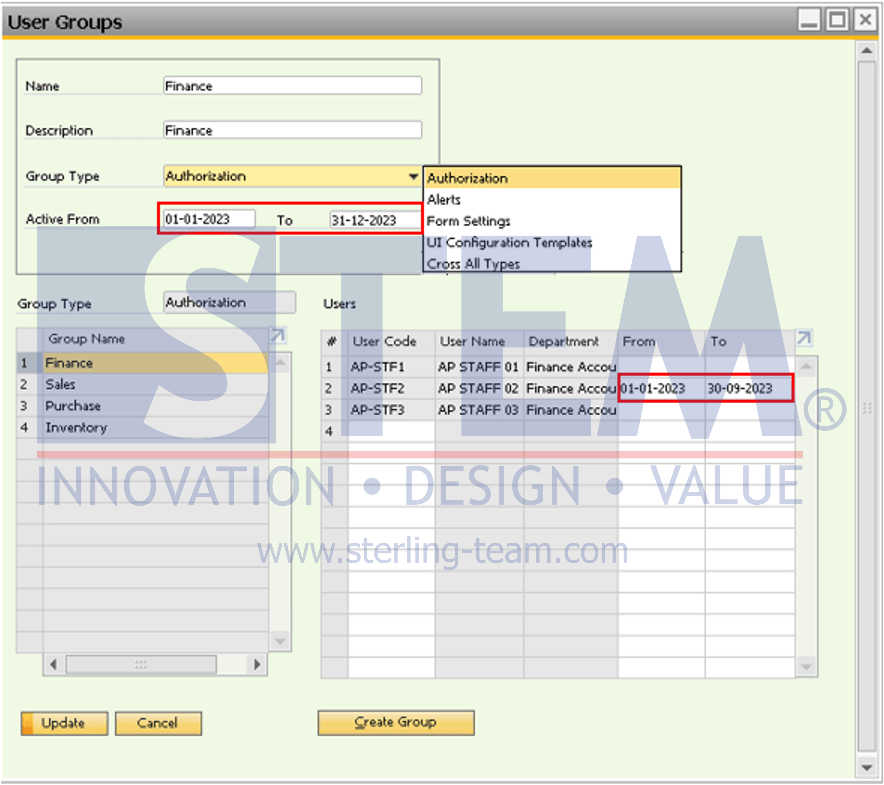
Understanding Group Type: The Key to Proper Assignment
One of the most critical steps when creating a User Group is selecting the Group Type. This choice determines where the user group will be applied within the system. SAP B1 provides several group types:
- Authorization: Used to manage menu access rights collectively. The group will appear in the General Authorizations window.
- Alerts: Used to define which users receive system notifications (Example: the Finance group receives alerts related to credit limits).
- Form Settings: Used to standardize the layout of columns and tables for all group members.
- UI Configuration Templates: Used to customize the user interface layout, such as hiding or rearranging fields and tabs for a group of users.
- Cross All Types: Used to apply configurations that cover all functions above within a single group.
Configuration Steps in the User Group Window
1. Define Group Identity
- Name & Description: Provide a clear and consistent name (e.g., Finance_Auth) for easy identification.
- Group Type: Select the appropriate group type based on your requirements (e.g., Authorization).
2. Set Validity Period
SAP B1 allows flexibility in defining validity at both group and user levels:
- Header (Active From & To): Defines the validity period of the group as a whole.
- User Table (From & To): Defines the active period for each individual user within the group. This is especially useful for interns or contract employees that needs temporary access for specific periods.
3. Add Members (Users)
Add users to the Users table by entering their User Code. A user can belong to multiple groups simultaneously; however, it is important to ensure that there are no conflicts between group settings (especially for authorizations).
The User Group feature in SAP Business One provides a simpler and more structured way to manage user access. By utilizing this feature effectively, companies can improve administrative efficiency, maintain consistent configurations, and strengthen system security control.
Managing SAP B1 User Access the Hard Way?
Managing users individually often leads to inconsistent configurations. Our team can help you implement User Groups for more efficient and centralized access management.