



SAP Business One let you define specific text strings that can be added to Purchasing or Sales documents. These Predefined Texts can be added in a text row such as Remarks. It is more efficient to use predefined texts when you always add a same Remarks in some documents.
To define this predefined text, choose Administration > Setup > General > Predefined Text.
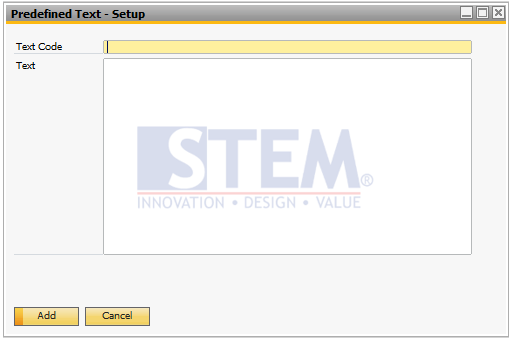
Predefined Text – Setup window will pop up. Fill the Text Code and Text then click Add.
If you already have some Predefined Texts and want to remove it, just open the predefined text you want to remove then
Right Click > Remove or choose Data in the menu bar > Remove.
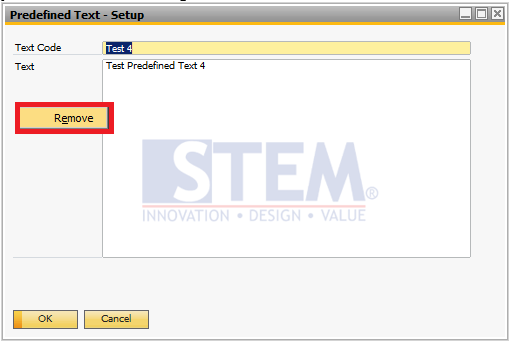
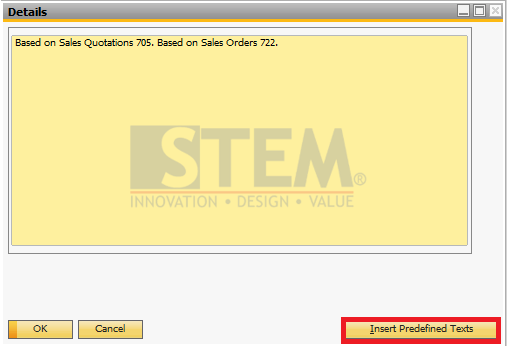
If you want to use your Predefined Texts, open Sales/Purchasing documents and choose a text row or Remarks and double click on the field.
In this example, we use a predefined text in Remarks Field. Click Insert Predefined Texts
Choose Predefined Text that you want to Insert
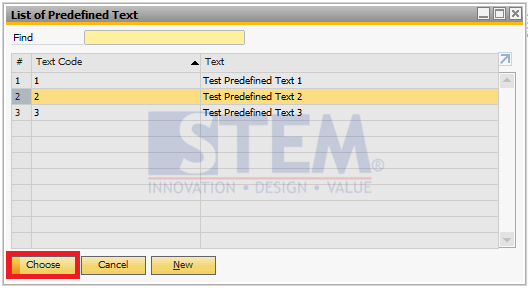
The predefined text that you choose will be inserted into the Remarks field.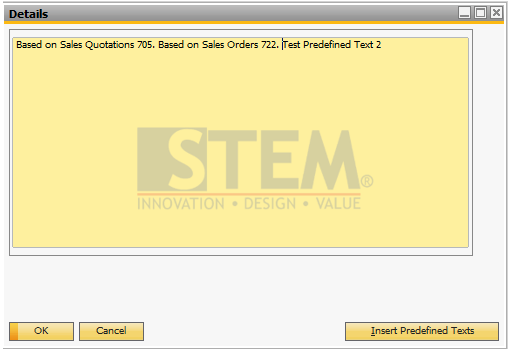
Also read relevant SAP Business One Tips:
- How to Show Draft No. Column in Document Drafts Report
- Summary Type in SAP Business One Marketing Docs
- How to Show or Hide the UDF Window in SAP B1
- How to Hide Inactive Contact Persons in SAP Business One
- How to Add an Open Sales Orders Shortcut in SAP B1 Web Client
- Use Multiple Currencies in SAP B1 Header & Rows