
In SAP Business One, there is a distribution rule function used in documents, and this distribution rule information can be set whether the information is to be combined or separated by columns.
- For this setting go to menu Administration > System Initialization > General Setting.
- For the “in unified column” option, it means that the distribution rule information will be merged.

SAP Business One Tips – How to Split or Merge Distribution Rule Information
- And the display on the document will be as below, where the distribution rules between each level are separated by a semicolon ( ; ) in the same column.

SAP Business One Tips – How to Split or Merge Distribution Rule Information
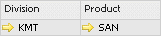
- For the “in separate column” option, it means that the distribution rule information will be separated by columns between levels.

SAP Business One Tips – How to Split or Merge Distribution Rule Information
- And the display on the document will be like below, in which the different columns have each level of the distribution rule.
SAP Business One Tips – How to Split or Merge Distribution Rule Information
Also read relevant SAP Business One Tips:
- How to Add Tax Group in SAP Business One Easily
- How to Set SAP Business One Control Account – Guide
- How to Print SAP Business One Documents Automatically
- How to Create Down Payment in SAP Business One
- Set Cash Limit per User on Incoming Payments in SAP B1
- SAP B1: How to Display Canceled & Cancellation Watermarks