In daily business activities, companies often need to send multiple documents at once to different recipients. For example, sending several quotations to the purchasing manager, a number of invoices to the accounting team, and delivery documents to the warehouse staff. If done manually, this process can be time-consuming.
To simplify this process, SAP Business One provides a document distribution feature through Email Groups, which allows you to send a batch of documents simultaneously to multiple recipients. Here are the steps:
- Create an Email Group as a distribution list.
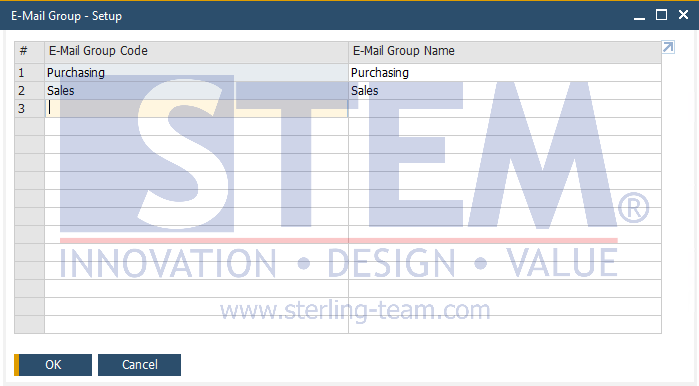
Go to Administration > Setup > Business Partner> E-Mail Group. In the E-Mail Group – Setup window, create an email group as needed, for example, “Purchasing” or “Sales.”
- Assign the Email Group to contacts in the Business Partner Master Data.
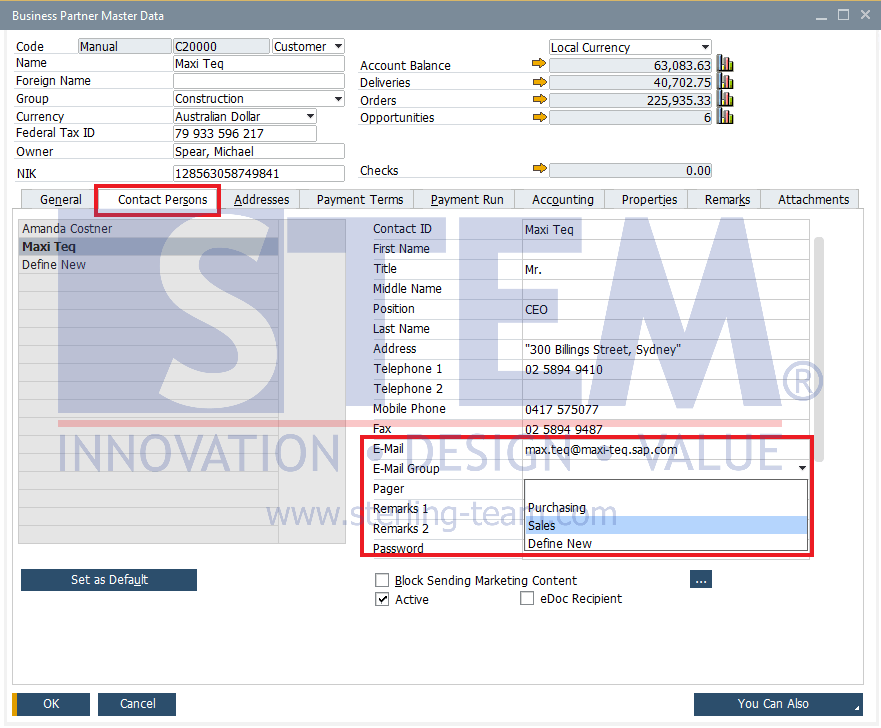
Go to Business Partner Master Data > Contact Person tab. Find the relevant business partner, select the contact, and enter the e-mail address in the E-Mail field. Then, link the contact to the appropriate email group in the E-Mail Group field. Repeat this step for all necessary contacts.
- Prepare the list of documents to be sent.
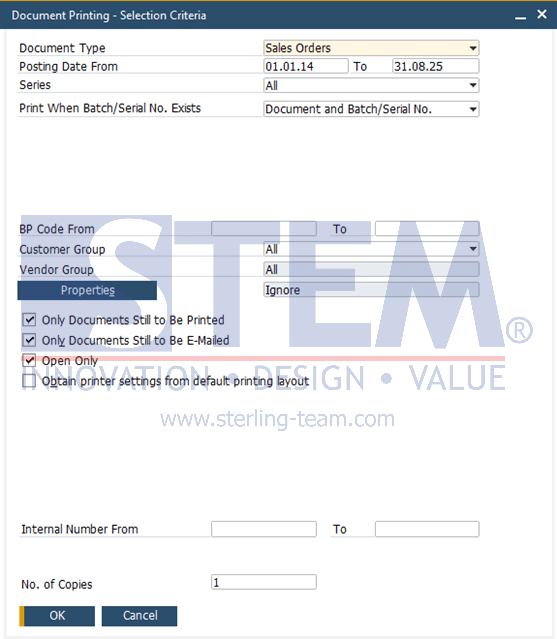
Open Document Printing – Selection Criteria (available under the Sales – A/R, Purchasing – A/P, Banking, and Inventory modules). Set the filters as required (e.g., by date, open documents, or specific customers), and click OK.
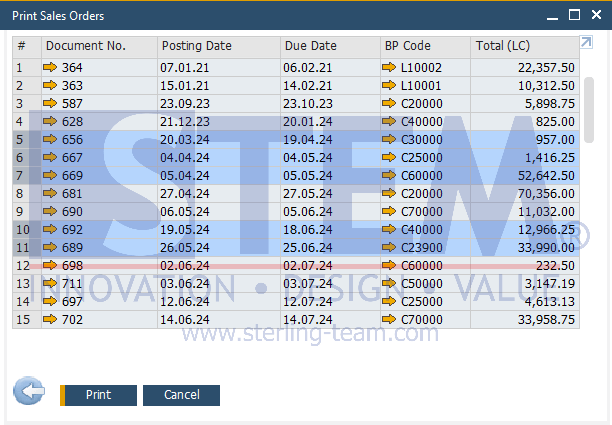
The system will display the document list. Select the documents you want to send.
- Send the documents via email.
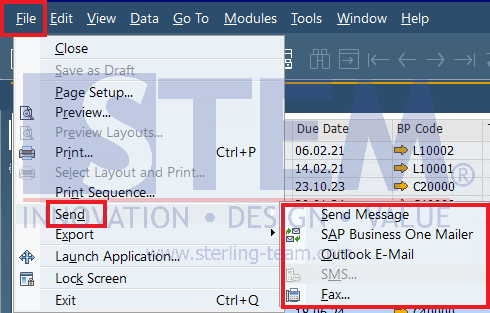
From the File menu, choose Send > Outlook E-Mail or SAP Business One Mailer, depending on your system settings.
In the E-Mail Options window, check “Use Email Group”, then select the relevant email group. Click OK to proceed.
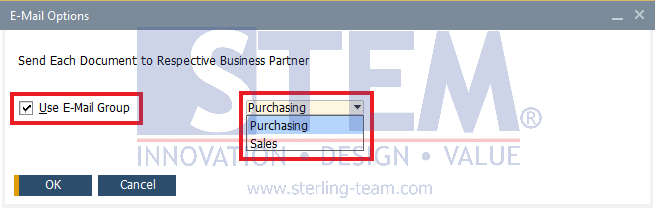
Note: To enable sending documents with attachments, ensure the Attachment folder has been defined under Administration > System Initialization > General Settings > Path tab. - Review the e-mail list.
Before sending, you can review the list of documents and their recipients. By default, all e-mails are selected. If you want to exclude certain documents, uncheck the E-Mail box for those entries.
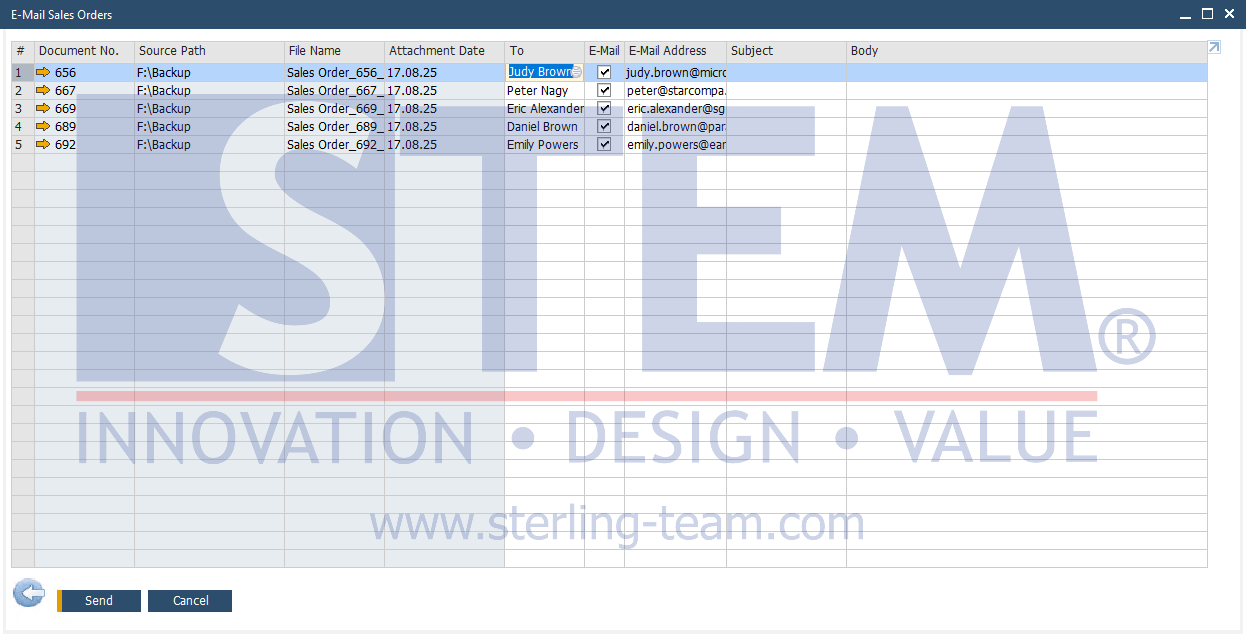
- Send the e-mails.
Click Send. SAP B1 will send the selected documents to each email group according to the configuration.
Also read relevant SAP Business One Tips:
- Auto Email Report in SAP Business One Easily
- Enable Multiple Scheduling for SAP B1 Service Calls
- How to Create Down Payment in SAP Business One
- Sending SAP B1 Docs by Email via Document Printing
- AI Insight for SAP Business One to Read Reports Smarter
- How to Show Draft No. Column in Document Drafts Report