


There are 2 types of Period End Closing on SAP B1:
Monthly Closing and Year End Closing.
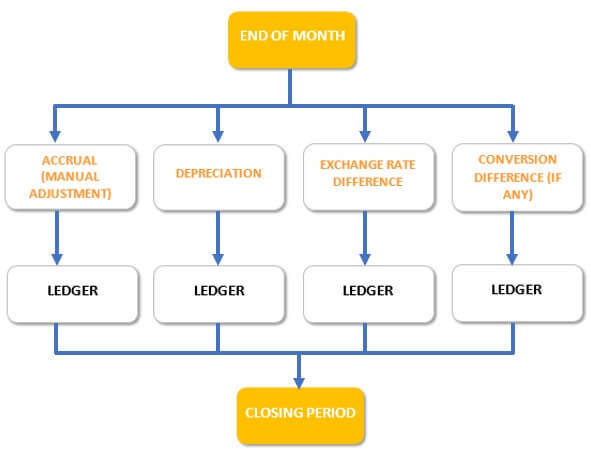
Montly Closing
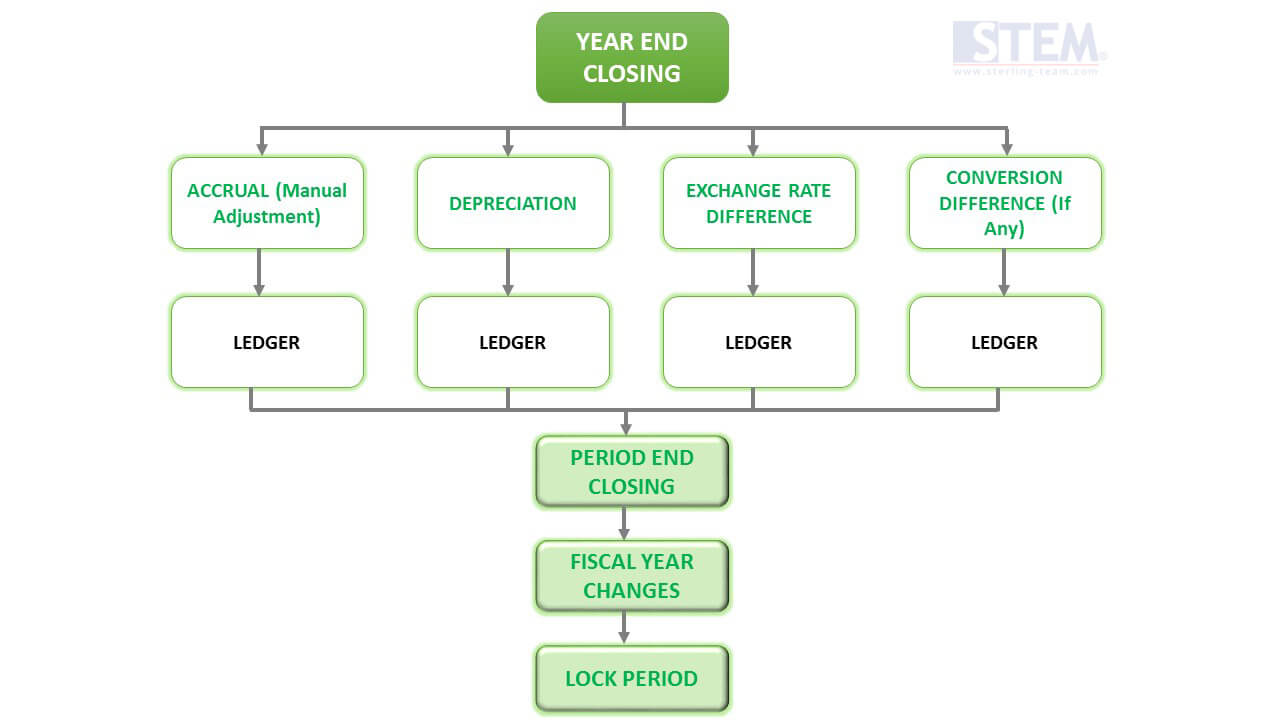
Year End Closing
IMPORTANT:
Please backup your current database first, before you doing this steps for Period End Closing and Fiscal Year Changes.
Also read:
Open the Exhange Rate Differences on Financials menu.
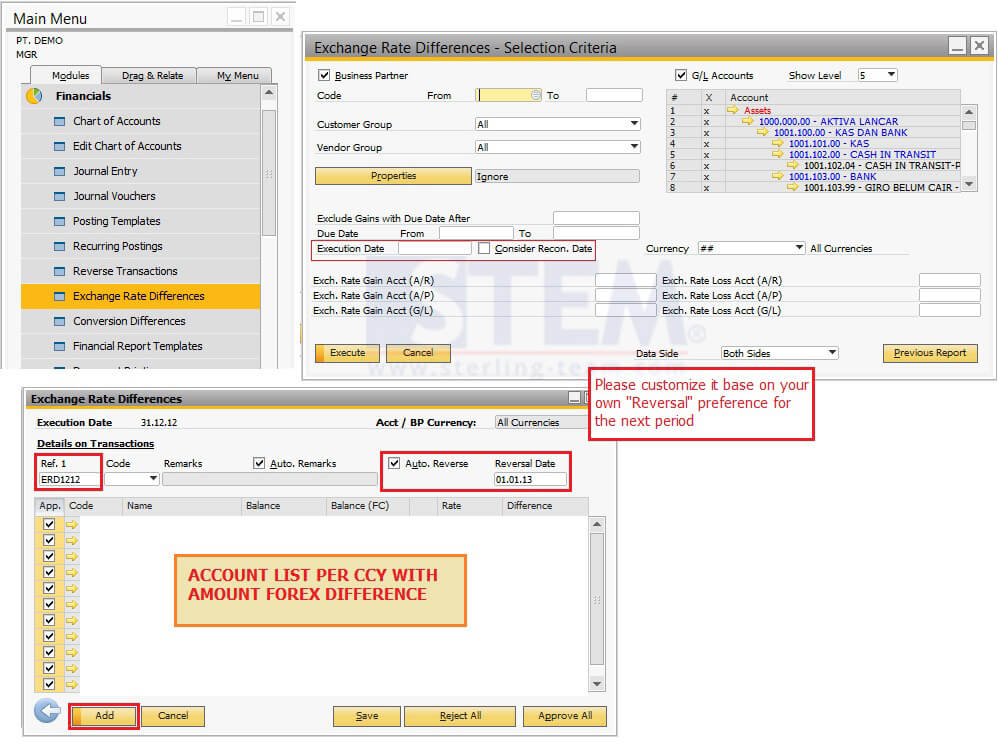
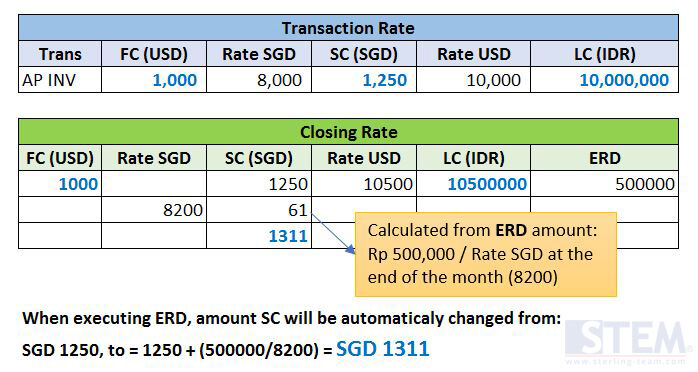
Now, we’ll explain further about Concept of Exchange Rate Difference Vs Concept of Conversion Difference (using an example from A/P Invoice journal).
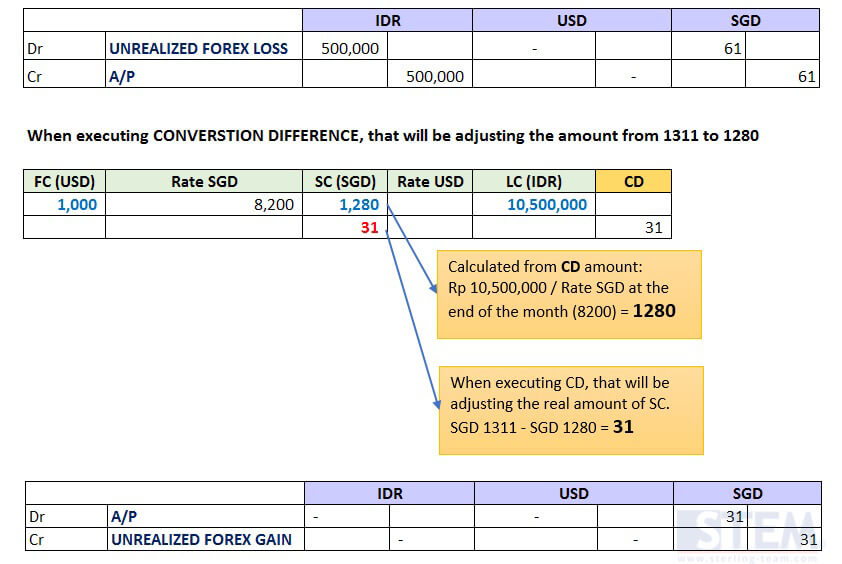
Open Conversion Differences on Financial Menu.
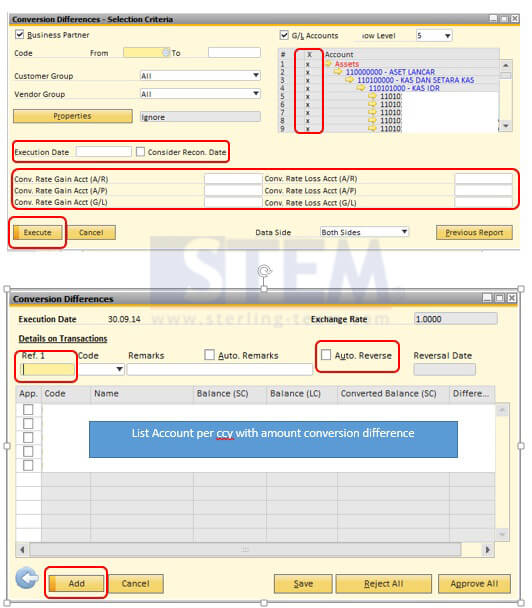
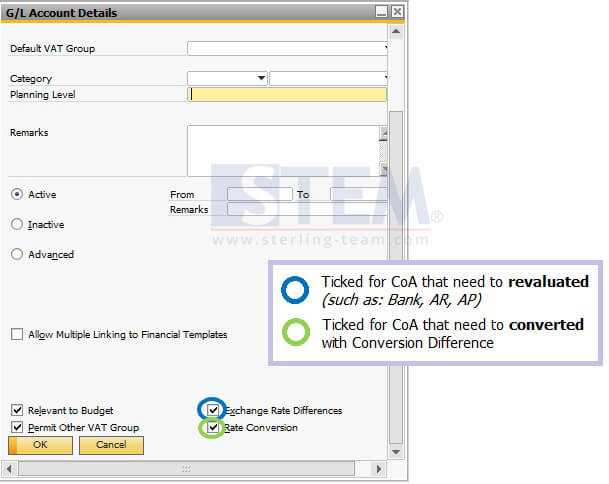
You need to prepare few accounts, such as:
- Unrealized Foreign Exchange Gain (PL – Other Income)
- Unrealized Foreign Exchange Loss (PL – Other Expense)
But, for some companies, there will be more details CoA (it’s up to you), such as:
- Unrealized Foreign Exchange Gain – BANK (PL – Other Income)
- Unrealized Foreign Exchange Gain – AP (PL – Other Income)
- Unrealized Foreign Exchange Gain – AR (PL – Other Income)
- Unrealized Foreign Exchange Gain – LOAN (PL – Other Income)
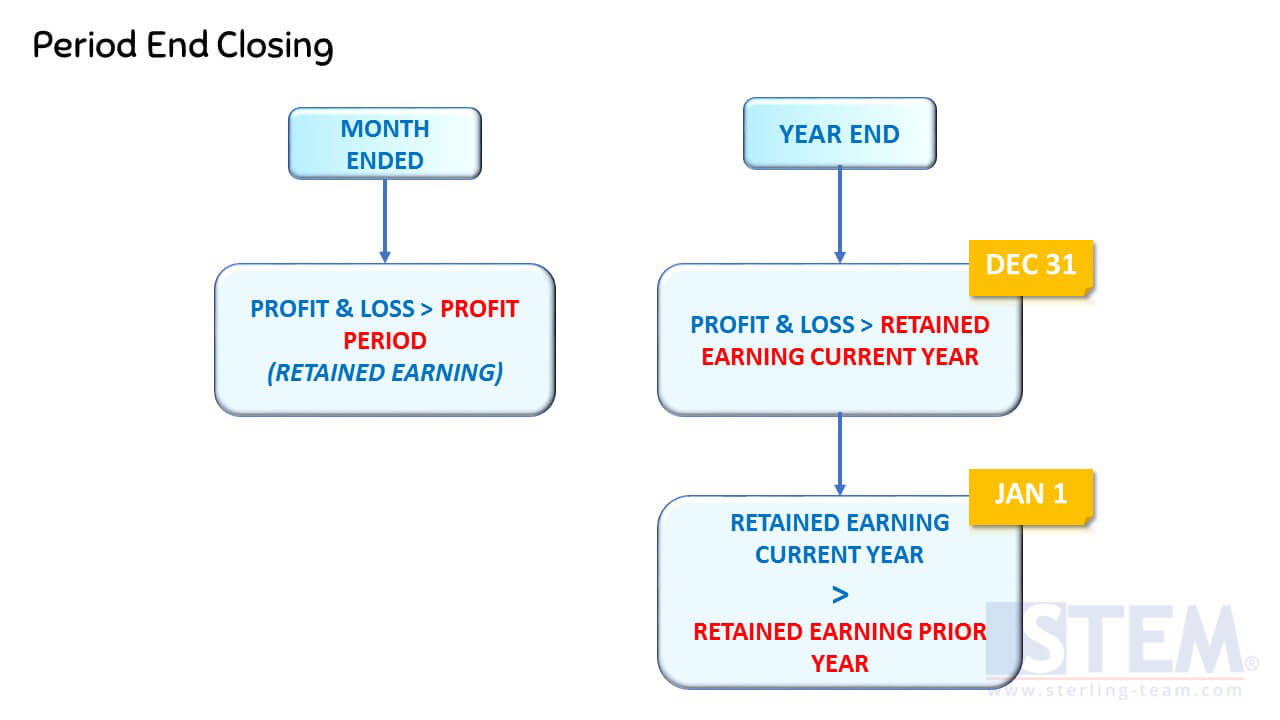
Then, open Administration – Utilities – Period End Closing
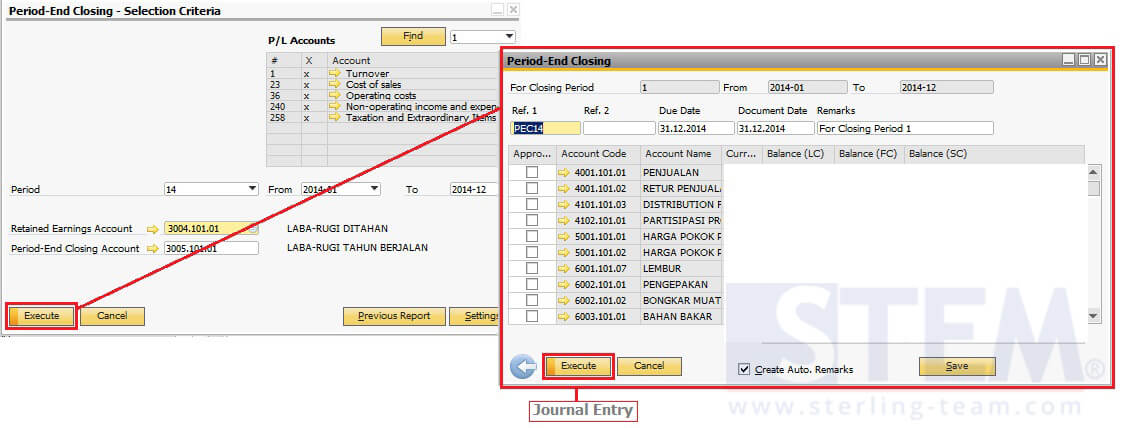
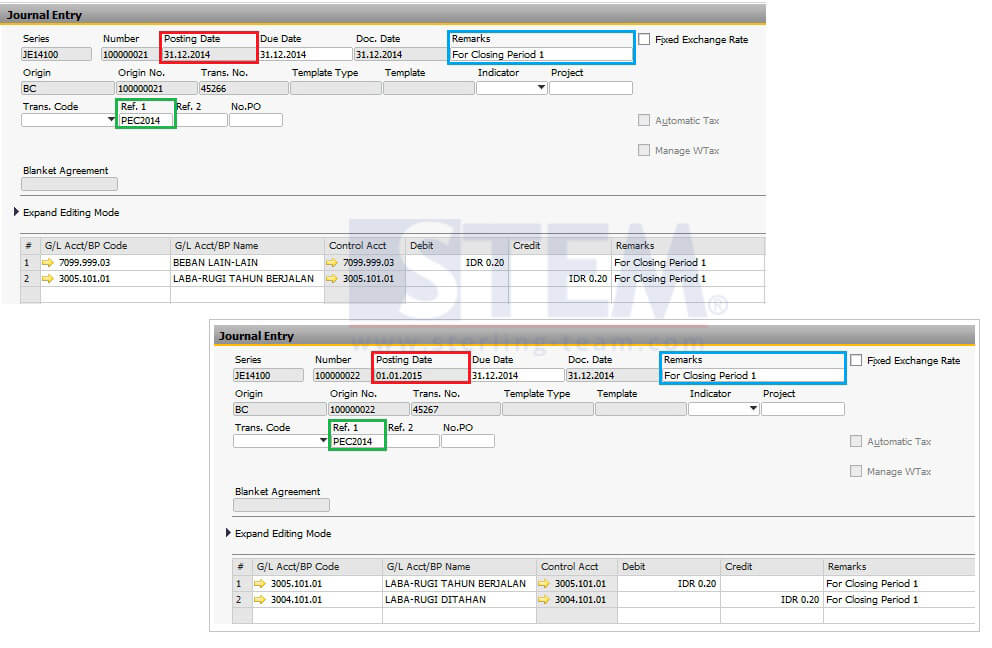
Input parameter from-to, then fill retained earning account and period-end closing account. After that, click Execute button, fill the Ref.1 remarks field, and Execute. That will be created new journal entry on your system.
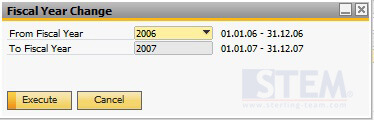
Next step, on menu Financial – Fixed Asset – Fiscal Year Change, choose Year (From).
Next, set Close / Lock Period, on Administration – System Initialization – Posting Period.
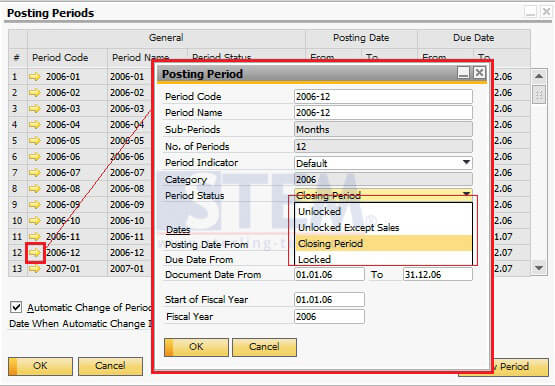
Select the last period (December), and make sure the status is already “Closing Period”.
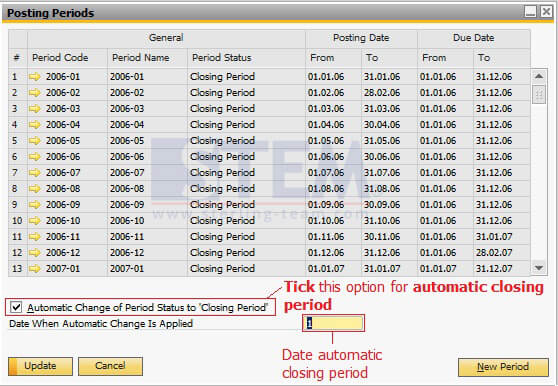
If there’s an authorization error, please make sure on General Authorization menu, selected user must be set to ‘Full Authorization’ to perform this action.
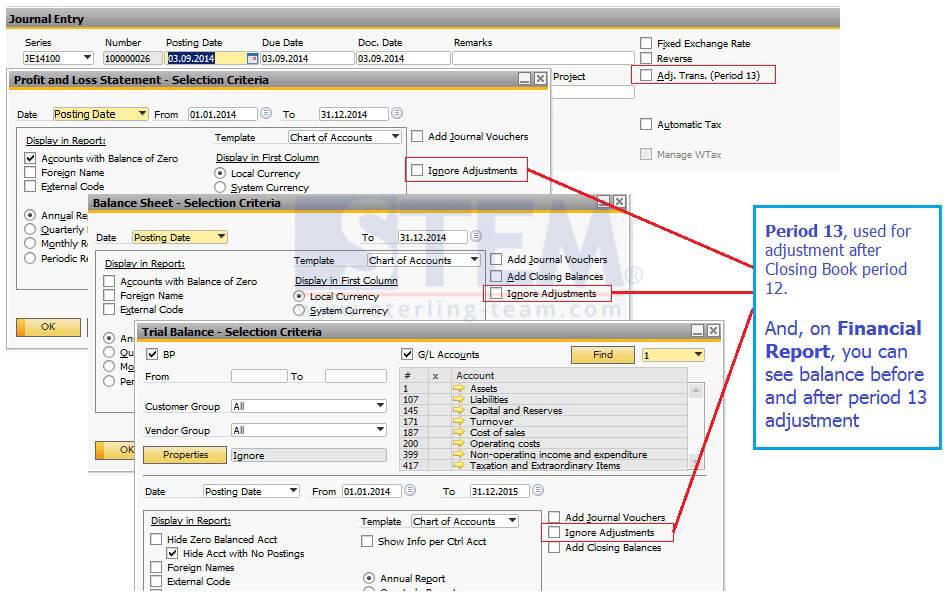
NOTE:
If there’s an adjustment that related to Profit and Loss account on Period 13, user need to re-doing a Period End Closing process.
Need Help with SAP Business One Period-End Closing?
Closing issues are often discovered only after financial reports are completed. Our experts can help ensure your period-end closing is accurate and follows SAP Business One best practices.