If you can integrate with Microsoft 365, you can Export Word and Excel documents. Previously, you had to configure the office 365 SAP Business One web application. The web application is connected to the landscape directory system which manages the SAP Business One user identification and contains the Template Management page and the configuration.
To log in to the web application, follow these steps:
- In SAP Business One Main Menu, select Administration > System Initialization > General Setting > Select Path Tab
- In the Export Word and Excel File To section, select OneDrive, you can find the SAP Business One Microsoft 365 Integration link.
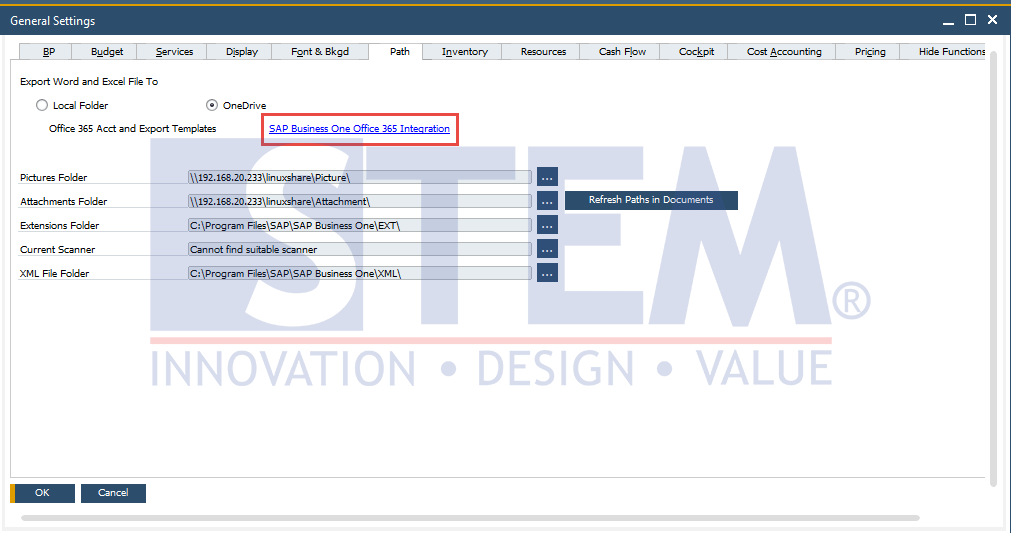
SAP Business One Tips – Logon to SAP Business One Microsoft 365 Integration Set Up Page
- In the Logon page, select the company for which you want to configure SAP Business One Microsoft 365 integration, and enter your SAP Business One username and password.
- Click Logon.
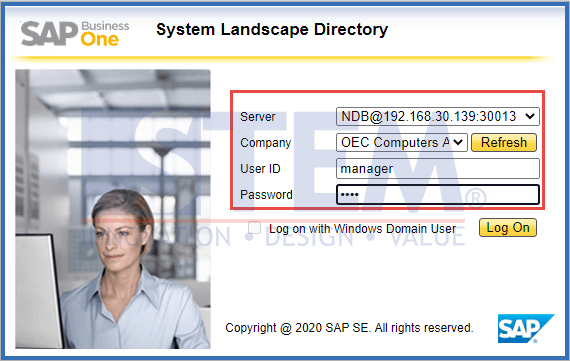
SAP Business One Tips – Logon to SAP Business One Microsoft 365 Integration Set Up Page
- The Template Management page appears.
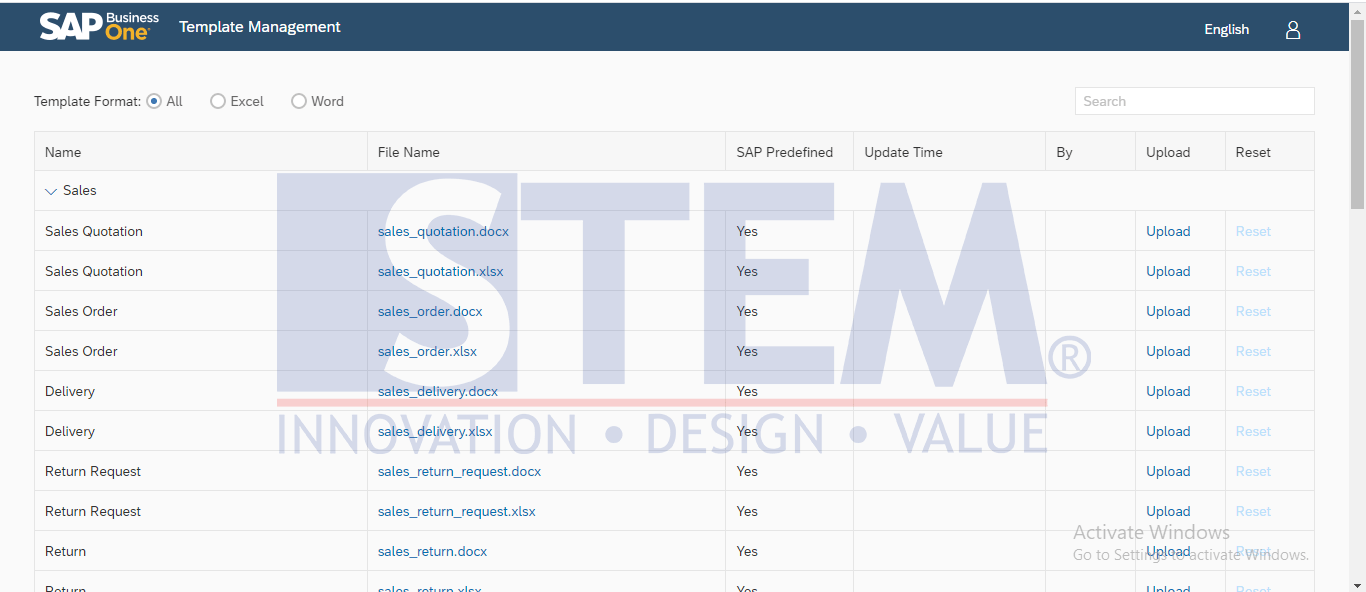
SAP Business One Tips – Logon to SAP Business One Microsoft 365 Integration Set Up Page
Notes:
- You have come to the starting page where you configure SAP Business One Microsoft 365 integration. To complete the configurations, continue with the procedures in Setting Up Your Applications.
- This feature only available in SAP Business One 10.
Also read relevant SAP Business One Tips:
- SAP Business One Microsoft 365 Setup & Integration Guide
- SAP Business One 10 Microsoft 365 Authorization Guide
- Export Crystal Reports Layouts in SAP Business One
- How to Configure SBO Mailer in SAP B1 – Step-by-Step
- Restart SAP HANA Web Client Service on SuSE SLE 15 SP1
- How to Extend UDF Character Length in SAP Business One