
There are several ways to Troubleshooting Add-On Installation Failed. Here is one way to resolve this problem:
- After an error Add-On Installation Failed appears, try to logout and exit from SAP Business One.
- Make sure that there’s no Add-On Service still running in Windows Task Manager. If there is, End-Task the running add-on.
- Go to SAP Business One folder:
• “C:Program Files (x86)SAPSAP Business One” if you use 32 bit Windows OS.
• “C:Program FilesSAPSAP Business One” if you use a 64 bit Windows OS. - Delete any files listed inside the AddOns folder.
- Remove 2 .SBO files (AddOnsInstall.sbo and AddOnsLocalRegistration.sbo), If there’s only one .SBO file, remove that file.
- Make sure the windows user has full access to the SAP folder. You can check by right-clicking the SAP folder > choose Properties > choose the Security tab. If the user still doesn’t have full access, click on Edit button > and give the full access right by giving checkmark on Full Control > click OK > click OK.
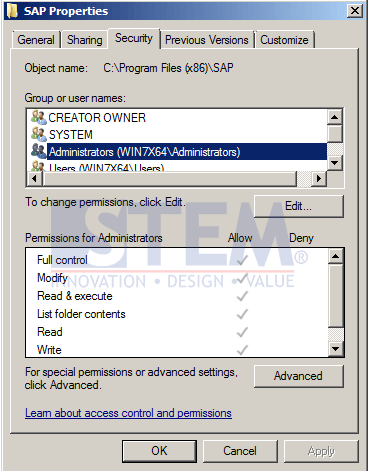
SAP Business One – How To Troubleshoot Add-On Installation Failed
- Remove the Temp folder, by pressing on keyboard Windows + R > fill in %temp% > click OK button.
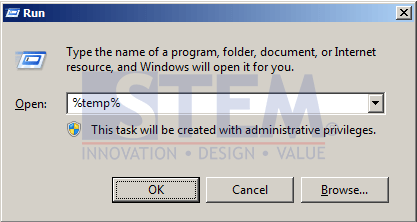
SAP Business One – How To Troubleshoot Add-On Installation Failed
- The File Explorer window will open directly to the temp folder. Press CTRL + A > Delete the data as below> click Yes to confirm that we will delete the files > Windows will prompt you if there are any files still use by other programs, click Skip.
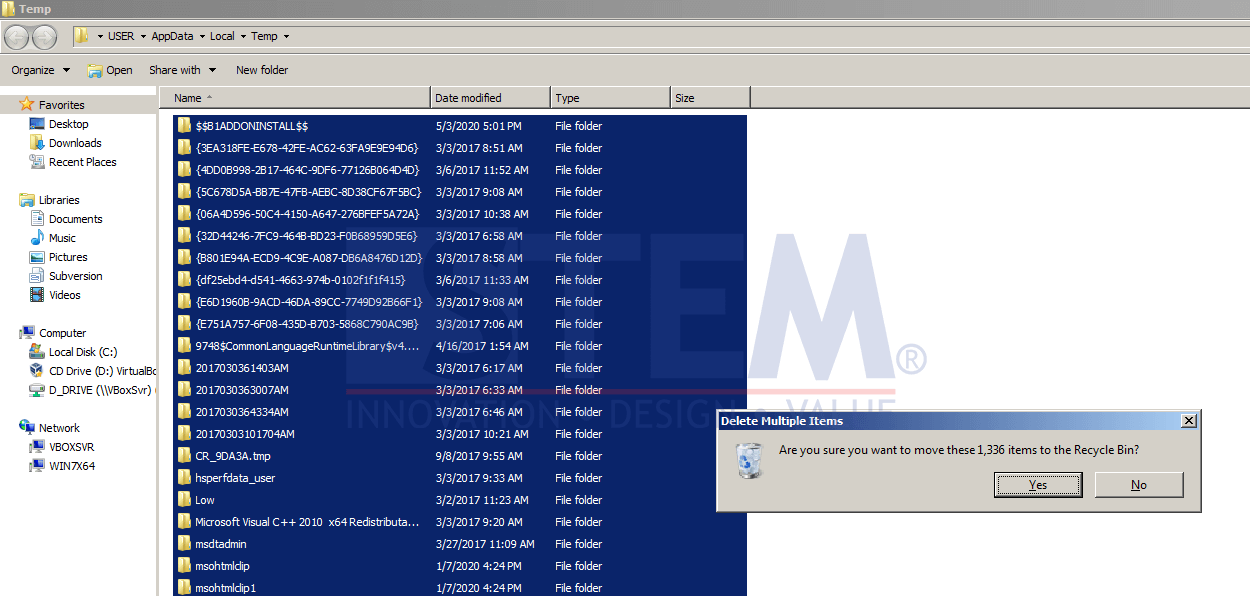
SAP Business One – How To Troubleshoot Add-On Installation Failed
- Run SAP Business One Client program as Administrator. To make it default, right-click on the SAP Business One Client shortcut > choose Properties > choose Compatibility tab > click Change Settings for all users > it will show new windows > Ticked Run this program as an administrator to activated > click OK > click OK.
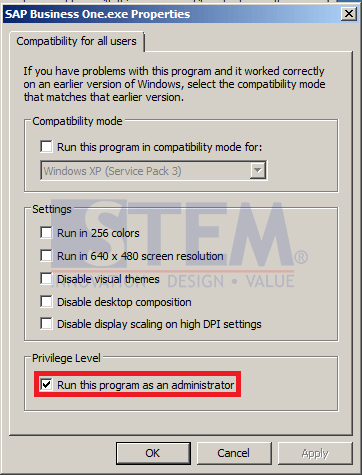
SAP Business One – How To Troubleshoot Add-On Installation Failed
- Re-open the SAP Business One Client dan Login. SAP Business One will try to re-install the add-on.
Notes:
- If an antivirus program thinks that the add-on you were trying to install as a virus, you have to exclude the SAP Folder. So the antivirus program will not scan the folder, and then repeat steps 1-9 above.
- If you still experiencing a problem, you can try to remove the SAP folder that is located in the ProgramData folder (By default, this folder is hidden). See image below:
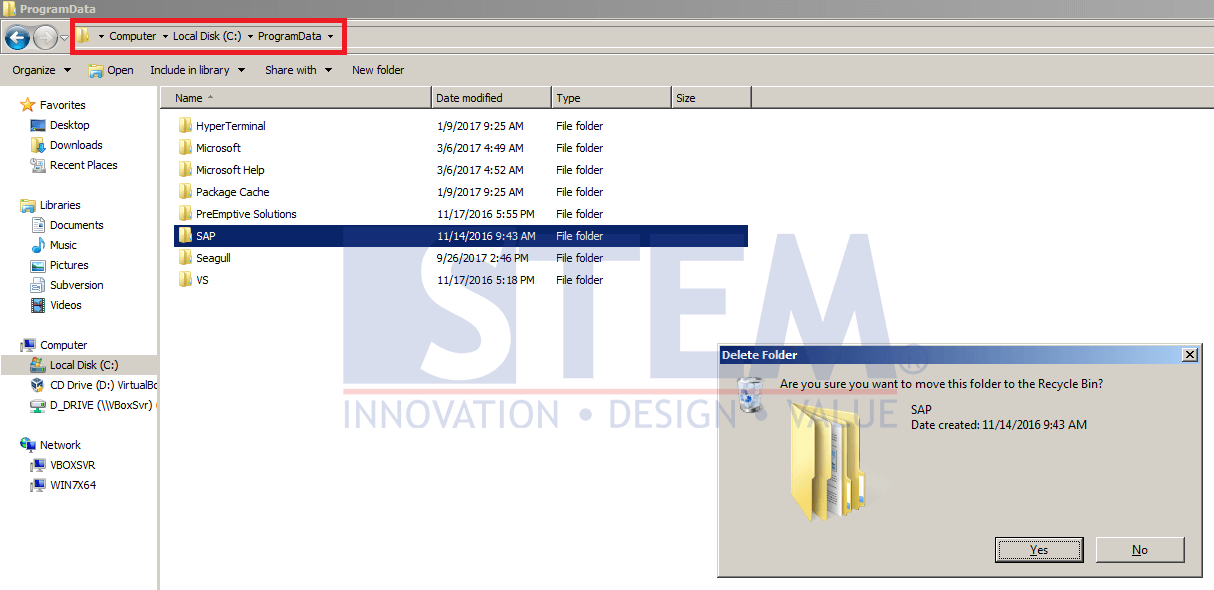
SAP Business One – How To Troubleshoot Add-On Installation Failed
Make sure you have to go through steps 1 to 5 before you delete the SAP folder inside ProgramData. After that, continue with step 6 to 9.
SAP Business One Add-On Installation Failed?
Add-On installation issues are often caused by hidden configuration or system component problems. If the error persists after multiple attempts, our team can help identify the root cause and provide the right solution.
Also read relevant SAP Business One Tips:
- How to Fix Error Updating Document Numbering in SAP B1
- How to Install Coresuite Add‑On for SAP Business One
- SAP Business One Service Call: Uses & How It Works
- Restart SAP HANA Web Client Service on SuSE SLE 15 SP1
- How to Deactivate Approval Template in SAP Business One
- Easy Way to Enter Dates in SAP Business One