
In the previous tips, we discussed the Functions and Prerequisites for Managing Alert Management at SAP Business One.
But did you know that the Alert History can be saved? In these tips we will discuss How to Save Alert History.
- In the SAP Business One main menu, select the Administration menu → Alerts Management
- Check ‘Save History’ to save the Alert History.
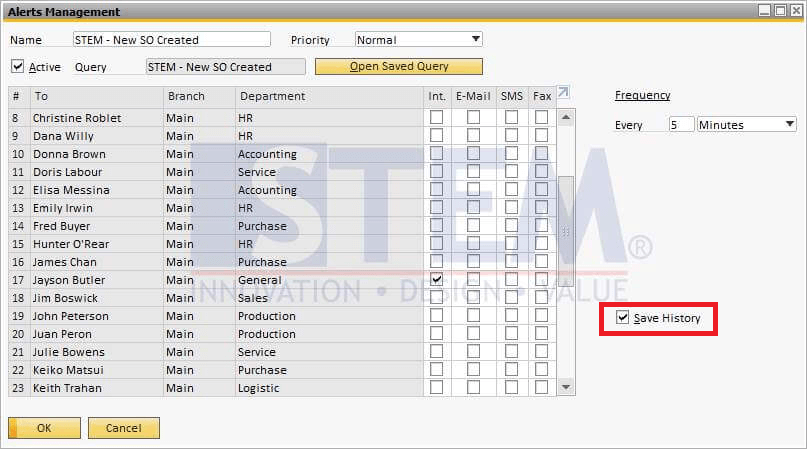
SAP Business One Tips – How to Save Alert History in SAP Business One
By default ‘Save History‘ is unchecked, and new messages from alerts will overwrite the previous alert data on the Screen Messages / Alerts Overview.
By checking ‘Save History‘, new alert messages will be added to Messages / Alerts. So, the previous Alert History is still stored and can be seen again at a later date.
Also read relevant SAP Business One Tips:
- Freight Settings in SAP Business One ERP Guide
- How to Auto-Generate Warehouse Sublevels in SAP Business One
- HANA Schema Backup Script: One-Step Automation
- How to Create Cockpit Template in SAP B1 HANA (Fiori)
- How to Print SAP Business One Documents Automatically
- How to Change Date Format in SAP Business One