In the Item Data Master module, users can easily display images of goods according to the code, which makes it possible to help sales staff or warehouses to identify which items will be given to customers. The steps that must be carried out are:
- The user must specify the location of the image folder, go to Administration > System Initialization > General Settings.
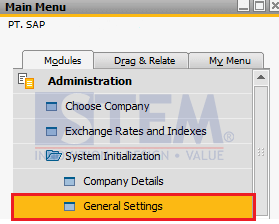
SAP Business One – How to Add Image to the Item Master
- After entering the General Settings screen, select the Path tab, and specify the Image Folder.
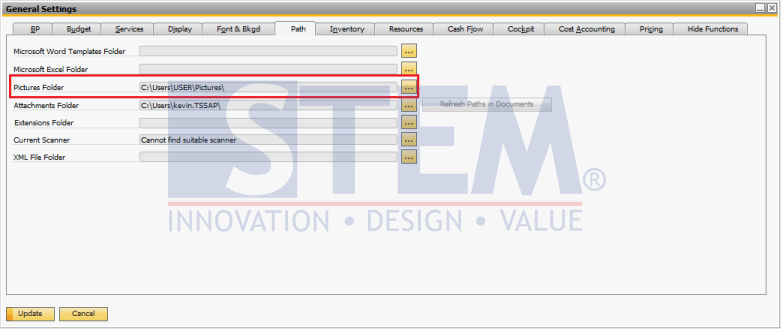
SAP Business One – How to Add Image to the Item Master
- After determining the location or location of the image folder, the next step the user can do is add an item image by opening the Master Data Item, then on the Remarks tab, and select the camera icon as in the screenshot below.
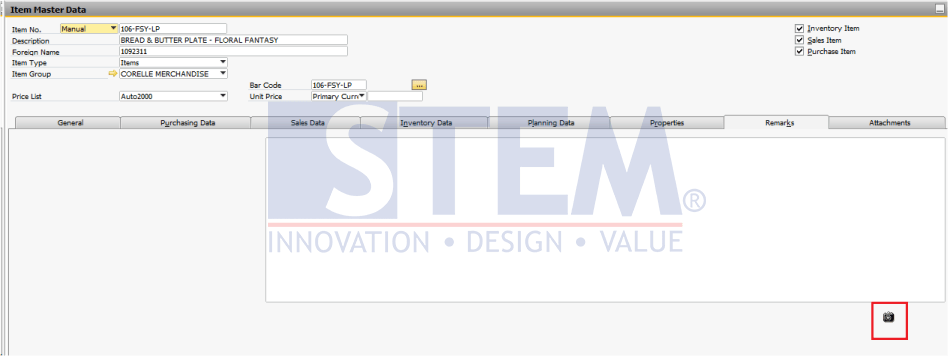
SAP Business One – How to Add Image to the Item Master
- Select an image and update the item.
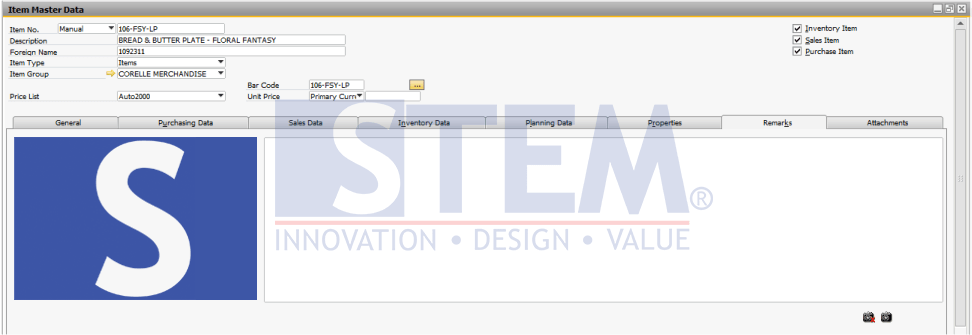
SAP Business One – How to Add Image to the Item Master
Note: every 1 item master can only have 1 image.
Also read relevant SAP Business One Tips:
- How to Set Authorization for Duplicating Documents in SAP Business One
- How to Add Tax Group in SAP Business One Easily
- Change CPL Display by Toggling Display Description SAP B1
- How to Hide Unused Layout in SAP Business One Easily
- How to Check Item Stock Availability in SAP Business One
- Optimize Marketing Docs with SAP Row Details Feature