


If you normally print documents from SAP Business One desktop, you may notice that some of your usual layouts are missing when you use Web Client. This can happen because Web Client only supports Crystal Reports layouts for document printing and preview. Layouts created using Print Layout Designer (PLD) cannot be used.
For example, a Purchase Order layout created with PLD may work in the desktop application but will not be available in Web Client. To print the same document from Web Client, you will need a Crystal Reports layout assigned to that document type.
Preview a Document Before Printing
You can preview a document to check its contents and page layout before sending it to a printer.
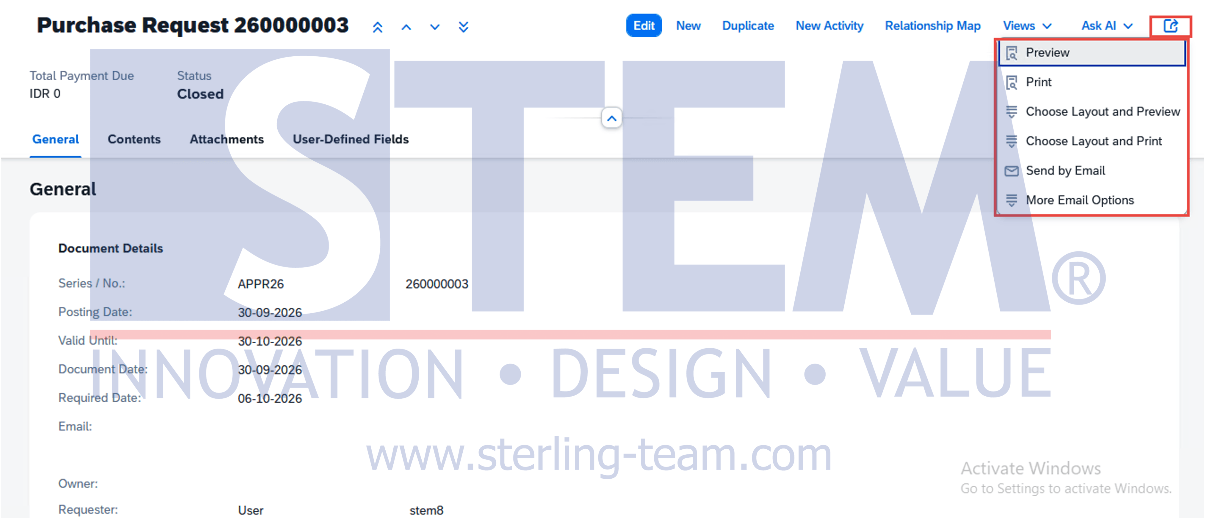
- Open an existing document, such as a Sales Order or Purchase Order, in Web Client.
- In the document’s detail view, open the Share menu.
- Select Preview to view the document using the default Crystal Reports layout.
- If you want to use another layout, select Choose Layout and Preview, then choose the layout you need.
In earlier releases, the layout selection option may be called Choose Preview Layouts.
Check the preview carefully, especially if this is the first time you are using the layout. Look for item descriptions that are cut off, columns that extend beyond the page, or totals that move onto a separate page.
Print the Document
Where available, select Print to use the default layout. To choose a different format, select Choose Layout and Print.
In earlier releases, you can print through the browser after opening the preview. Before printing, check the printer, paper size, orientation, and scaling settings.
The available options depend on your SAP Business One release and the document type.
What If the Layout Is Not Available?
First, check whether your existing layout was created with PLD or Crystal Reports. If it is a PLD layout, it needs to be recreated in Crystal Reports for use in Web Client.
If it is already a Crystal Reports layout, ask your SAP administrator or implementation partner to check its assignment to the document type.
It is worth checking the layouts your team uses regularly before moving their printing activities to Web Client, particularly customized invoices, purchase orders, and delivery documents.
Also read relevant SAP Business One Tips: