



Pricing accuracy is very important in every business transaction. In sales and purchasing documents, item prices can come from several sources, such as an active price list, discount group, special price for a specific business partner, or manual input. If the source of the price is not clearly known, users may have difficulty checking or tracing why a particular price was used.
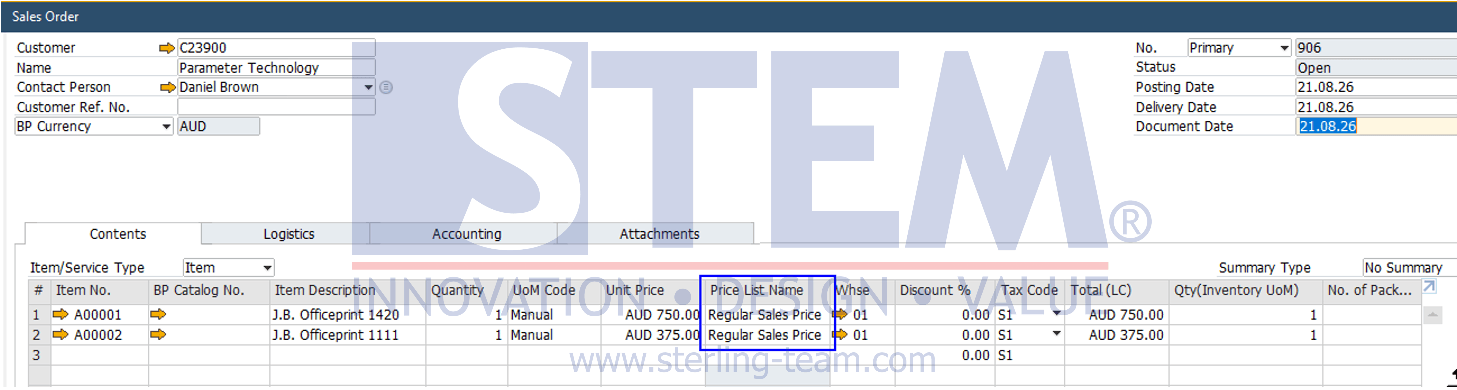
SAP Business One provides two new columns in the rows of sales and purchasing documents with Item type, namely Price List No. and Price List Name. These columns help users identify the price list used as the basis for determining the price of each item directly from the document.
How It Works
The Price List No. and Price List Name columns are automatically populated when the item price comes from an active price list. If the price comes from another source, such as manual input, both columns will remain blank.
How to Display the Price List No. and Price List Name Columns
- Open an Item-type transaction document, such as a Sales Order or Purchase Order.
- Click the Form Settings button on the toolbar, or press Ctrl+Shift+S.
- In the Form Settings window, select the Table Format tab.
- Locate Price List No. and Price List Name in the column list.
- Select the Visible checkbox for each column, then click OK.
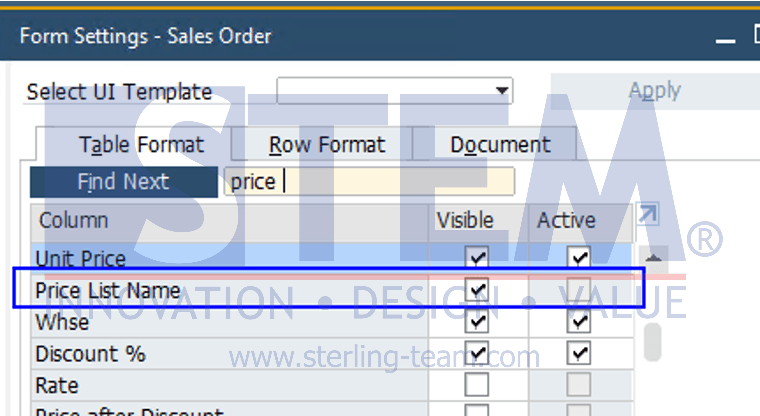
After that, the Price List No. and Price List Name columns will be displayed in the document row table.
Benefits
With these columns, the sales and purchasing teams can immediately see the price list used for each item and ensure that the price is in accordance with the applicable terms. This can also help with price checking and auditing, as users do not need to open another menu to identify the price list used. In addition, this information can help new users better understand how prices are determined in a document.
Note:
This function is available starting from SAP Business One FP 2202 and SAP Business One FP 2202 for HANA