SAP Business One has a feature to send an email directly from within the application. For example, we can send an email directly to the Customer after we create the A / R Invoice document, or send an email to the Vendor after making the A / P Invoice document. To be able to use this feature, we must first set up the SBO Mailer Service.
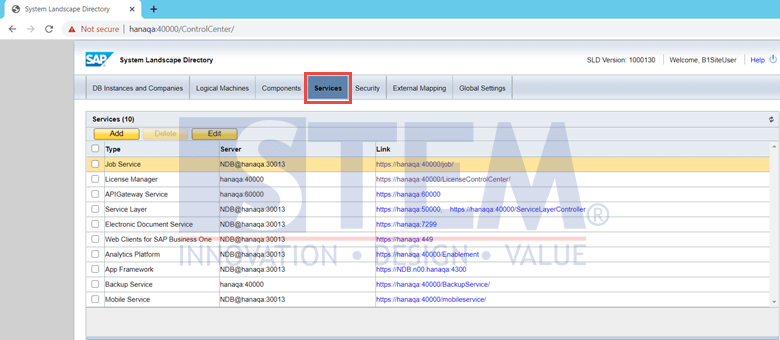
- Enter the SLD page via a browser.
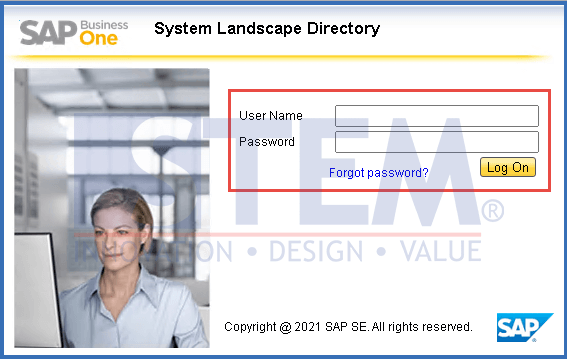
SAP Business One Tips – How to Setup SBO Mailer
- After entering the window, select the Service Tab.
SAP Business One Tips – How to Setup SBO Mailer
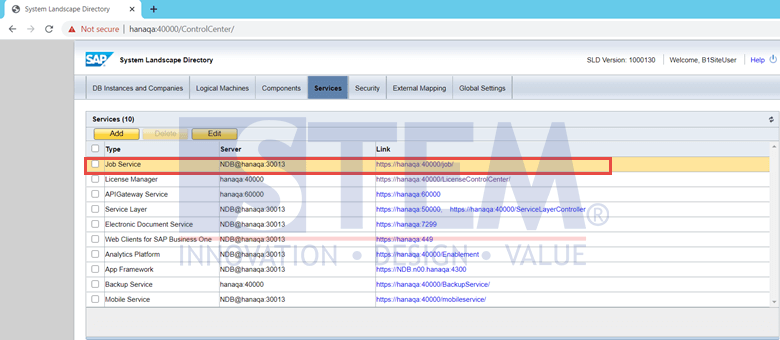
- Click the link from the Job Service as shown below.
SAP Business One Tips – How to Setup SBO Mailer
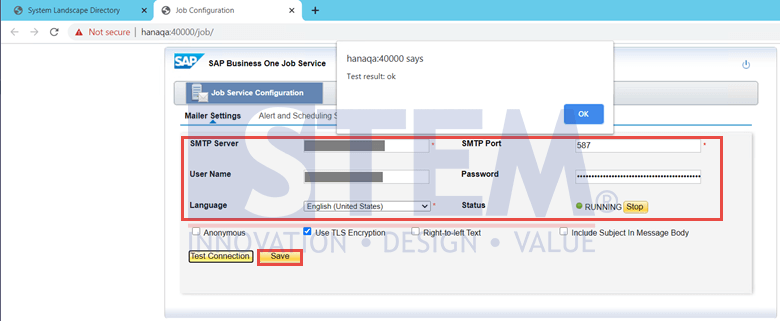
- On the Job Service page, select the Settings Mailer Tab.
- Fill in all fields with Email Server Credentials and click the Save button.
- After changing Email Credentials, restart the Mailer Service by clicking the Stop button in the Status column and clicking the Start button afterward. Make sure the status is “Running” with a green light next to it.
- To test the connection to the Mail Server whether it is connected or not, click the Test Connection button. If connected, a message will appear containing information that the result is OK. Apart from that, double-check the Email Credentials or Email Server.
SAP Business One Tips – How to Setup SBO Mailer
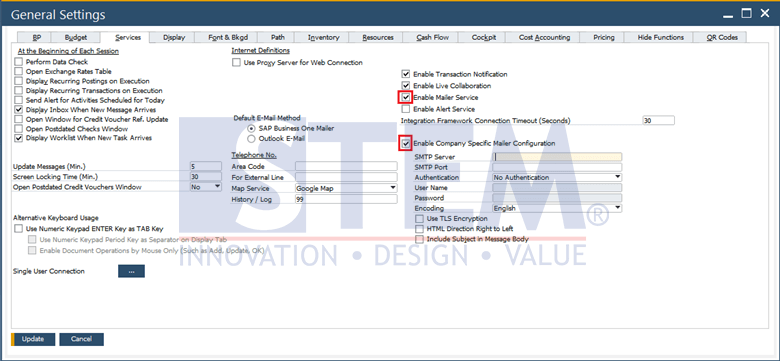
- We also have to set some settings in the SAP Business One application. Go to Administration > System Initialization > General Settings > Services Tab.
- Check the options “Enable Mailer Service” and “Enable Company Specific Mailer Configuration” (to set different Email Credentials from the one we previously set on the SLD page or can be filled with the same Email Credentials). If the “Enable Company Specific Mailer Configuration” option is checked, fill in the Email Credentials field then click the Update button.
SAP Business One Tips – How to Setup SBO Mailer
SBO Mailer setup is complete and we can use Mailer Service in the SAP Business One application.
*Note: This feature only available in SAP Business One 10
Also read relevant SAP Business One Tips:
- How to Extend UDF Character Length in SAP Business One
- Update or Insert Table on Document Create in SAP B1
- How to Set Authorization for Duplicating Documents in SAP Business One
- Logon SAP Business One Microsoft 365 Integration Setup
- How to Set Employee Position & Naming in SAP Business One
- Attachments in SAP Business One: How It Works & Key Features