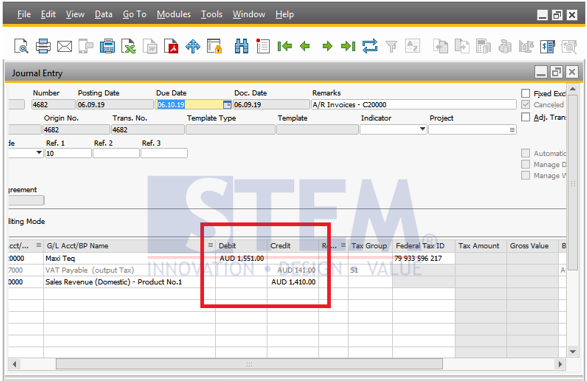
When you cancel a transaction and need to change a transaction that has been posted on the system, you must reverse the previously posted Journal by making a Reversal Transaction according to the date selected in the reverse column of the screen journal entry.
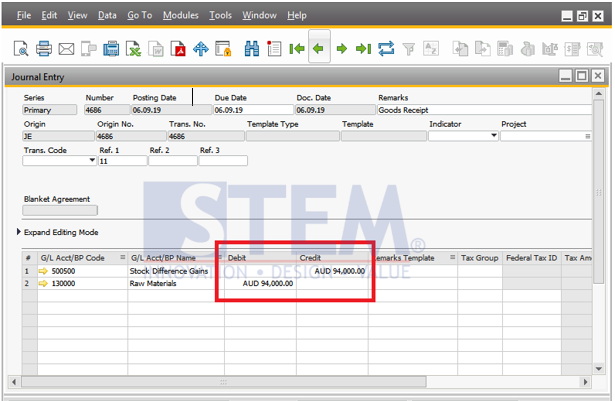
Then this automatic journal will be reversed. The following is an example of a transaction using a Reversal Transaction
And this is the Reverse Transaction
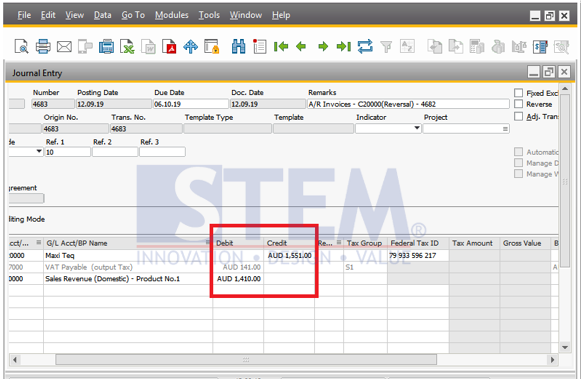
Initially in the debit will move to credit, and vice versa..
SAP Business One also provides a negative sign to help you read the reversed journal, you can activate it in the menu
Administration>Company Details>Basic Initialization
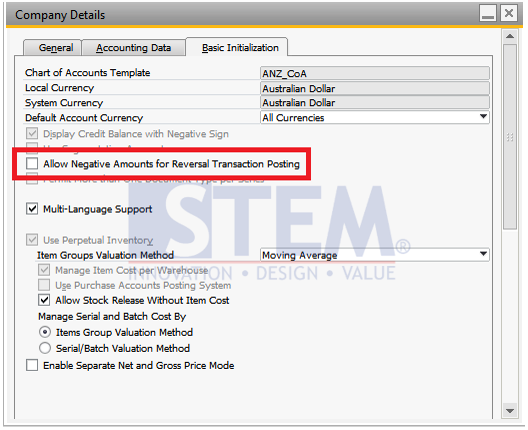
When you activate this, if you do a reverse transaction, the journals that are formed will not be reversed, but new journals will be formed with a negative sign (-) in the amount.
Like this example
And this is after the reverse transaction
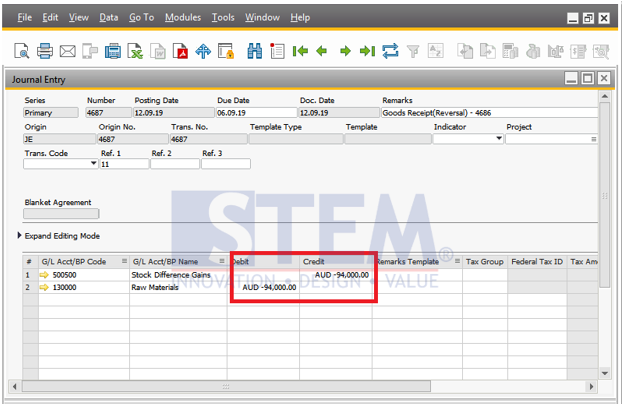
A negative sign (-) will appear and the position amount will remain in accordance with the original journal.
Also read relevant SAP Business One Tips:
- How to Cancel Manual Reconciliation in SAP Business One
- Understanding the “Consider Reconciliation Date” Checkbox in General Ledger
- Fix Recurring Posting Failed to Create Journal Entry
- Automate Closing Period in SAP Business One
- Fix “G/L Account Needs DR Assignment” Error in SAP B1
- Ctrl+Tab Function in SAP Business One Warehouse