Did You Know? In SAP Business One, we can print documents automatically after we add the documents.
Follow the steps below:
- In SAP Business One main menu, Choose Administration menu → System Initialization → Print Preferences → Select Per Document tab
- Ticked the Print Document.
- In the Document dropdown list, select the required document type.
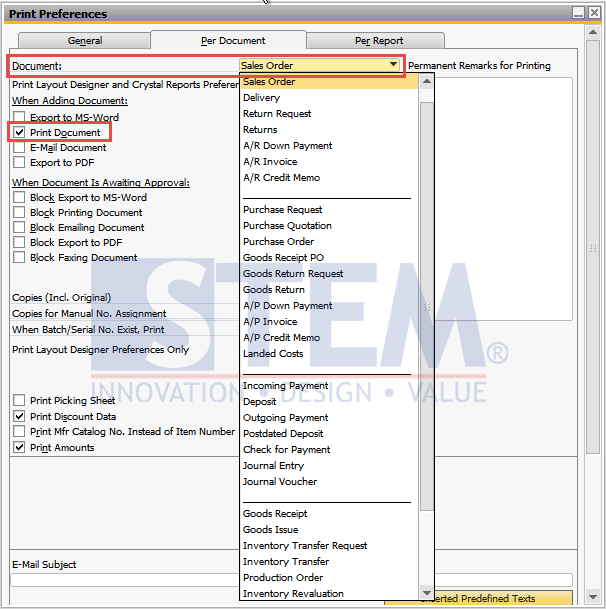
SAP Business One Tips – How to Print Documents Automatically
- Enter the required number of copies in Copies (Incl. Original).
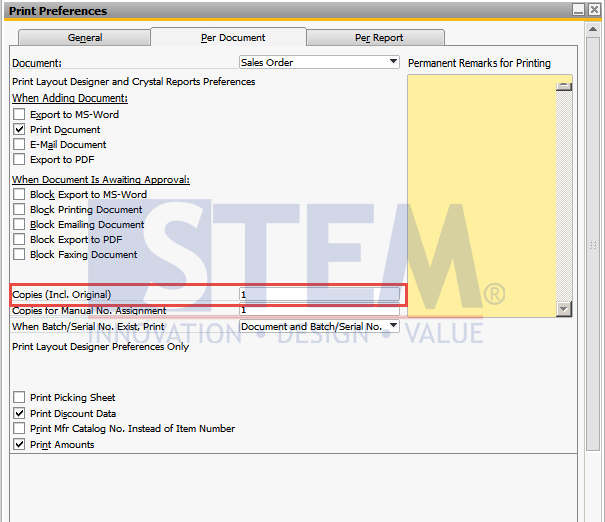
SAP Business One Tips – How to Print Documents Automatically
- Choose Update and OK.
The document will automatically print after we add the documents
Also read relevant SAP Business One Tips:
- How to Add Tax Group in SAP Business One Easily
- How to Create Down Payment in SAP Business One
- SAP B1: How to Display Canceled & Cancellation Watermarks
- Change CPL Display by Toggling Display Description SAP B1
- Good Issue with Bin Location & Negative Inventory
- How to Split & Merge Distribution Rule in SAP Business One