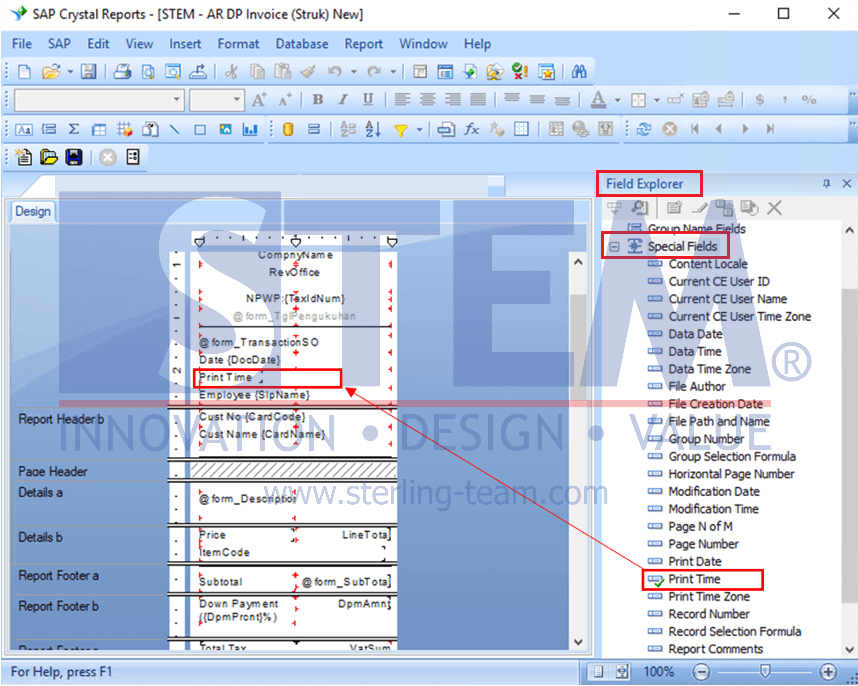
If you want to add print time information to a Crystal Report layout, this can easily be done using the built-in feature. By adding print time, users can know exactly when a document or report was printed, such as on receipts, invoices, or other reports. Here are the steps:
- Open the Report File (.rpt)
- Launch the Crystal Report application.
- Open the report file (.rpt) where you want to add the print time information.
- Add Print Time from Special Fields Section
- In the Field Explorer, locate and expand the Special Fields section.
- Drag & drop the Print Time field into the desired area of the layout, such as the header, footer, or a specific section of the report.
- Adjust the format of the Print Time field as needed.
- Save the modifications you made to the Crystal Report layout.
In addition to the Print Time field, other commonly added fields in Crystal Report layouts include Print Date (to display the print date) and Page N of M (to display the page number).