
Multiple branches is a feature in SAP b1 that allows us to work between branches in one company database. Each branch can share master data such as users and business partners. However, certain master data can only be assigned to certain branches. The following steps are to activate Multiple Branches:
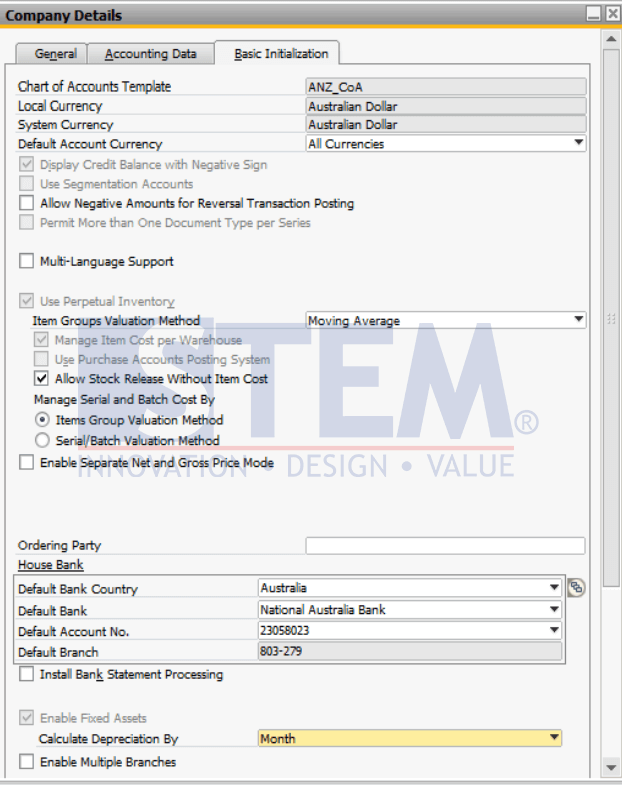
- In SAP Business One main menu, click the Administration menu > System Initialization > select Company details or in the search field, type Company Details.

SAP Business One Tips – Activate the Multiple Branches
- in Basic Initialization tab, checklist Enable Multiple Branches.
SAP Business One Tips – Activate the Multiple Branches
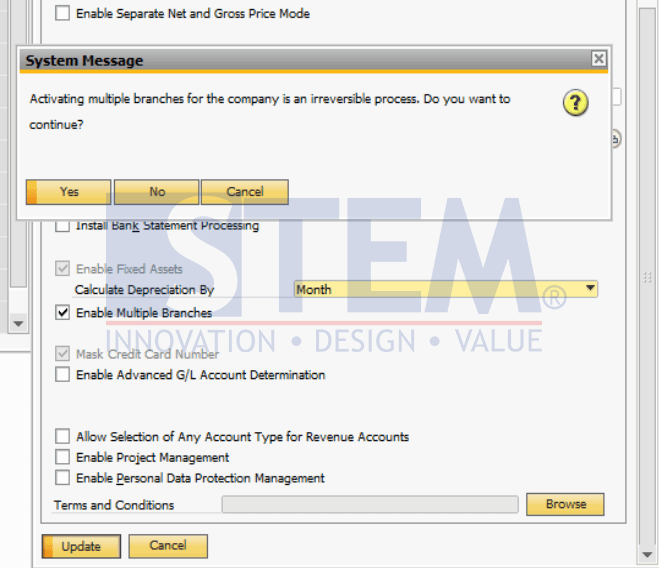
- Click Update.
- Then a warning will appear that the Multiple Branches feature is a process that cannot be changed, if you are sure then click OK.
SAP Business One Tips – Activate the Multiple Branches
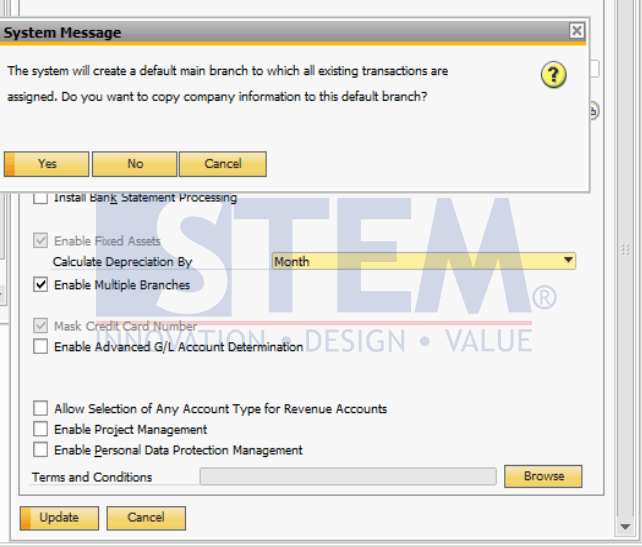
- Second, a notification will reappear that the system will create a default branch that will be assigned to all transactions. Press OK if you understand.
SAP Business One Tips – Activate the Multiple Branches
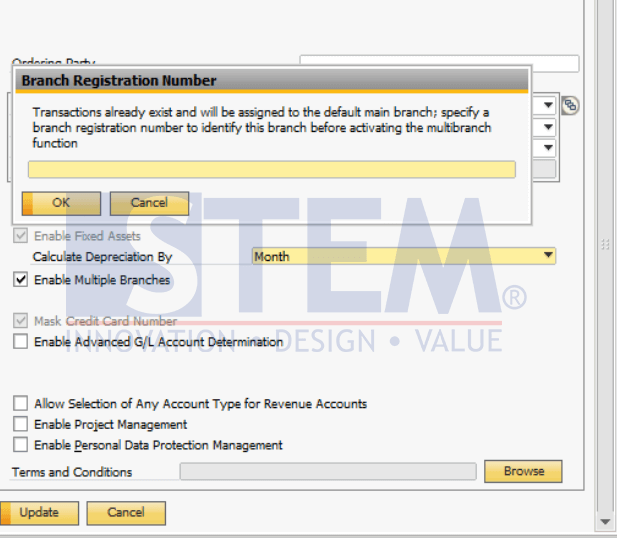
- if you have previously made a transaction before Multiple Branch is activated. To be able to activate multiple branches you must enter the specific code batch registration number to identify this branch before multiple branches can be activated > Then click OK.
SAP Business One Tips – Activate the Multiple Branches
Also read relevant SAP Business One Tips:
- How to Set Authorization for Duplicating Documents in SAP Business One
- Enable Address ID Updates for Business Partner in SAP B1
- SAP B1 Transaction Notification Validation Tips
- Master Your Warehouse Locations Setup in SAP Business One
- Virtual Item in SAP Business One Fixed Asset Master Data
- Set Special Prices in SAP Business One Easily