
Did you know SAP Business One has a Name Positioning function?
This function allows you to specify the display mode of employee names in SAP Business One. For example, Requester Name on Purchase Request or owner name on marketing documents.
Available options:
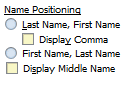
SAP Business One Tips – Set Your Employee Naming Position on SAP Business One
- Last Name, First Name: which is displayed first is the last name then the first name.
- Display Comma: displayed using a comma (,) or not.
- First Name, Last Name: which is displayed first is the first name then the last name.
- Display Middle Name: middle name can be displayed or not.
To know how to set employee name display mode in SAP Business One, follow these Steps:
- On the SAP Business One main menu, select the Human Resources menu > Employee Master Data.
- Find the name of the employee whose name will display mode (If it doesn’t exist, you can add a new employee name)
- Select the Administration tab
- Define employee name display mode
- Click Update
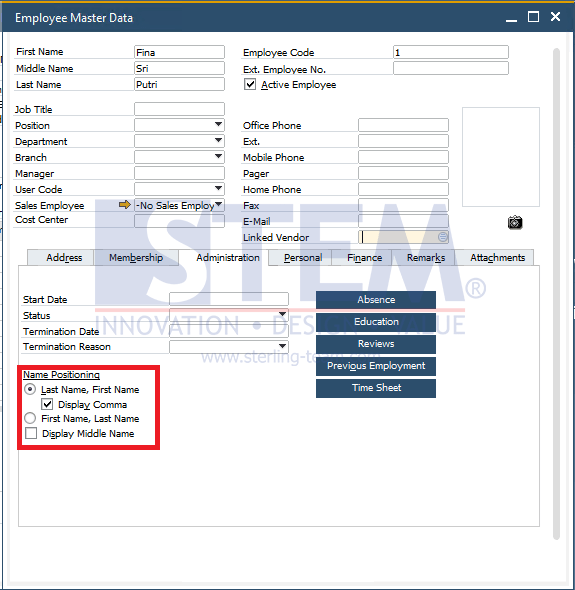
SAP Business One Tips – Set Your Employee Naming Position on SAP Business One
- The following is the result of setting Naming Position employee name.
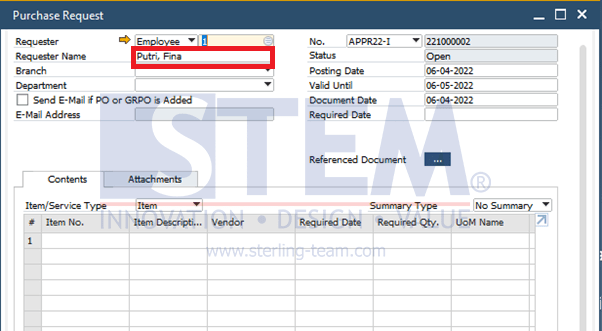
SAP Business One Tips – Set Your Employee Naming Position on SAP Business One
Note: Available in SAP Business One 10.0 FP 2108 and SAP Business One 10.0 FP 2108, version for SAP HANA
Also read relevant SAP Business One Tips:
- How to Copy Attachment Documents in SAP Business One
- How to Set Authorization for Duplicating Documents in SAP Business One
- New Editable GL Account Column in Purchase Request Report
- Re-activate Items in SAP Business One – Step-by-Step
- How to Set Default Capacity Period in SAP B1
- How to Configure SBO Mailer in SAP B1 – Step-by-Step