



SAP Business One continues to deliver innovations that help companies manage their business processes faster and more efficiently. With the SAP Business One 10.0 Feature Package 2608 (FP 2608) update, SAP introduces Artificial Intelligence (AI) capabilities integrated into the SAP Business One Web Client.
The two main features introduced are Ask AI and AI-Powered Query Generation. Both are designed to make it easier for users to get information, create SQL queries, and analyze business data without always depending on complex technical processes.
In the video above, you can see a live demonstration of how the latest SAP Business One AI features work, from asking questions based on transaction data to creating a Customer Aging report using everyday language commands.
What’s New in the AI Features of SAP Business One 10.0 FP 2608?
In previous versions, SAP Business One users generally needed SQL knowledge or a consultant’s help to create custom reports that were not available as standard.
With AI in SAP Business One 10.0 FP 2608, this process becomes much simpler. Users can use natural language to request information or generate SQL query drafts based on their business needs.
The capabilities introduced include:
- Ask AI: Ask questions using information from SAP Business One documents or transaction lists.
- Reusable AI Templates: Save questions as templates so they can be reused.
- AI-Powered SQL Query Generation: Automatically create SQL queries based on natural language instructions.
- Data Analysis & Visualization: Analyze query results through List View, Chart View, and Card View.
- SAP AI Core Integration: Connect generative AI features through SAP Business Technology Platform (SAP BTP) services.
1. Ask AI: Ask Questions Directly from the SAP Business One Web Client
Ask AI is a feature that allows users to ask AI questions directly from the SAP Business One Web Client.
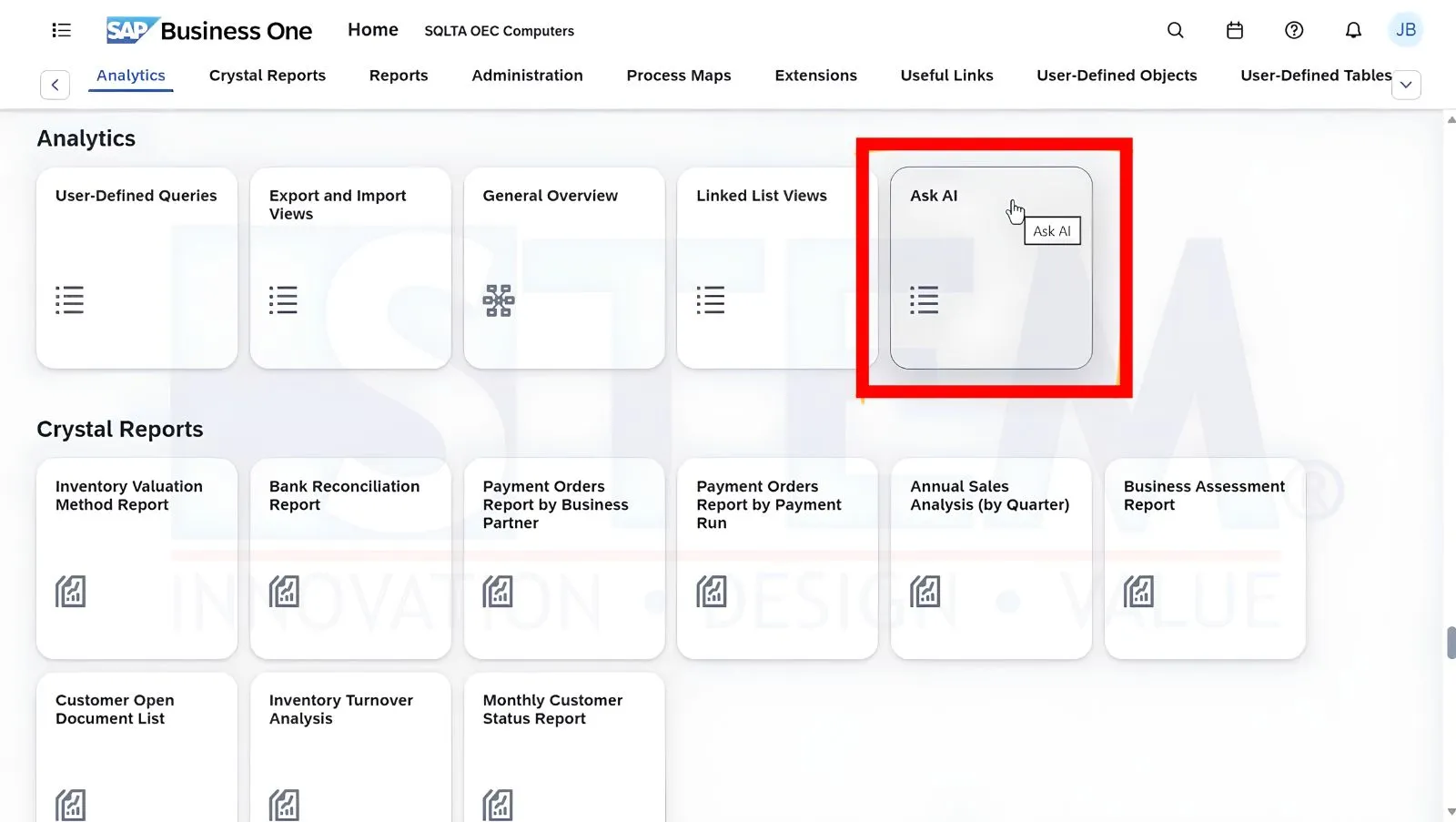
This feature is available in almost all List View and Detailed View screens, so users can use information from the data they currently have open as context for their questions.
Example of Using Ask AI on a Sales Order
For example, a customer wants to buy three printers and two hard drives. Before placing the order, the company wants to know the estimated cost and delivery time for these items.
The user can follow these steps:
- Open the Sales Order document in the SAP Business One Web Client.
- Select the items to be analyzed.
- Click the Ask AI button, then select Ask Question.
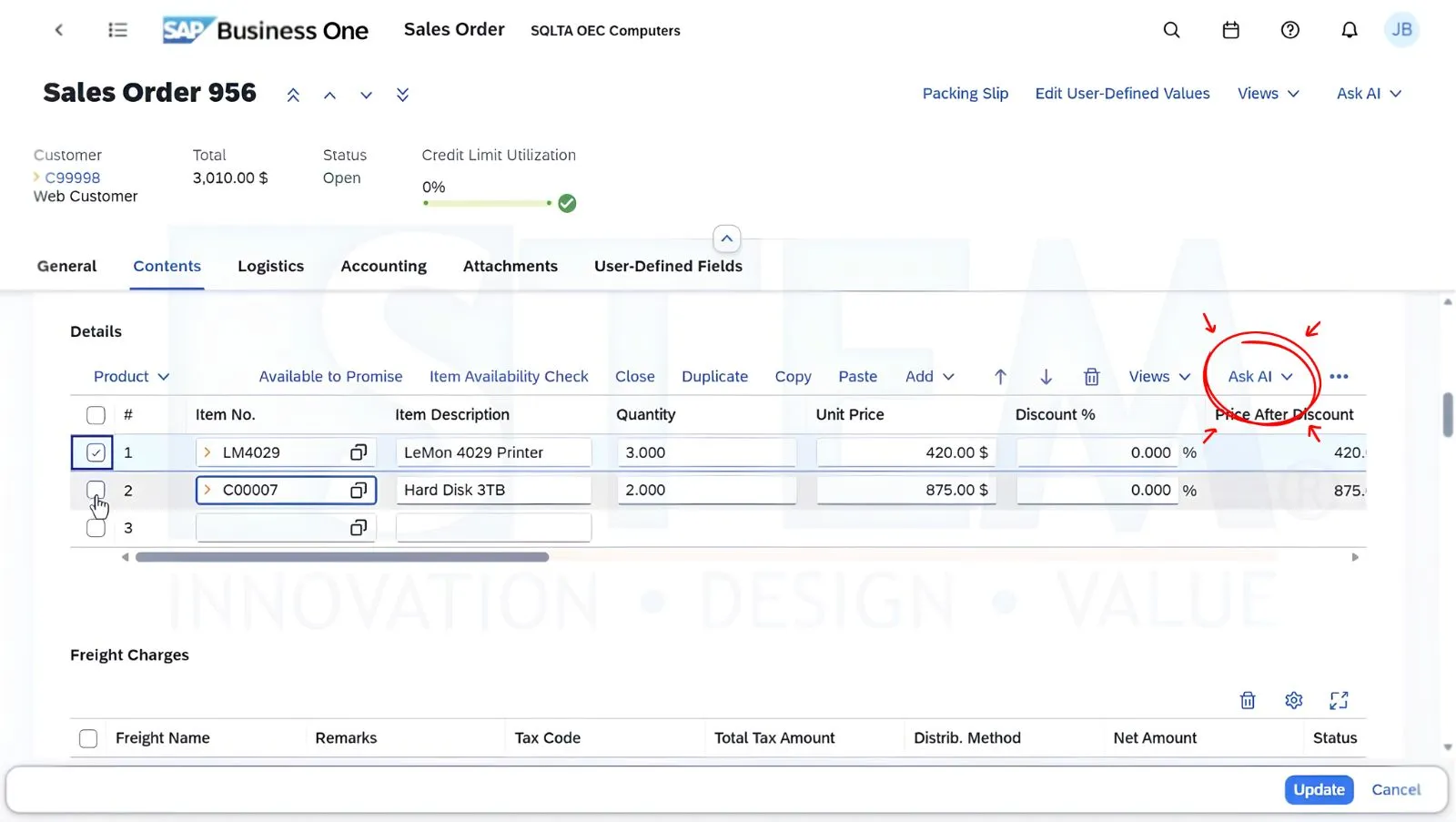
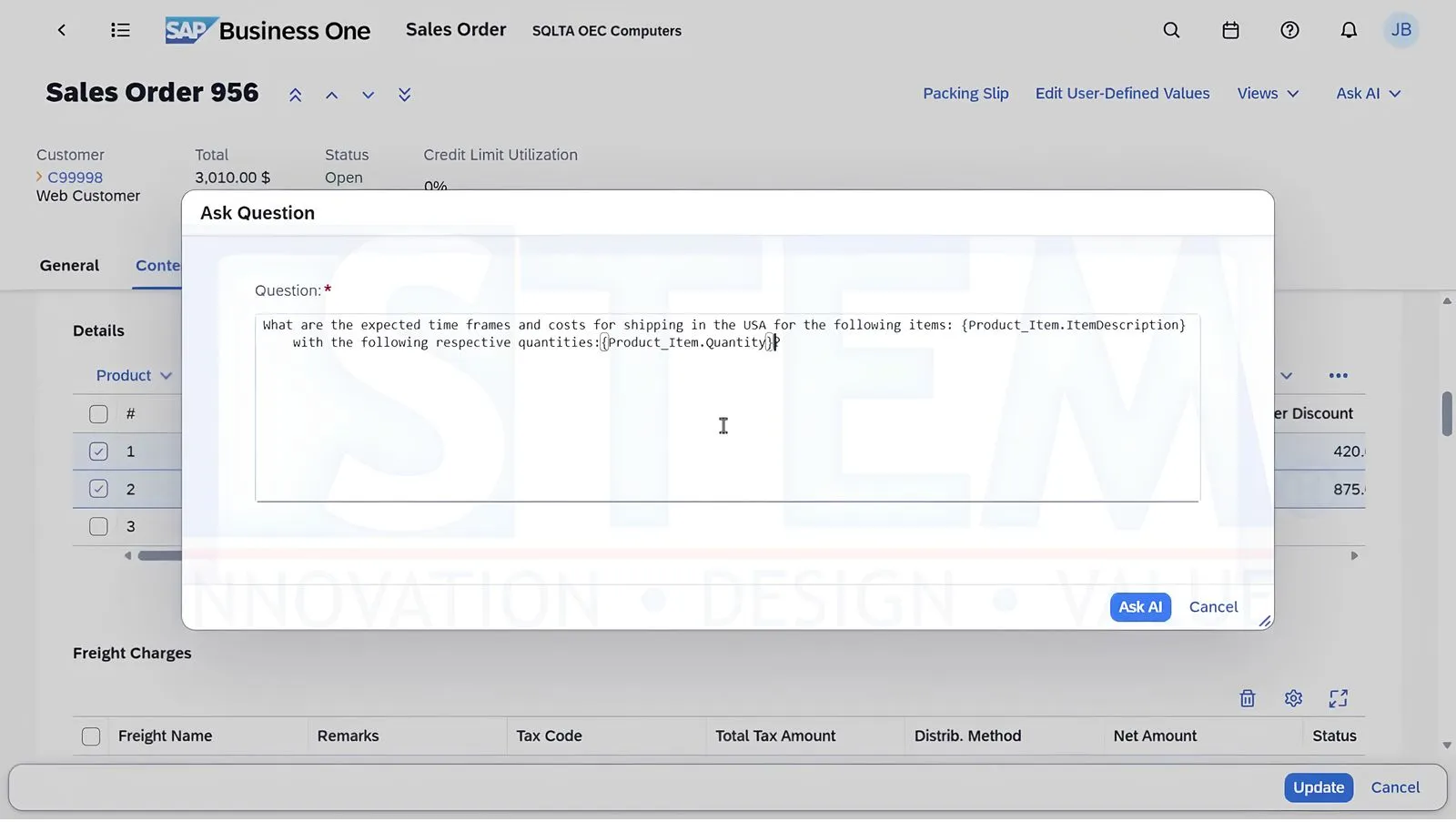
- Enter your question about the estimated cost and delivery time.
- Add placeholders for item information, such as description and quantity.
- Submit the question to get an answer from the AI.
The AI can then provide an estimate based on the information shared and the knowledge available in the AI model.
Users can also continue the conversation, for example by asking about the market price of the product or requesting additional considerations regarding delivery.
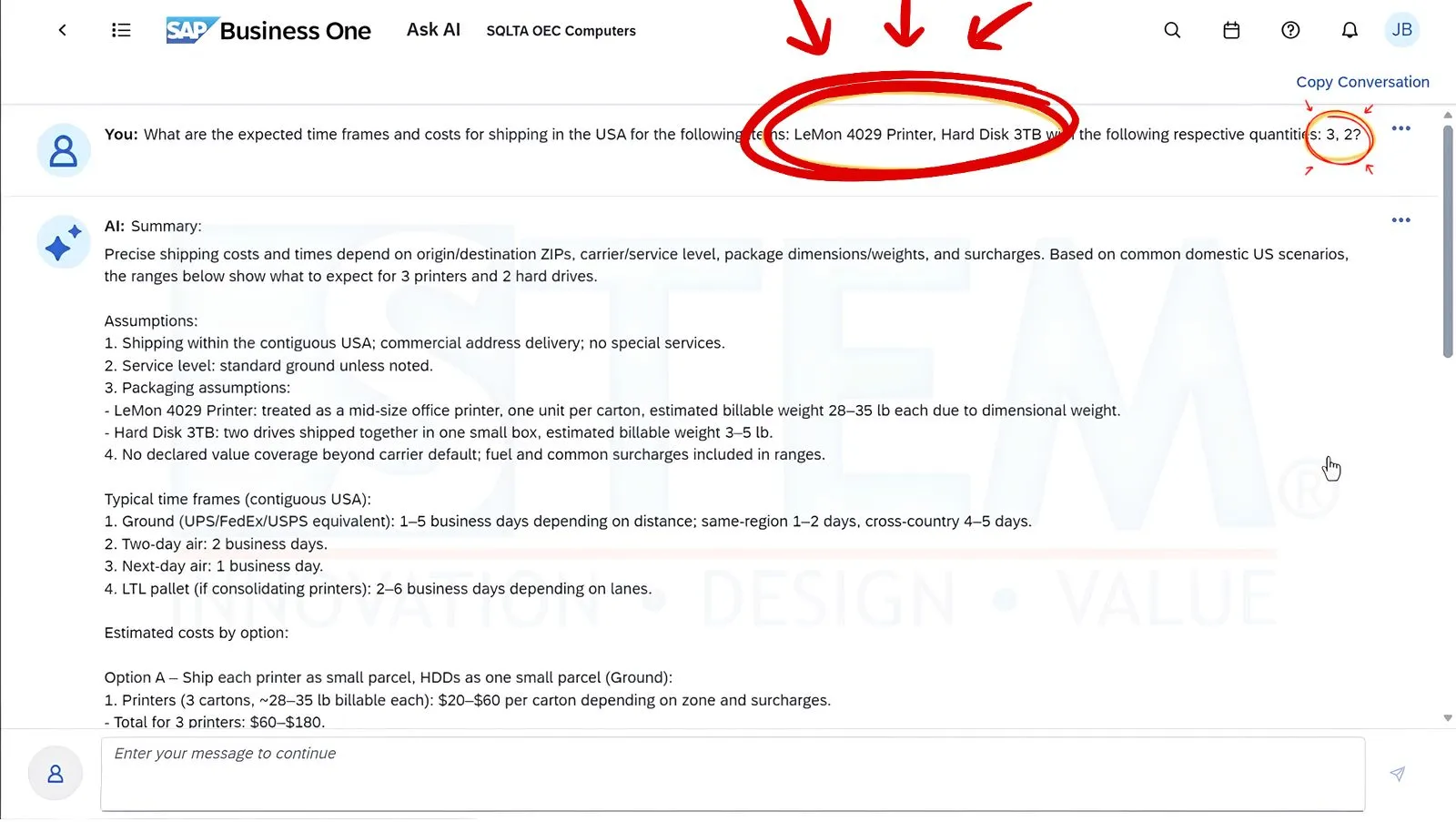
Note: AI answers are estimates or recommendations, not a substitute for price and delivery schedule confirmation from suppliers or logistics providers.
Saving Questions as AI Templates
In addition to asking questions directly, SAP Business One also allows users to save questions as templates that can be reused in other transactions.
These templates can be created and managed through the Ask AI app, available in the Analytics menu group.
With this feature, companies can use consistent question patterns without having to write the same instructions over and over.
2. AI-Powered Query Generation: Create SQL Queries Automatically
One of the most interesting capabilities in SAP Business One 10.0 FP 2608 is AI-Powered Query Generation, a feature that generates SQL queries with the help of Artificial Intelligence.
Through the User-Defined Queries app, users can describe the report they need in everyday language. The AI then helps compose the SQL query based on those instructions.
This feature is very useful for users who need custom reports but do not have in-depth experience writing SQL.
Example: Creating a Customer Aging Report Using AI
In the video demonstration, the AI feature is used to create a Customer Detailed Aging report, which monitors unpaid customer invoices by receivable aging period.
The user simply describes the report requirements to the AI, for example:
Create a report that displays all unpaid customer invoices based on posting date, with six aging periods. Each period is calculated based on the age of the outstanding receivable balance, and the length of each period can be set through a parameter in days.
Based on these instructions, the AI will generate the SQL query along with the required parameters.
The steps are as follows:
- Open the User-Defined Queries app in the SAP Business One Web Client.
- Select the Generate with AI option.
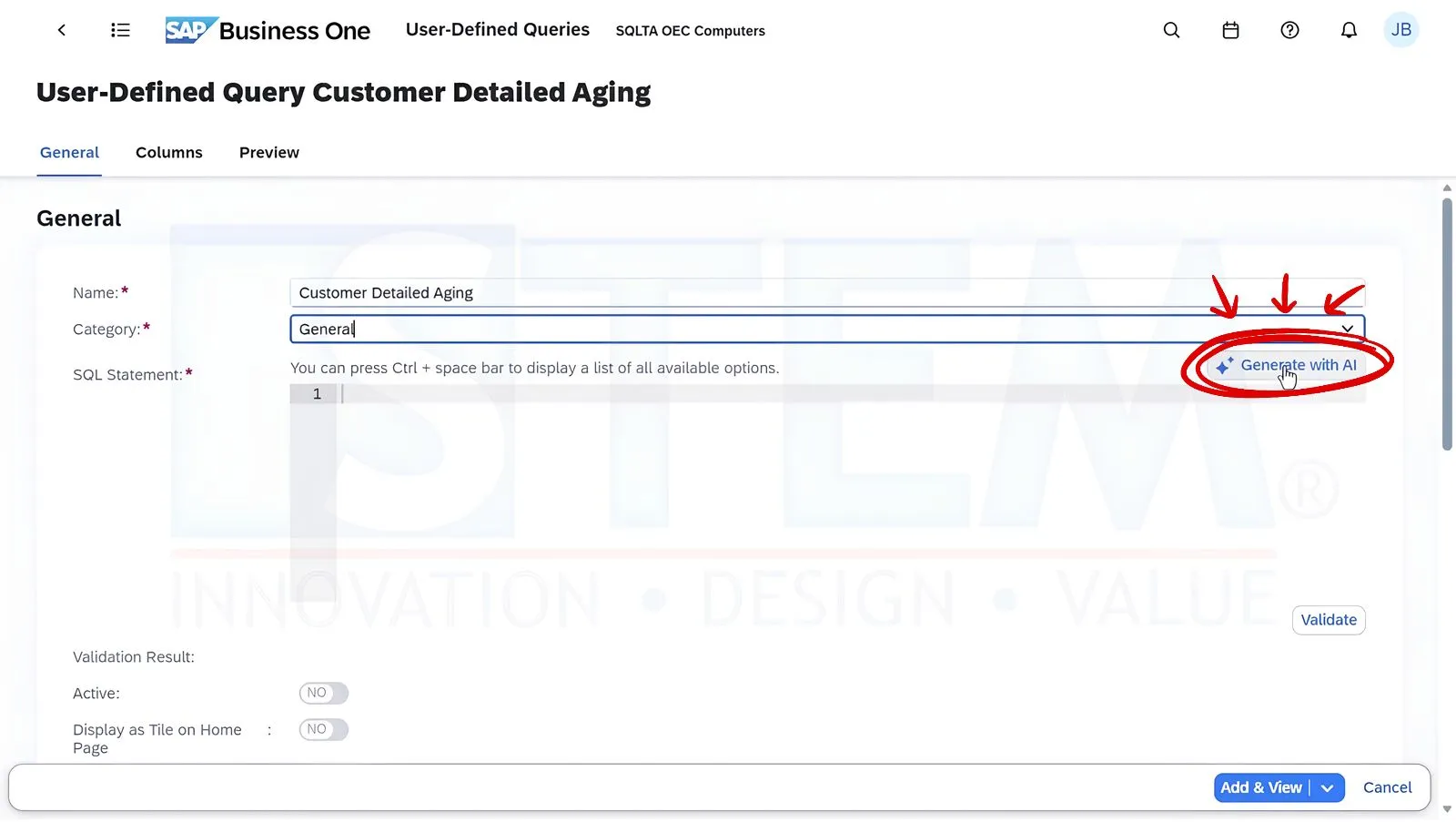
- Enter a description of the report you want to create.
- Review the SQL query generated by the AI.
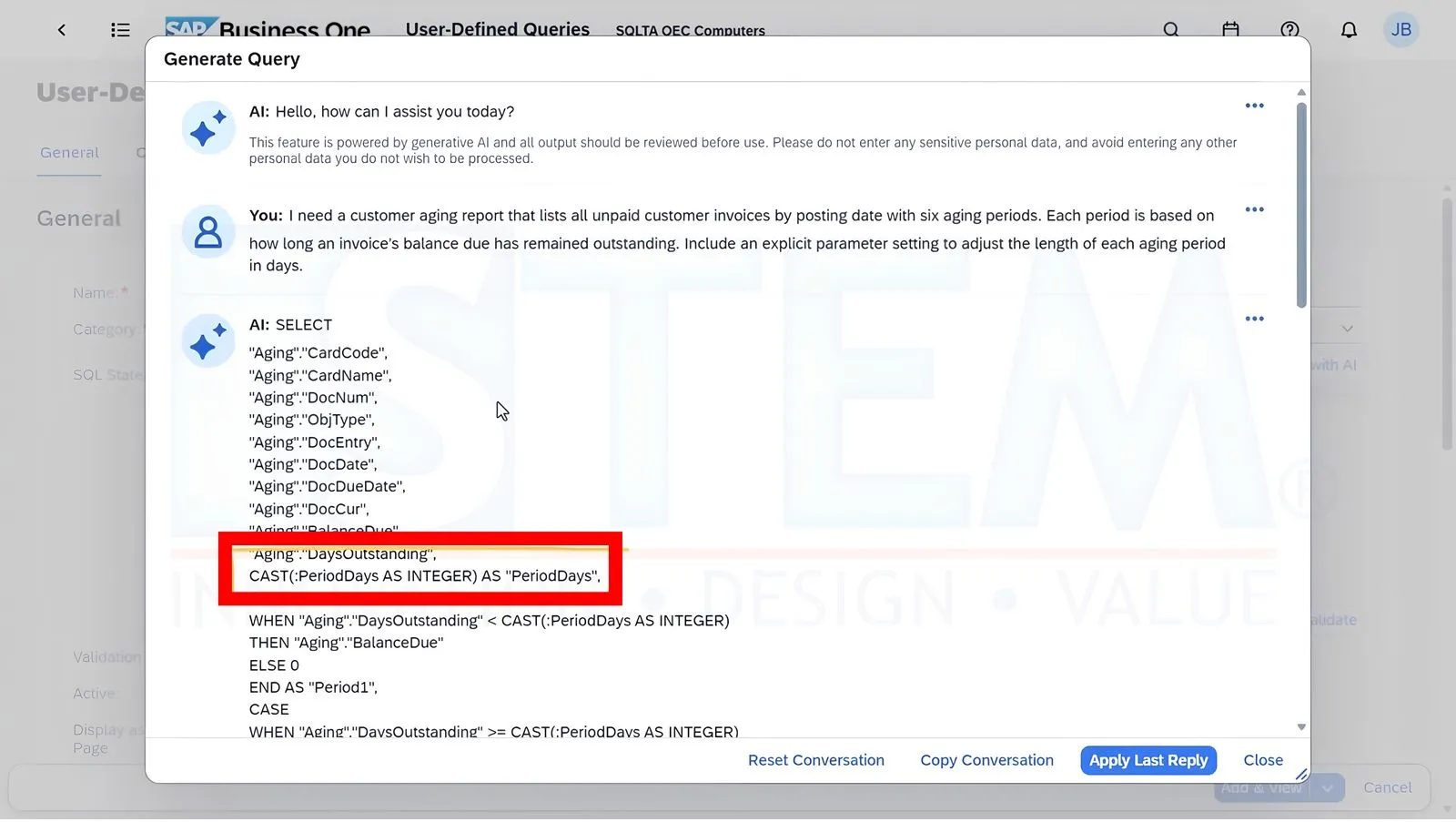
- Click Apply to use the generated query.
- Adjust the parameters, column descriptions, and link settings as needed.
- Save the query so it can be run again.
In the video example, the Aging Period (Days) parameter is given a default value of 30. As a result, the report divides the receivable balance into six aging groups, each spanning 30 days.
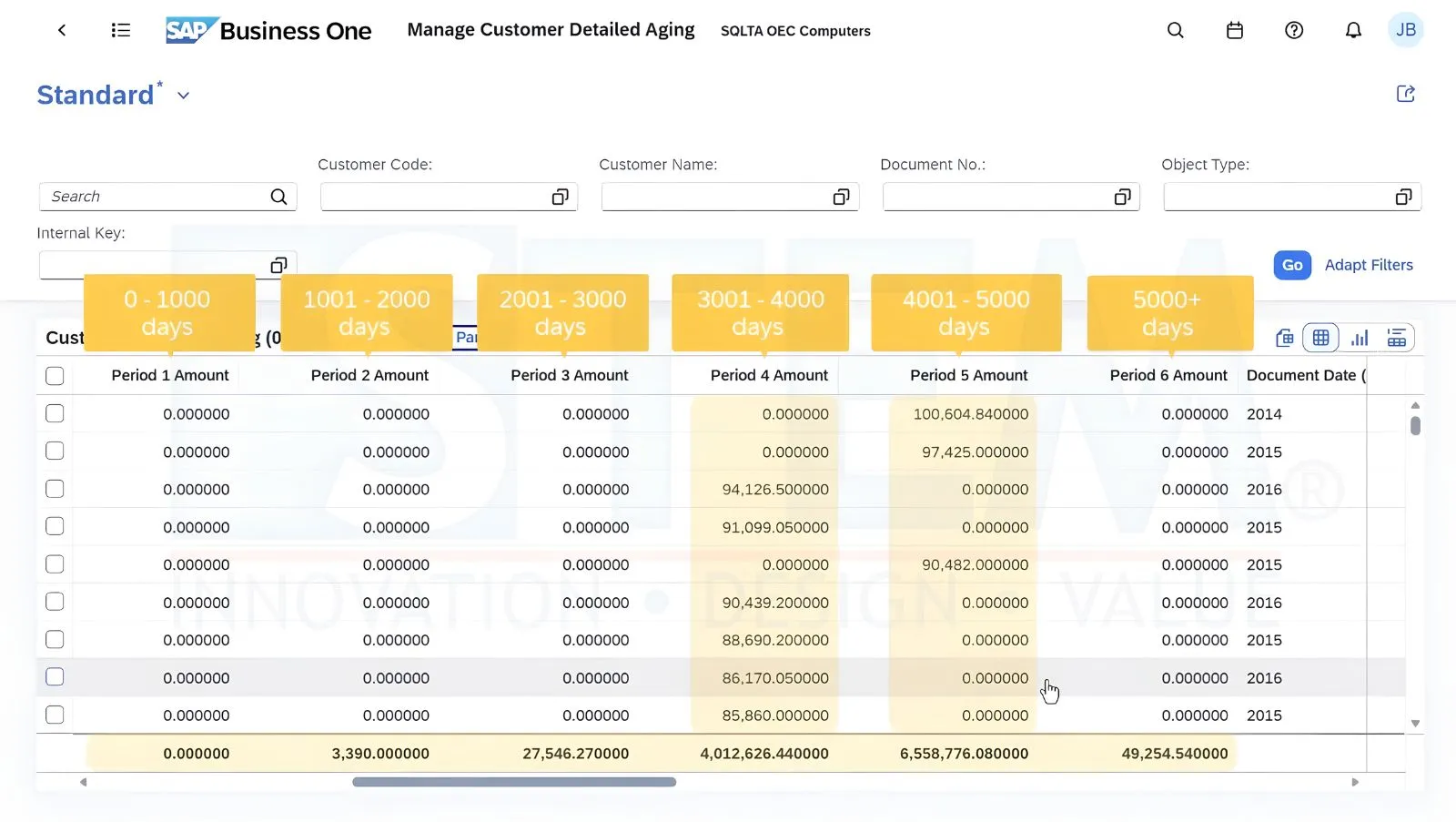
Important: SQL queries created by AI still need to be reviewed and tested before being used as the basis for operational reports or business decisions.
3. Easier Data Analysis with List View and Chart View
Once the SQL query has been created, users can open the results through the Open in List View option.
The resulting data can be used for various analysis needs, such as:
- Viewing the list of unpaid customer invoices.
- Grouping transactions by customer.
- Sorting Balance Due from the largest amount.
- Determining receivable collection priorities.
- Opening transaction details that require further review.
Visualizing Receivables Using Chart View
In addition to displaying data in table form, users can use Chart View to present analysis results visually.
In the demonstration, the user selected a Stacked Column Chart with the following settings:
- Measure: Balance Due
- Dimension: Customer Name
- Additional dimension: Due Date (Year)
With this chart, users can compare the total unpaid receivables of each customer by the year they fall due.
The analysis results can also be combined with Ask AI to request recommended follow-up actions for handling overdue customer receivables.
4. Requirements for Enabling the AI Features in SAP Business One
The AI features in SAP Business One 10.0 FP 2608 require additional configuration and are not automatically enabled simply by upgrading the system.
The main requirements include:
- Using SAP Business One 10.0 FP 2608 with a compatible Web Client.
- Having an SAP Business Technology Platform (SAP BTP) account with a Pay-As-You-Go plan.
- Configuring the SAP AI Core service on SAP BTP.
- Setting up Generative AI through the Configuration app in the SAP Business One Web Client.
- Ensuring users have the necessary authorizations to access the AI features.
Using AI also requires attention to the security and confidentiality of company information. Business data is not automatically available to the AI model; users need to decide what information to share when using these features.
5. Benefits of the AI Features for SAP Business One Users
Integrating AI into SAP Business One offers a number of potential benefits for companies, particularly in information processing and data analysis.
Speeding Up Report Creation
Users can describe their report requirements in natural language, making the initial SQL query creation process faster.
Reducing Dependence on SQL Knowledge
Business users who are not yet proficient in SQL can use AI to help compose queries. However, technical validation is still required to ensure the results are correct.
Making Information Easier to Analyze
Query results can be displayed in both table and chart form, making it easier for users to understand business conditions and identify important information.
Supporting Decision-Making
With more practical access to information, companies can speed up their evaluation process and make decisions based on verified data.
Conclusion
The arrival of Ask AI and AI-Powered Query Generation in SAP Business One 10.0 FP 2608 is an important step toward a more modern and user-friendly ERP.
With Ask AI, users can ask questions based on the selected transaction information. Meanwhile, AI-Powered Query Generation helps users create SQL queries and custom reports using natural language instructions.
Together, these capabilities have the potential to increase productivity, speed up data analysis, and reduce manual work in company reporting.
For companies that want to leverage AI technology in their ERP system, this SAP Business One update is a feature worth considering.
Want to Learn More About SAP Business One?
PT Sterling Tulus Cemerlang (STEM) provides SAP Business One consulting, implementation, development, and support services to help companies optimize their business processes.
If your company would like to learn more about SAP Business One, its latest features, or implementation and ERP system development needs, please contact the STEM team to discuss further.
Want to Use the AI Features in SAP Business One?
Interested in trying the latest SAP Business One AI features?
Contact the STEM team to consult on system upgrades,
AI feature configuration, and optimizing the use of
SAP Business One in your company.