
Sometimes, when a customer requested an item but the item is out of stock. We can provide them with another in stock item. Of course, we will provide them with a very suitable and similar item. In order to trigger this, open Sales –A/R, then Sales Orders. Then create the order.
In the item field, users can type the item code that has some alternate items that already predefined. To see the alternative items, we can press Ctrl + Tab on keyboard to prompt the Alternative Item Selection Criteria.
When you create a Sales Order based on customer request but the item is out of stock, show a list of alternative items that can make customer consider it to ensure their satisfaction. You can also see which item is in stock and customer specific pricing as well as a match factor. Once you select an alternative item, it will turn it into the sales order.
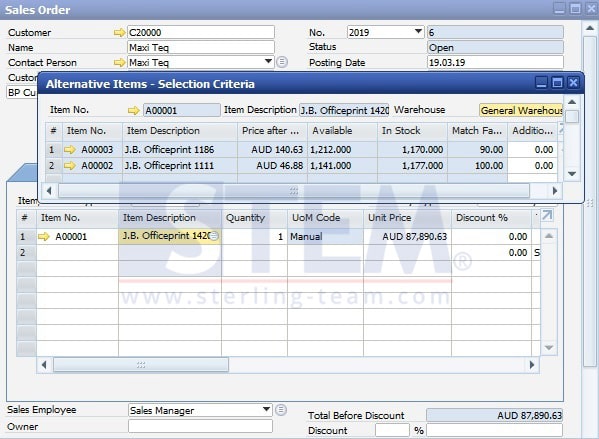
Alternative Items on Sales Order
To set up the alternative items in SAP Business One you can set it in the Item Master Data. Right click on the form of an item and select the Alternative Item menu option to easily create your list of alternative items.
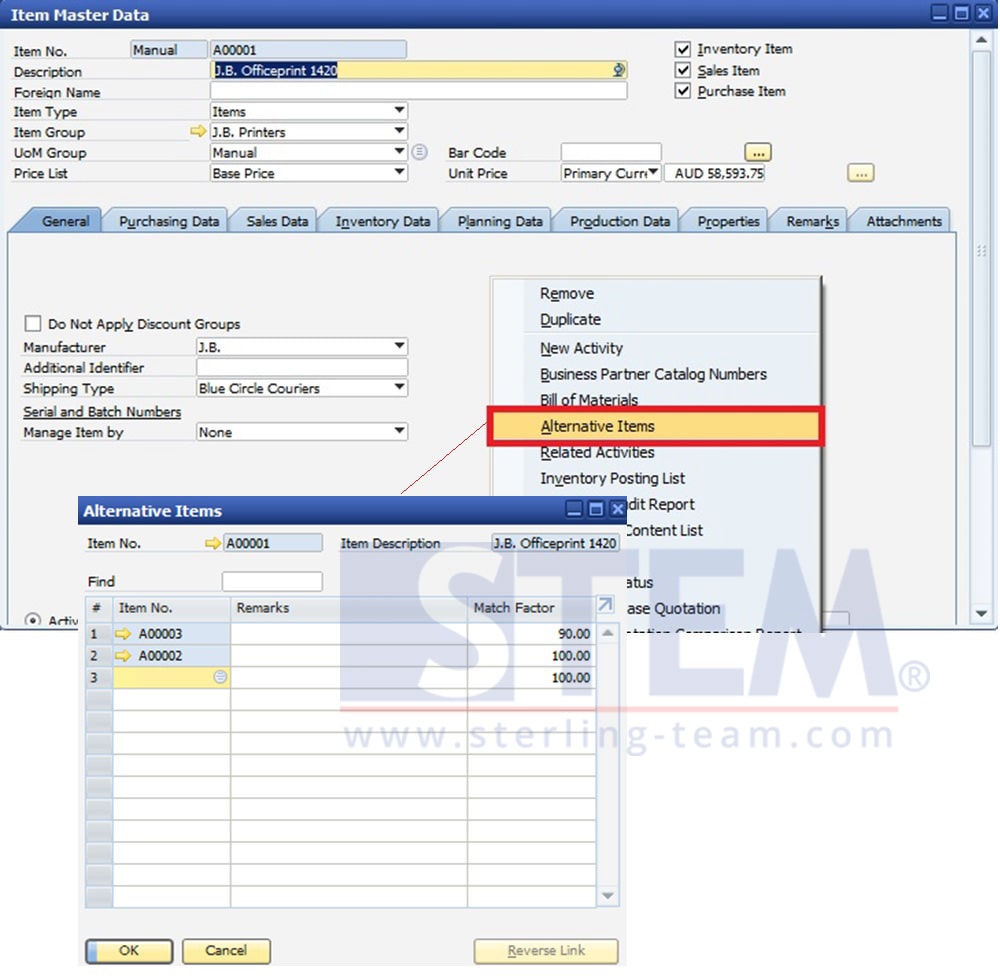
Set Alternative Items
Also read relevant SAP Business One Tips:
- Ctrl+Tab Function in SAP Business One Warehouse
- Auto Suggestions for User Input in SAP B1
- Preferred Vendor in SAP B1 – Streamline MRP & Requests
- Set Search Result View in Choose From List SAP B1
- Duplicate SAP Business One Item Master Data Quickly
- New Feature: Duplicate Check for Business Partners in SAP Business One 10.0 FP 2508