



While creating/editing a report, unwanted things may occur such as a blackout, BSOD (Blue Screen of Death), and so on which causes the report that we have created/modified before to disappear. Therefore, to prevent this from happening, we can use the features provided by SAP Crystal Report, namely Auto Save. The following are steps that can be taken:
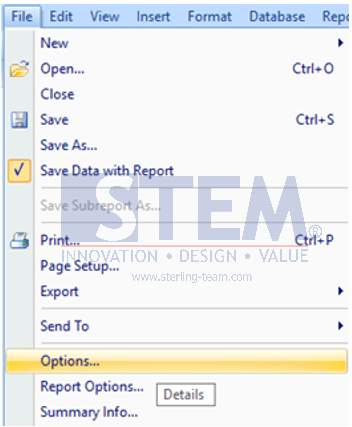
- Click the File menu, then choose Options.
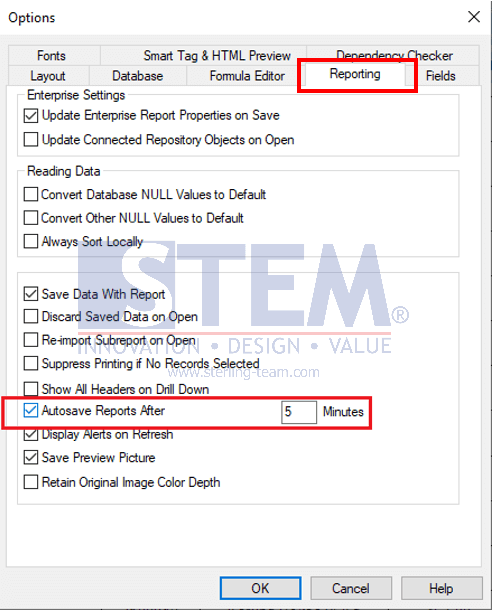
- On the Reporting tab, check “Autosave Reports After” and fill in how many minutes you want the document to be saved automatically.
Also read relevant SAP Business One Tips:
- Printing and Previewing Documents in SAP Business One Web Client
- Fix Error When Previewing or Printing Crystal Report
- Disable Auto‑Open for Excel Exports in SAP Business One
- How to Preview External Crystal Reports in SAP B1
- Set Background Color for Sections in SAP Crystal Report
- How to Show Draft No. Column in Document Drafts Report