



Since SAP version 9.3, the drawer on the chart of accounts consists of up to 10 drawers that can be used, and mostly drawers 9 and 10 are not used.
Even if not used, drawers 9 and 10 still appear on the profit and loss statement but are filled with no values.
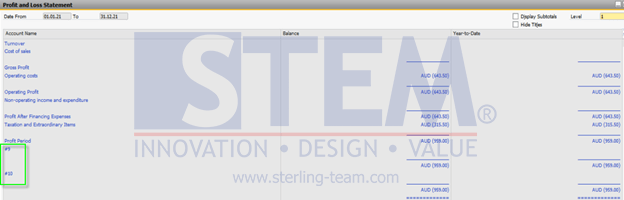
SAP Business One Tips – Create Profit and Loss Statement Templates without Inactive Drawer
If the user wants a profit and loss statement without drawers 9 and 10, they can create a new PL Statement template with the following steps :
- Access the Financial menu > Financial Report Template
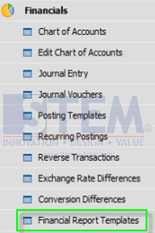
SAP Business One Tips – Create Profit and Loss Statement Templates without Inactive Drawer
- Choose the Profit and Loss report.
- Select a template, and click define new.
- Enter the desired PL template name.
- Click Update.
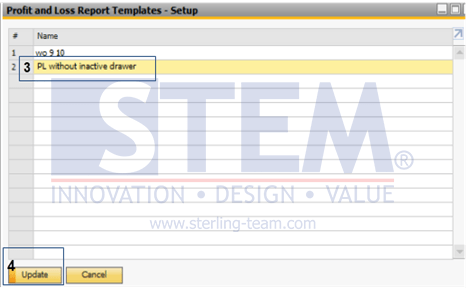
SAP Business One Tips – Create Profit and Loss Statement Templates without Inactive Drawer
- Klik ‘Generate Standard Chart of Account’.
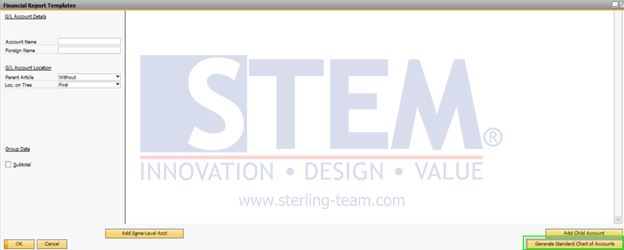
SAP Business One Tips – Create Profit and Loss Statement Templates without Inactive Drawer
- After that, all listed charts of accounts will appear, then select drawer #9 and #10.
- Right-click and highlight to ‘Advanced’.
- Select ‘Delete account’.
- Click ‘Update’.
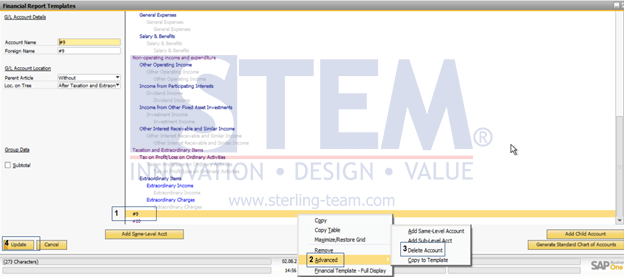
SAP Business One Tips – Create Profit and Loss Statement Templates without Inactive Drawer
- When finished, you can access the profit and loss statement report again, then select the PL statement template that was previously created, then ‘Ok’.
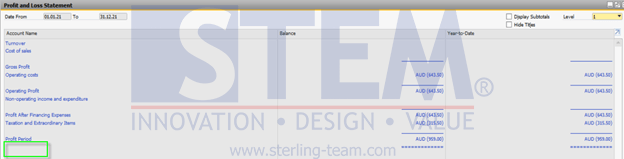
SAP Business One Tips – Create Profit and Loss Statement Templates without Inactive Drawer
- After clicking OK, the report that appears will exclude the drawer or CoA which was removed when creating the profit and loss statement template.
Also read relevant SAP Business One Tips:
- How to Set SAP Business One Control Account – Guide
- How to Add Tax Group in SAP Business One Easily
- SAP Business One Chart of Accounts Account Types
- How to Split & Merge Distribution Rule in SAP Business One
- Hide Account Titles in SAP B1 Financial Reports
- How to Delete Chart of Accounts in SAP Business One