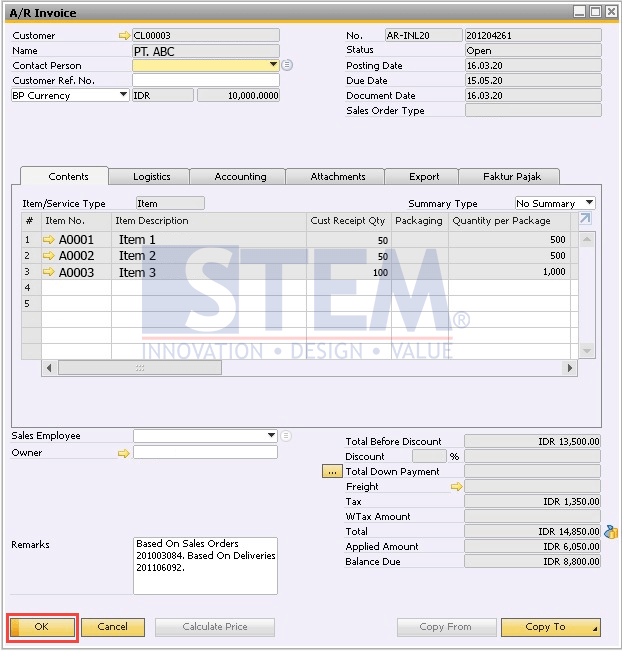
We can add many things when creating Add-on in SAP Business One, i.e. Form, Button, Text Field, Folder Tab, and so on. Every Item we add in SAP screen, it will affect Form Mode by default. For example, when we view a document in SAP, Form Mode by default is OK Mode. When there is some Text Field which value being changed or filled, Form Mode will be changed into Update Mode.
SAP Business One Tips – Usability of ‘AffectsFormMode’ Property
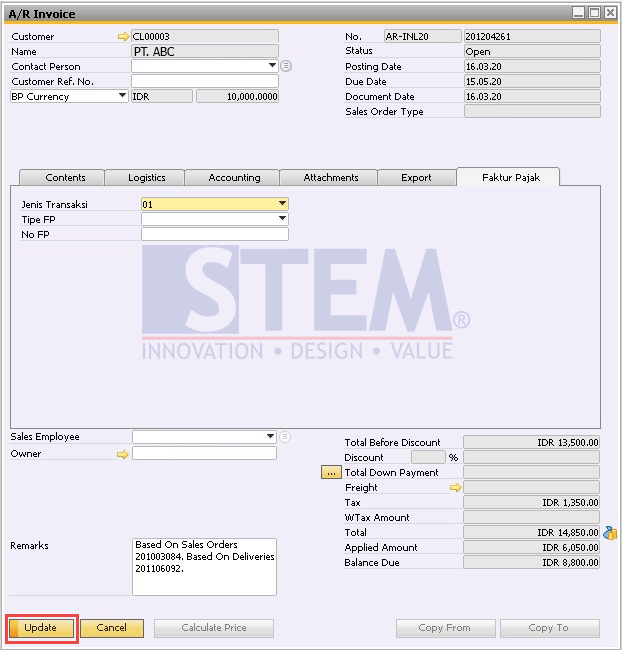
Besides Text Field, even the Folder Tab we add into the screen can also affect Form Mode. For example, when we view a document in SAP, then we select or click our Customized Folder Tab, Form Mode will be changed into Update Mode too.
SAP Business One Tips – Usability of ‘AffectsFormMode’ Property
To solve this problem, we can use the Property of Item in SAP Business One SDK which is “AffectsFormMode”. When we set the value of “AffectsFormMode” Property to “True”, then the Text Field or Folder Tab, select or fill will affect the Form Mode. Otherwise, if we set the value to “False”, then the Text Field or Folder Tab will not affect the Form Mode. It will stay in OK Mode if we refer to the previous example.
Here is the code example of Using “AffectsFormMode” Property in VB.Net:
‘‘Example of Using AffectsFormMode Property
oItem = oForm.Items.Add(“FolderTest”, SAPbouiCOM.BoFormItemTypes.it_FOLDER)
oItem.AffectsFormMode = False
Also read relevant SAP Business One Tips:
- Set Search Result View in Choose From List SAP B1
- SAP Business One Form Types Explained with Practical Examples
- Set Background Color for Sections in SAP Crystal Report
- SAP B1 Equipment Card: Add Multiple Business Partners
- How to Extend UDF Character Length in SAP Business One
- Update or Insert Table on Document Create in SAP B1